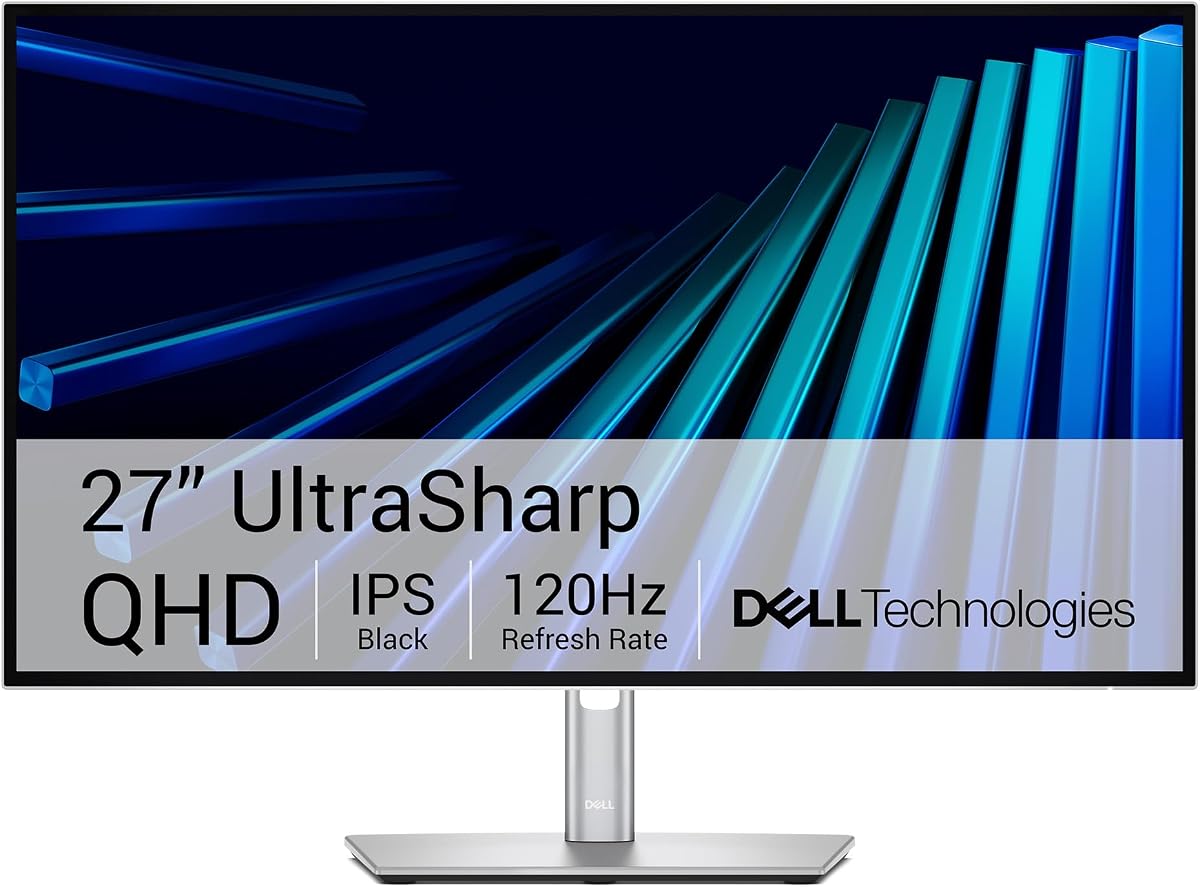
Dell UltraSharp U2726DER
5.0Editor score
98% Display P3 coverage
QHD workspace canvas
Built-in KVM switching
120Hz refresh rate
A MacBook Pro can deliver exceptional performance, but its built-in display may not provide the room, color depth, or ergonomic flexibility needed for demanding creative and professional work. The right external monitor can transform a laptop into a focused, comfortable workstation while preserving a clean desk and dependable connectivity.
This guide compares ten monitors using the specifications and product information supplied for each model. The list covers 4K and QHD resolution, IPS and VA panels, wide color gamuts, USB-C power delivery, refresh rates, HDR support, adjustable stands, built-in speakers, and Mac-oriented features such as P3 color tuning and ICC synchronization.
Each review explains the standout strengths, practical limitations, and ideal user for that particular display. The top selections range from a feature-rich 4K option to a color-focused premium model and a straightforward everyday monitor. Product configurations and prices can change, so confirm current specifications and availability before purchasing.
5.0Editor score

4.4Editor score

4.6Editor score
As an Amazon Associate we earn from qualifying purchases.
This side-by-side comparison highlights each monitor's resolution, panel technology, Mac connectivity, and strongest productivity or entertainment features.



The Dell S2725QC combines a sharp 4K IPS panel, a fluid 120Hz refresh rate, and convenient USB-C charging in one practical package. Its 4.4 rating reflects a balanced display that handles office work, creative applications, video, and gaming without specializing too narrowly in any one area. For many MacBook Pro owners, it is the most convincing all-around balance of features.
We may earn a commission when you buy through this link, at no additional cost to you.
Its single USB-C connection can carry video and data while delivering up to 65W of power, reducing cable clutter and simplifying desk changes. The 4K UHD resolution provides enough room for detailed documents, timelines, and side-by-side applications. IPS technology, 99% sRGB coverage, and a stated 1500:1 contrast ratio make it visually balanced for general productivity and content consumption.
The main limitation is color breadth. The S2725QC is not positioned as a high-end wide-gamut color monitor, so color-critical photographers or designers working in Adobe RGB may want a display with greater P3 or Adobe RGB coverage. Its 65W USB-C charging output also delivers less power than some premium alternatives, although it remains convenient for many MacBook configurations.
This monitor is a strong recommendation for MacBook Pro users who want one display for productivity, entertainment, and occasional gaming without assembling a complicated accessory bundle. The 120Hz rate and four-millisecond response time add fluidity, while USB-C simplifies the connection. It is the strongest general-purpose choice in this guide for the widest range of users.
Video, data, and up to 65W of charging travel over USB-C, making it convenient to connect a MacBook Pro with a single lead. The result is a tidier desk and a more repeatable transition between laptop and external display.
A 120Hz refresh rate and four-millisecond response time make scrolling, cursor movement, and general interface transitions feel more fluid. AMD FreeSync Premium also supports tear-free play when the connected system and game are compatible.
We may earn a commission when you buy through this link, at no additional cost to you.
The BenQ MA270UP is explicitly designed around the MacBook Pro and MacBook Air, with dedicated color tuning and keyboard-based display controls. Its 4.3 rating reflects a specialized 4K monitor that favors color workflow, charging convenience, and everyday Mac integration over gaming-oriented specifications. The result is especially compelling for Mac users who want the external screen to behave more like a natural extension of the laptop.
We may earn a commission when you buy through this link, at no additional cost to you.
BenQ's Mac Color Match and P3 wide color gamut are the defining features. Brightness and volume can be adjusted directly from the MacBook keyboard, while the dual USB-C ports support up to 90W of power delivery. The included connectivity also covers two HDMI connections, and the stand supports height, tilt, swivel, and pivot adjustments for a more comfortable workstation.
Its limitations center on media and enthusiast gaming rather than productivity. There is no high refresh rate or ultra-low response-time specification in the supplied data, so competitive gamers may prefer one of the faster displays here. Mac-specific controls can also depend on software and system compatibility, so buyers should confirm that their model and macOS version support the intended functions.
The MA270UP is ideal for MacBook Pro owners involved in photography, design, video, or general office work who value accurate P3-oriented color and straightforward laptop charging. It is less compelling for high-speed gaming, but for a polished, purpose-built Mac environment, it is one of the most thoughtful choices in the guide.
Exclusive color tuning and P3 coverage help the external display present a more Mac-oriented visual experience. Keyboard brightness and volume controls further reduce the need to reach for separate on-screen menus.
Two USB-C connections can deliver up to 90W while supporting a streamlined single-cable setup. Additional HDMI and USB hub connections make it easier to organize a desk that includes multiple accessories.
We may earn a commission when you buy through this link, at no additional cost to you.
The LG 27UP850K-W is a well-rounded 4K creative display with a 4.5 rating, up to 95% DCI-P3 color gamut expression, and DisplayHDR 400 support. It is particularly attractive to MacBook Pro users who handle photos, video, design work, and detailed productivity applications but do not need a gaming-first refresh rate.
We may earn a commission when you buy through this link, at no additional cost to you.
USB Type-C with up to 90W power delivery enables a clean laptop connection, while DisplayPort, two HDMI ports, two USB 3.0 ports, and a headphone jack provide room for a broader desk setup. The Switch app can divide the display into as many as six sections and offers shortcuts for common workspace actions, making the large 4K canvas easier to organize.
The monitor's built-in stereo speakers use Waves MaxxAudio, which is convenient for casual viewing, though they should not be confused with a dedicated audio system. HDR support is also tied to the capabilities of the connected MacBook Pro, its graphics output, and the displayed content. As with any color-critical display, the quality of the result depends on real-world calibration and application settings.
This LG is best for creative professionals and Mac users who prioritize 4K clarity, broad color, HDR compatibility, and convenient power delivery. It also suits multitaskers who will use the Switch app to divide the screen. For smooth competitive gaming, however, a faster monitor in this roundup would be a better match.
Up to 95% DCI-P3 expression supports more saturated color than a standard sRGB-focused display. Combined with 4K detail, it is well suited to photo review, design, and HDR-oriented media workflows.
The Switch app helps users divide the large workspace into multiple sections. USB-C charging, dual HDMI, DisplayPort, and USB hub connections support a practical mixed-device desk.
We may earn a commission when you buy through this link, at no additional cost to you.
The Dell S2425HSM is a compact 23.8-inch Full HD monitor whose major attraction is speed. With a 4.7 rating, a 144Hz refresh rate, 1ms Moving Picture Response Time, and AMD FreeSync support, it provides unusually fluid motion for a display in this category while also handling general office work and media.
We may earn a commission when you buy through this link, at no additional cost to you.
The 1500:1 contrast ratio and Full HD resolution offer crisp everyday visuals, while the high refresh rate improves cursor movement, scrolling, and gaming. Two integrated 3W speakers add basic audio without requiring desktop speakers. The stand can be adjusted for height, tilt, pivot, and swivel, which is a meaningful ergonomic advantage over many compact monitors with fixed supports.
The biggest compromise is pixel density. At 1920×1080, the screen offers less room for dense documents, timelines, and multiple application windows than the 4K and QHD alternatives here. The supplied specifications also do not list USB-C connectivity or charging, so MacBook Pro users may need a separate cable and charger or adapter.
The S2425HSM is an excellent choice for a compact desk, a MacBook Pro user who values motion smoothness, and anyone who wants an easy everyday monitor with good speakers and flexible positioning. It is less appropriate for color professionals or users who need high-resolution multitasking, but its speed and rating make it a particularly confident all-round compact choice.
The 144Hz refresh rate and 1ms MPRT create noticeably fluid movement for scrolling, interfaces, and games. FreeSync support helps synchronize the display and graphics output when the configuration is compatible.
A 23.8-inch panel is easier to position on compact desks, and the stand offers extensive adjustment. This makes the display more adaptable than compact models limited to basic tilt.
We may earn a commission when you buy through this link, at no additional cost to you.
The Philips 241V8LB is a straightforward Full HD monitor that delivers a surprising amount of everyday capability. Its 4.6 rating, 100Hz refresh rate, VA panel, and 16.7 million-color presentation make it a practical choice for students, office workers, and MacBook Pro users who want smoother motion and good contrast without a specialized feature set.
We may earn a commission when you buy through this link, at no additional cost to you.
The VA panel produces brighter whites and deeper blacks, while 178-degree viewing angles help maintain color consistency when looking from the side. A virtually bezel-free design on three sides gives the monitor a clean appearance and makes it easier to align with another display. EasyRead mode is especially helpful for long documents and extended reading sessions.
This model does not provide USB-C power delivery, so connecting it to a MacBook Pro generally requires the appropriate video cable and separate charging. It also lacks the wide-gamut claims and calibration features expected from a dedicated creative monitor. Its Full HD resolution is suitable for everyday work, though it is less spacious than a QHD or 4K screen.
The 241V8LB is an excellent general-purpose display for browsing, documents, communication, and casual gaming. It is especially well suited to users who prioritize value, smooth scrolling, deep-looking contrast, and eye-comfort features. It is not the first choice for color grading or a one-cable laptop setup, but it covers the essentials unusually well.
A 100Hz refresh rate gives routine navigation a more fluid feel than a standard 60Hz panel. The VA technology also supports deeper blacks and brighter whites for more dimensional everyday images.
EasyRead mode creates a more paper-like presentation for lengthy documents. Flicker-free operation further supports comfortable use during extended reading and office sessions.
We may earn a commission when you buy through this link, at no additional cost to you.
The LG 27US500-W brings a clean white design, 4K UHD clarity, and up to 90% DCI-P3 color gamut expression to a broad productivity audience. Its 4.4 rating makes it a strong option for MacBook Pro users who want a large, sharp display for documents, media, and general creative tasks.
We may earn a commission when you buy through this link, at no additional cost to you.
HDR10 support and wide viewing angles make the IPS panel suitable for detailed imagery and everyday content viewing. Onscreen Control provides a simple way to split the display and adjust basic options, while Reader Mode and Flicker Safe features add comfort during prolonged sessions. The supplied package includes an HDMI cable, power adapter, stand components, and setup documentation.
Compared with more Mac-specific models, it does not offer USB-C laptop charging, Mac-oriented color tuning, or a high refresh rate. Its ergonomic stand is also limited to tilt adjustment in the supplied information, which is less flexible than models supporting height, swivel, and pivot. A separate MacBook charging solution will be necessary.
The 27US500-W is a good fit for users who prioritize 4K sharpness, broad color, and understated styling over gaming speed or one-cable convenience. It works particularly well for office productivity, media consumption, and general design review. Those wanting more complete Mac integration should look toward a USB-C model.
The monitor focuses on sharp UHD output, wide color, HDR10, and straightforward controls. This makes it a versatile display for mixed productivity and entertainment use.
The white finish and borderless styling create a clean look that blends well with contemporary Mac-centered workspaces. Reader Mode and Flicker Safe add practical everyday comfort.
We may earn a commission when you buy through this link, at no additional cost to you.
The Dell UltraSharp U2726DER is the premium choice in this guide, combining a perfect 5.0 rating with 98% Display P3 coverage, factory calibration, a 120Hz refresh rate, and built-in KVM functionality. It is explicitly presented as an ideal Mac companion, making it especially relevant to MacBook Pro users who work across applications, devices, or color-sensitive projects.
We may earn a commission when you buy through this link, at no additional cost to you.
The 27-inch QHD canvas provides more space than a Full HD screen without reaching the physical size and power demands of a 4K display. Built-in KVM switching lets users move between two computers with one keyboard and mouse, which is valuable for a personal MacBook and a separate work system. The 98% Display P3 coverage and factory calibration favor creative precision.
QHD resolution is the main distinction from the 4K models in this list. Users who need to display very dense timelines, many code windows, or large spreadsheets may prefer a 4K panel, even at the cost of higher resolution. The premium positioning also means this is not the most budget-conscious route to a large external display.
The U2726DER is the strongest recommendation for a serious Mac-centered workspace where color quality, KVM convenience, and smooth motion all matter. It is particularly well suited to developers, designers, photographers, and executives. Its Mac testing and P3 support reinforce its role as a premium companion for a MacBook Pro.
Factory calibration and 98% Display P3 coverage support accurate photo, video, and design work on macOS. The display is presented as tested with Mac devices, making that compatibility more than a generic specification.
Built-in KVM switching helps MacBook Pro owners who also use a second machine. A shared keyboard and mouse streamline movement between a personal setup and work system.
We may earn a commission when you buy through this link, at no additional cost to you.
The BenQ PD2706QN is a color-focused QHD monitor built for creators who value consistency as much as raw resolution. Its 4.5 rating, 95% P3 coverage, 100% sRGB/Rec.709 support, and average Delta E of no more than two show that it is designed to maintain accurate color both in the factory and across working environments.
We may earn a commission when you buy through this link, at no additional cost to you.
ICCSYNC is particularly relevant to Mac users because it automatically matches and synchronizes ICC profiles between the Mac and monitor when color modes change. A 90W USB-C connection carries images, video, and data while charging the laptop. The anti-glare Nano Matte surface diffuses ambient light, helping preserve contrast and reduce reflections during long design sessions.
Its QHD resolution is less expansive than a 4K panel, and some users may prefer 4K for very detailed timelines or extensive side-by-side windows. The monitor supports 100Hz motion rather than the highest refresh rates available elsewhere in this guide. MST daisy chaining is useful for multi-display setups but requires suitable devices, cables, and configuration.
The PD2706QN is ideal for designers, photographers, video editors, and MacBook Pro users who want accurate color, convenient charging, and a matte working surface. It is less appropriate when maximum pixel density is the overriding priority. Within QHD, however, its color controls and ergonomic design make it a particularly professional choice.
Factory calibration, a stated average Delta E of no more than two, and ICC profile synchronization support dependable color matching. These features are especially useful when moving between a MacBook display and an external monitor.
The Nano Matte finish reduces distracting reflections while preserving perceived color and contrast. Height, tilt, swivel, and pivot adjustments allow the display to be positioned comfortably for sustained work.
We may earn a commission when you buy through this link, at no additional cost to you.
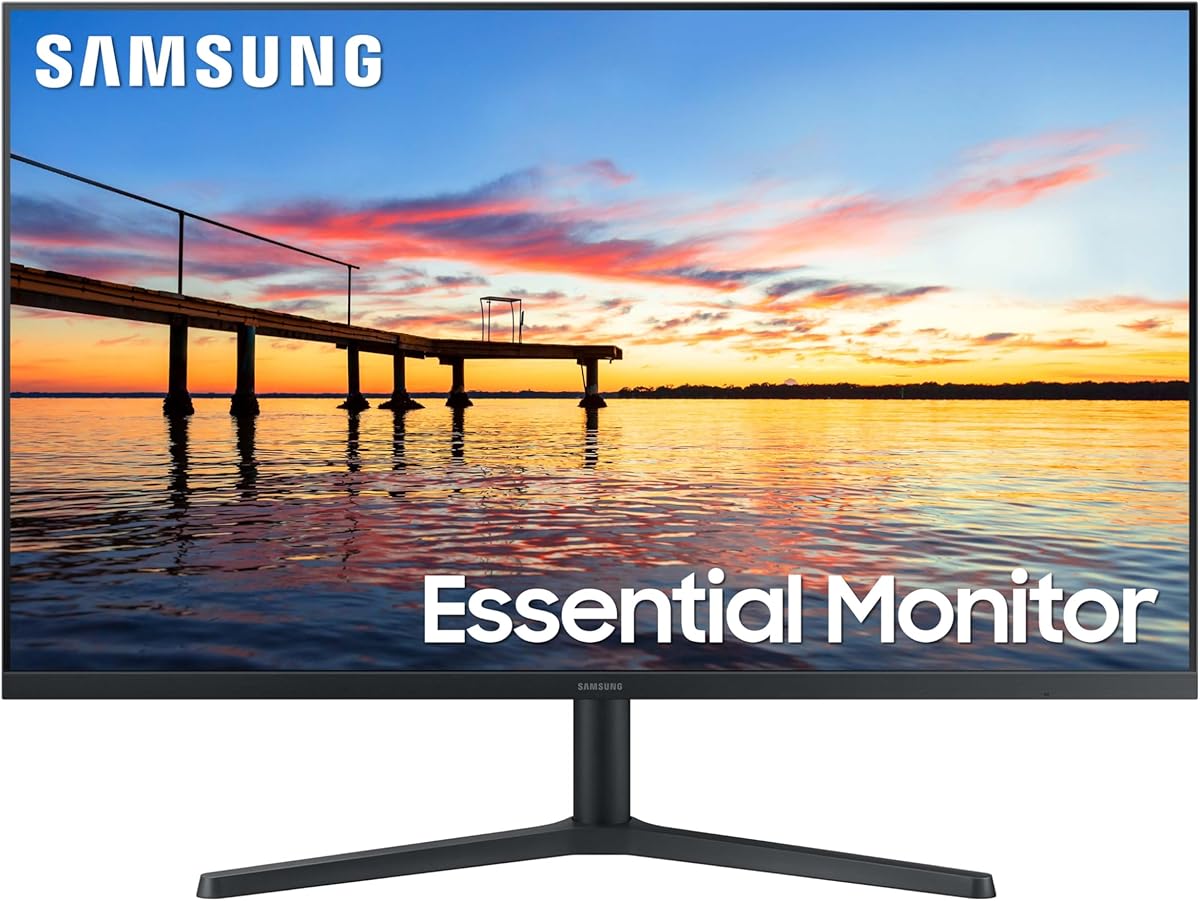
The Samsung 32-inch Flat monitor is built around the appeal of a large screen, making it a practical option for MacBook Pro users who routinely keep several windows visible. Its 4.5 rating, three-sided borderless design, and 75Hz refresh rate create a useful mix of workspace capacity, smooth motion, and understated appearance.
We may earn a commission when you buy through this link, at no additional cost to you.
A three-sided borderless display allows two units to align with very little visual interruption, which is useful for side-by-side productivity. AMD FreeSync synchronizes the refresh rate with a compatible graphics source to reduce image tearing, while Game Mode adjusts display settings for more immersive game presentation.
The 75Hz rate is modest next to several 100Hz, 120Hz, and 144Hz alternatives here. It also does not offer a high-resolution specification in the supplied information, so pixel density may be less ideal for close-up creative editing. No USB-C charging is listed, and MacBook Pro owners will need to account for separate charging and compatible video connectivity.
This Samsung is a good choice for spreadsheets, research, communication, monitoring windows, and large media viewing. Its expansive canvas and narrow-border design also make it useful in a dual-monitor arrangement. It is best for general productivity rather than competitive gaming or color-critical professional work.
A 32-inch screen gives documents, browser tabs, and communication apps more room to coexist. The larger canvas can reduce frequent window switching when compared with a 24-inch display.
The narrow three-sided bezel helps adjacent screens appear more continuous. This makes the display especially attractive for users building a large MacBook-based dual-screen workspace.
We may earn a commission when you buy through this link, at no additional cost to you.
The LG 27U631A-B is a balanced QHD monitor for users who want more workspace than Full HD without moving to a demanding 4K setup. It combines IPS viewing angles, a 100Hz refresh rate, HDR10 support, up to 99% sRGB coverage, and a 4.3 rating, making it a versatile choice for general MacBook Pro productivity and media use.
We may earn a commission when you buy through this link, at no additional cost to you.
A five-millisecond GTG response time supports fluid movement, while the 27-inch QHD panel provides a useful balance of screen area and manageable dimensions. The Switch app can split the screen into up to six sections, helping users organize dense work. Reader Mode, Flicker Safe, Black Stabilizer, and Dynamic Action Sync add practical options for reading and entertainment.
The main limitation is USB-C power delivery. At up to 15W, it can charge a phone or another low-power device but will not meaningfully power a MacBook Pro. Mac users will therefore still need the laptop's charger during extended sessions. The display also does not claim the wide P3 coverage or factory calibration found on higher-end creative models.
The 27U631A-B suits students, office professionals, and general creators who want a smooth, sharp QHD screen with useful multitasking software. It is a better fit for everyday productivity than color-critical media work, and its modest USB-C output should be considered carefully. Within that limitation, it is a capable and versatile display.
The 2560×1440 panel offers more room than Full HD while remaining a practical size for many desks. A 100Hz refresh rate and five-millisecond response keep everyday navigation smooth.
The Switch app divides the display into customizable sections and supports common workspace shortcuts. It is a convenient way to take advantage of the extra QHD canvas without constantly overlapping windows.
We may earn a commission when you buy through this link, at no additional cost to you.
The right MacBook Pro monitor depends on how you work, how much power your laptop needs, and whether color accuracy, resolution, or smooth motion matters most. Consider these factors before choosing a display.
A USB-C connection that carries video, data, and charging can dramatically simplify a MacBook Pro desk. Look for a monitor with a single full-function USB-C port, confirm its supported charging wattage against the power requirements of your particular MacBook Pro configuration, and verify whether the display also includes a USB hub. Models offering 65W to 90W provide a much more complete one-cable experience than monitors with low-power USB-C output.
Full HD provides a familiar amount of space and works well for basic office use, while QHD offers a meaningful increase in desktop area without the extreme pixel density of 4K. A 27-inch 4K display is ideal for detailed documents, timelines, code, and multitasking, but it may require macOS scaling to keep text and controls comfortable. Consider both resolution and panel size rather than treating one number as automatically better.
MacBook Pro displays often handle a broad color range, so the external monitor should not narrow that experience unnecessarily. Look for P3 or DCI-P3 coverage, factory calibration, and a stated Delta E figure when color accuracy matters. For photography and design, confirm that the monitor supports the required working space and consider whether an ICC profile synchronization feature is useful for matching the laptop and external display.
A higher refresh rate makes cursor movement, scrolling, animation, and games appear smoother. Models at 100Hz or above are more versatile for mixed work and entertainment, while 120Hz and 144Hz options provide additional headroom for motion. Response time matters most in fast games, where a low MPRT or GTG figure can reduce visible trailing. Creative professionals may prioritize color and resolution instead.
A monitor that cannot be positioned well can undermine even an impressive display. Height adjustment is especially important because it allows the top of the screen to align near eye level. Tilt, swivel, and pivot further help reduce neck and shoulder strain and make it easier to share a screen. For a 32-inch display, pay closer attention to depth and viewing distance because a larger screen can cause eye movement even when the resolution is adequate.
A 4K or high-resolution panel on macOS can make default text and controls appear tiny, while a Full HD screen can feel less spacious on a 27-inch display. Test the intended resolution and scaling setting before committing. The ability to divide the screen through onscreen software is useful, but it cannot fully replace a display with enough physical pixels for demanding multitasking.
HDR support can add impact to supported media, but peak brightness, tone mapping, and the MacBook's own capabilities all influence the result. IPS panels are favored for stable viewing angles and general creative work, while VA panels can provide deeper blacks and stronger contrast. A matte coating can reduce reflections in bright rooms, while a glossy or semi-gloss surface may appear more vivid in controlled lighting.
Built-in speakers can handle calls, system sounds, and casual video viewing without taking up desk space, though they rarely replace dedicated speakers for music or film. Other useful extras include a headphone output, adjustable volume, KVM switching, screen-splitting software, and reader or eye-comfort modes. Prioritize the features you will use daily, because each additional function adds value only when it fits your workflow.
Begin by connecting the MacBook Pro with the monitor's supported video cable, preferably a full-function USB-C cable if the display provides power delivery. macOS should recognize the external display automatically, and you can use the system settings to choose a resolution, refresh rate, color profile, and arrangement of displays. Before editing, check the displayed resolution and scaling option rather than assuming the screen is using its native mode.
For color work, install the monitor's management software if one is supplied, select the appropriate color profile, and allow the display to warm up. The Switch app on applicable LG models, ICC profile synchronization on the BenQ PD2706QN, and Dell Display and Peripheral Manager on compatible Dell displays can improve setup consistency. Keep system brightness separate from monitor brightness, and use a neutral reference when color accuracy is critical.
Care for the display by cleaning it with a soft, lint-free microfiber cloth and avoiding liquid cleaners directly on the panel. Keep vents unobstructed, use a stable base, and adjust the stand gradually rather than forcing the hinge. For USB-C charging, use a cable and power supply rated for the monitor's supported output, and avoid leaving excess cable tension attached to the connector.
Yes, most modern monitors work with a MacBook Pro through USB-C, DisplayPort, or HDMI, provided the connection and resolution are supported. The main difference is convenience: a USB-C monitor can also carry data and charge the laptop, while DisplayPort and HDMI usually require separate charging. macOS will scale the image to the selected resolution, so checking the native setting is important.
A 27-inch 4K monitor offers the most detailed canvas and is well suited to code, timelines, documents, and multiple windows. A 27-inch QHD display offers a more manageable balance of space, size, and power requirements, while Full HD is adequate for basic productivity. The best resolution depends on screen size, viewing distance, operating system scaling, and whether the display is primarily used for work or entertainment.
Only if the USB-C port supports DisplayPort Alt Mode and power delivery, and the charger output is sufficient for the selected MacBook Pro configuration. A monitor offering 65W to 90W is generally more capable of sustaining a laptop during extended use. Displays with only 15W USB-C power are better viewed as accessory-charging ports and will not replace the laptop's primary charger.
It is especially useful for photo, video, and design workflows because it can display a broader range of saturated color than a standard sRGB monitor. General productivity and entertainment may not require it, but broad gamut coverage can be valuable if you regularly compare colors with the MacBook's own display. Factory calibration and accurate ICC profile management matter as much as the headline gamut percentage.
Both provide smoother scrolling, cursor movement, and animation than a 60Hz panel. A 120Hz display often balances responsiveness with everyday productivity, while 144Hz offers a larger margin for fast games. If your work is mainly documents, browsing, and creative applications, the difference may be subtle; if you play competitive games, the faster option is more worthwhile.
It can when the monitor has a compatible full-function USB-C port that supports video, data, and charging. That single connection can replace separate display and charging cables, which is especially helpful for a movable laptop setup. If the monitor relies on HDMI or DisplayPort, or its USB-C port does not provide enough power, you will need additional cables and the laptop's charger.
HDR is helpful for editing and viewing HDR material, but it is not essential for every creative workflow. A wide-gamut monitor with accurate calibration can be more important for conventional photo and video work. MacBook Pro hardware, application support, and the chosen viewing mode also affect whether HDR improves the result or simply changes how ordinary content appears.
A 24-inch model is convenient for a compact desk, while 27 inches offers a strong balance of workspace area and manageable physical size. A 32-inch display is useful for spreadsheets, research, monitoring tools, and video calls because more can remain visible at once. Larger screens should be placed farther away, and 4K resolution becomes increasingly useful at 27 inches and above.
The Dell S2725QC is the most balanced overall option, combining 4K detail, 120Hz motion, IPS color, and 65W USB-C connectivity. The Dell UltraSharp U2726DER takes the premium route with 98% Display P3 coverage, factory calibration, KVM switching, and smooth 120Hz performance, while the Philips 241V8LB delivers the most straightforward everyday value at Full HD and 100Hz.
Mac-specific priorities can change the ideal choice. The BenQ MA270UP is attractive for P3-oriented Mac workflows and keyboard brightness and volume controls, while the BenQ PD2706QN adds calibration, ICC synchronization, and a Nano Matte surface. For 4K creative productivity, the LG 27UP850K-W is especially well equipped, and the LG 27U631A-B offers a balanced QHD alternative with convenient screen splitting.
Before making a final purchase, verify the current specifications, port layout, macOS scaling behavior, and power requirements of your particular MacBook Pro. Product configurations and prices can change over time, so check the latest listing and warranty details. The best monitor is ultimately the one that matches your resolution, color, charging, and ergonomic needs without paying for features you will never use.
