
LG 32U990A-S UltraFine 6K
3.9Editor score
6K resolution and 224 PPI
Up to 99.5% Adobe RGB
DisplayHDR 600 and 10-bit color
A monitor for retouching should make color decisions easier, preserve subtle tonal detail, and provide enough resolution to inspect everything from skin texture to fine edges. The right display depends on panel technology, color gamut, calibration, contrast, brightness, and whether your workflow prioritizes photography, video, or both.
This guide compares ten monitors using their published specifications and stated features. It covers models suited to different creative budgets and requirements, including OLED and IPS displays, 4K and 6K resolution, high-refresh gaming panels, HDR capability, ergonomic stands, and USB-C connectivity.
Each selection highlights the characteristics that matter most to a retoucher and the compromises that potential buyers should understand. Product ratings provide an additional reference, but the guide prioritizes the evidence and practical value of each display. Prices and promotions can change, so verify current listings before purchasing.
3.9Editor score

4.4Editor score
4.5Editor score
As an Amazon Associate we earn from qualifying purchases.
The comparison below places each candidate according to the attributes that most directly affect retouching: pixel density, color coverage, tonal performance, HDR capability, motion, and connectivity. The short specifications make the differences easy to assess without overlooking the compromises of any given model.




The ASUS ROG XG27AQDMGR combines a glossy WOLED panel, QHD resolution, and a 240Hz refresh rate in a package that is unusually compelling for image retouching. Its 4.6 rating reflects strong customer satisfaction, while the stated 99% DCI-P3 coverage, true 10-bit color, and Delta E below two make it particularly relevant to color-sensitive work.
We may earn a commission when you buy through this link, at no additional cost to you.
Color reproduction is the central benefit. A broad DCI-P3 gamut gives retouchers more room to work with saturated tones, while the stated Delta E result suggests that the display should reproduce reference colors closely. True 10-bit output can also produce smoother gradients than an 8-bit panel, helping reduce visible banding when adjusting skies, skin, clothing, and other nuanced areas.
The glossy surface deserves careful consideration. It can appear vivid and high-impact under suitable lighting, but it may reflect external light sources more conspicuously than an AG-coated or matte display. At QHD, the 26.5-inch screen also provides less physical detail than a 4K or 6K monitor, so retouchers who routinely inspect pixels may find a higher-resolution panel preferable.
This is a strong overall choice for a creator who wants rich color, excellent motion, and a high-refresh display without moving to a 4K professional panel. It suits photo retouching, motion work, and a gaming-oriented editing setup. For macro photography, very large prints, or meticulous pixel-level work, however, the ASUS ProArt or LG UltraFine offers more resolution.
The combination of 99% DCI-P3 coverage and true 10-bit color is especially useful for gradients, rich saturation, and tonal transitions. It gives a retoucher a broad digital canvas, although real-world results still depend on lighting, software settings, and calibration.
ASUS OLED Care Pro and its Neo Proximity Sensor can switch the display to a black screen when the user leaves, helping reduce burn-in risk. DisplayWidget Center also makes frequently used settings and protection functions easier to reach with a mouse.
We may earn a commission when you buy through this link, at no additional cost to you.
The Samsung Odyssey OLED G6 earns the highest listed rating in this group at 4.7, reflecting a particularly well-received feature set. Its QD-OLED panel, QHD resolution, 240Hz refresh rate, and 0.03ms response time give retouchers a fast display that can also handle demanding interactive work.
We may earn a commission when you buy through this link, at no additional cost to you.
Pantone validation is the most useful creative-work detail. The stated support for more than 2,100 lifelike colors and over 110 skin-tone shades indicates attention to color reproduction, while HDR10 adds brighter highlights and nuanced shadows. Glare Free technology is also helpful in bright rooms because it is designed to minimize reflections from external light.
The trade-off is that QD-OLED panels benefit from sensible burn-in management. Samsung's OLED Safeguard technology uses thermal modulation to help protect performance, but users should still avoid leaving static imagery onscreen for excessive periods and should take advantage of screen savers or sleep functions when appropriate. QHD is comfortable for general editing but does not offer the pixel density needed for some fine-detail workflows.
Choose the Odyssey OLED G6 when smooth playback, quick navigation, rich contrast, and validated color matter more than 4K density. It is particularly attractive to retouchers who also game or edit motion content. Professionals zooming deeply into very large photographs may favor the 6K LG UltraFine or 4K ASUS ProArt instead.
The reported coverage of more than 110 skin-tone shades makes this display appealing for portrait and commercial retouching. Pantone validation does not replace a calibration workflow, but it provides a useful starting point for judging whether tones appear natural and repeatable.
A 240Hz refresh rate and 0.03ms response time produce very fluid navigation through large image libraries and editing timelines. AMD FreeSync Premium also supports tear-free playback when the system is compatible.
We may earn a commission when you buy through this link, at no additional cost to you.
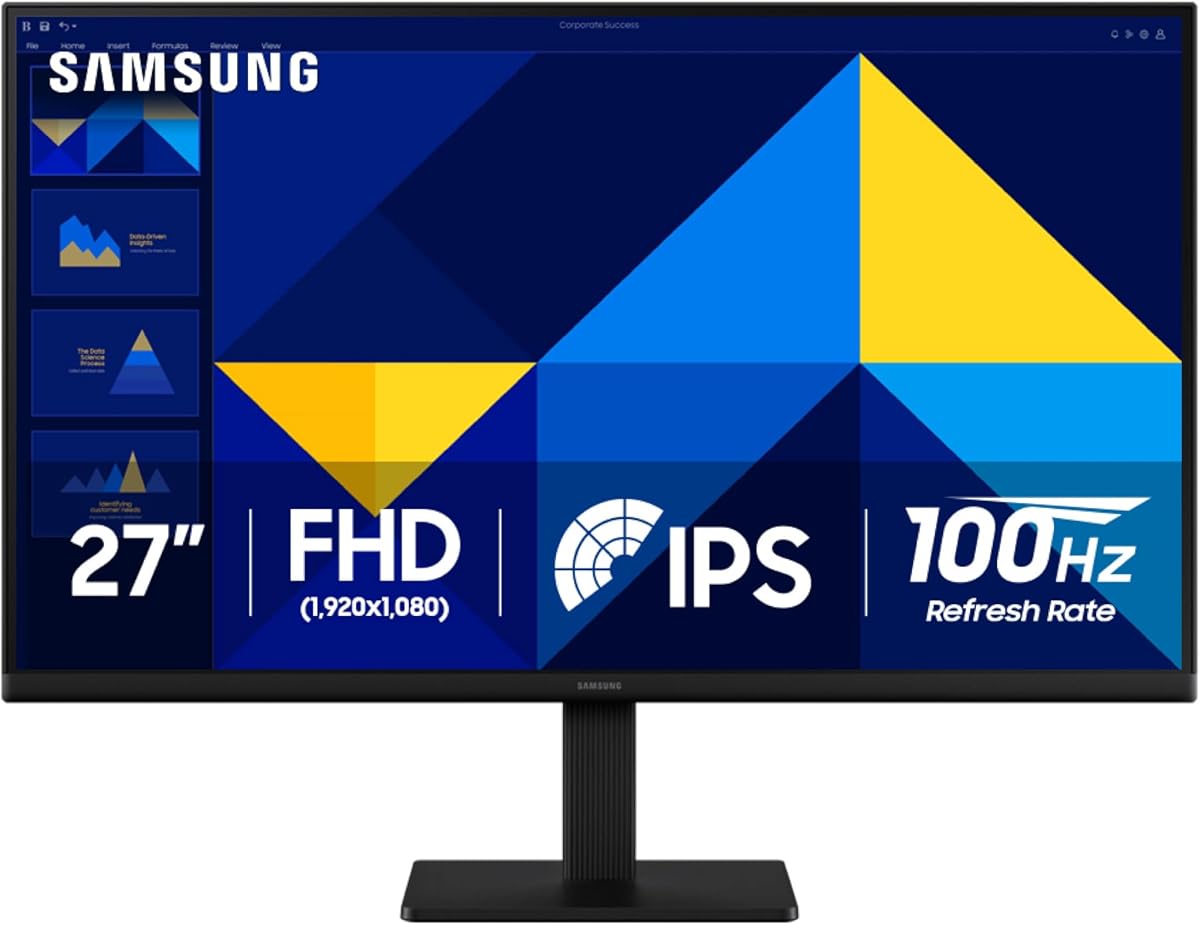
The Samsung 27-inch S30GD is the most approachable choice in this guide, combining an IPS panel with a 100Hz refresh rate in a slim, modern design. Its 4.5 rating suggests broad appeal, and the monitor's stated color consistency makes it a sensible starting point for students, hobbyists, and new retouchers.
We may earn a commission when you buy through this link, at no additional cost to you.
IPS technology is valuable because colors are described as remaining bright and clear even when viewing angles change. That characteristic helps when using application windows, reference images, and editing panels side by side. Reduced blue light and screen flicker are also useful for long work sessions, while Game Mode can make darker scenes more visible without requiring every project to use the same display preset.
The supplied specifications do not state a specific sRGB, DCI-P3, Adobe RGB, or calibration result. That makes the S30GD harder to recommend for color-critical paid work than the ASUS ProArt or LG UltraFine. Its screen resolution is also lower, so retouchers working on very high-resolution originals may prefer more pixel density even if the initial outlay is larger.
The S30GD is most appropriate for learning, general photo cleanup, e-commerce edits, and less exacting color decisions. It offers a modern IPS experience without the feature cost of a professional panel. As a first dedicated editing monitor, it is sensible; for a demanding commercial studio, calibration specifications and a higher-resolution screen should take priority.
IPS panels are often favored for their stable off-axis color. The S30GD specifically emphasizes consistent tones and reduced color washing, which can make split-screen reference work more practical.
The super-slim frame and ultra-thin side bezels give the monitor a clean appearance, while reduced blue light and flicker controls support comfortable editing sessions. Its modest 100Hz rate also makes routine navigation feel less distracting.
We may earn a commission when you buy through this link, at no additional cost to you.
The Samsung ViewFinity S7 pairs a 27-inch 4K UHD IPS display with HDR10, making it a strong middle ground between ordinary productivity screens and high-end professional monitors. Its 4.6 rating indicates solid user reception, and 3840 by 2160 resolution gives retouchers substantially more usable detail than a QHD panel.
We may earn a commission when you buy through this link, at no additional cost to you.
The high pixel density is particularly helpful when a photograph is opened at a meaningful magnification. Fine edges, hair strands, and small texture corrections become easier to judge, while the extra resolution allows reference panels and toolbars to remain visible. The stated support for more than one billion colors, darker blacks, and brighter highlights adds useful latitude when evaluating an HDR image.
One consideration is that the product data does not mention factory calibration, a Delta E rating, or a specific Adobe RGB or DCI-P3 percentage. These omissions do not mean the display is inaccurate, but they provide less documented evidence for critical color work. At 27 inches, macOS and some creative applications may also require interface scaling to keep menus and text comfortable.
The ViewFinity S7 is well suited to retouchers who want 4K sharpness and HDR capability at a less specialized level than the ProArt or LG UltraFine. Choose it when resolution, productivity, and eye comfort are priorities and when you are prepared to verify or calibrate color for demanding assignments.
The 4K UHD panel makes zoomed inspection more informative and provides room for complex editing interfaces. Compared with QHD, it also makes better use of a modern high-resolution workspace.
HDR10 provides brighter highlights and darker shadows, giving retouchers a broader range for judging contrast. The screen should still be configured for the intended output rather than used with an arbitrary HDR preset.
We may earn a commission when you buy through this link, at no additional cost to you.
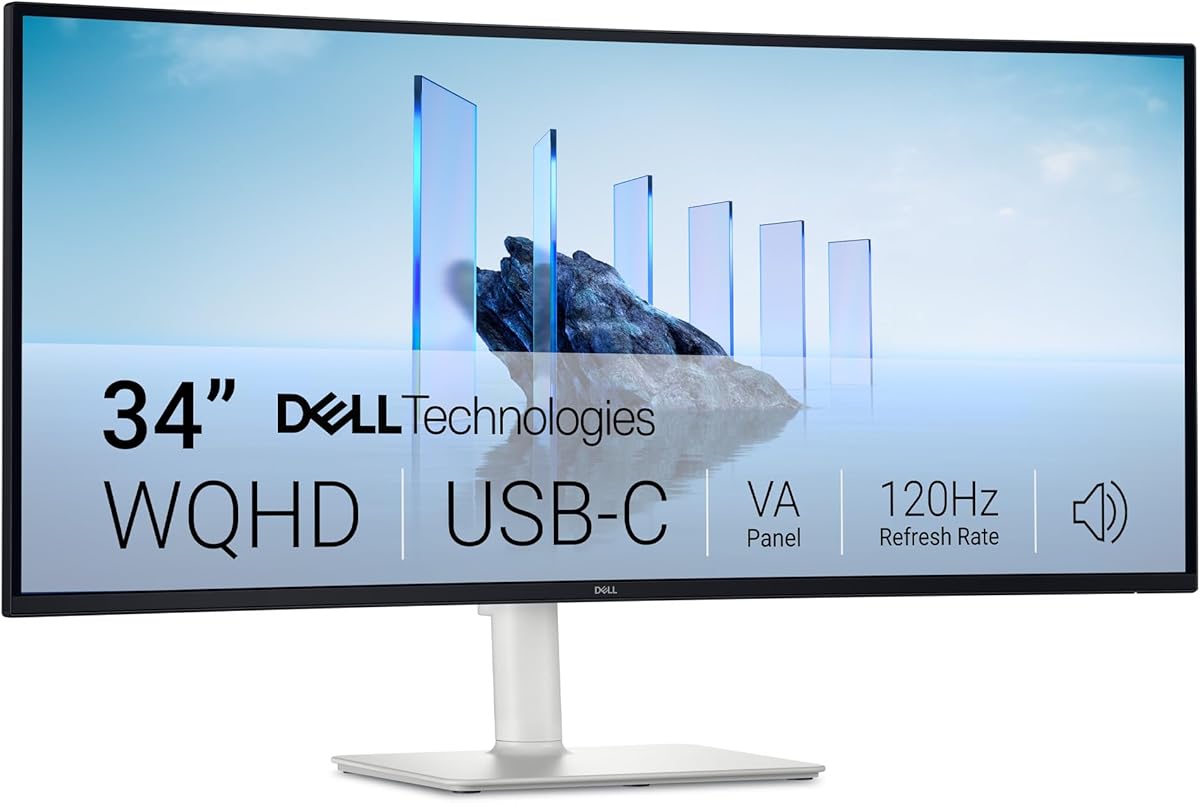
The Dell 34-inch S3425DW is designed for users who want more horizontal workspace than a standard 27-inch monitor. Its WQHD VA panel, 120Hz refresh rate, 99% sRGB coverage, and 95% DCI-P3 gamut make it an interesting option for retouchers who work across a wide timeline, multiple references, or detailed side-by-side panels.
We may earn a commission when you buy through this link, at no additional cost to you.
The headline advantage is physical workspace. At 34 inches, a full-resolution image can sit beside adjustment panels without forcing constant window rearrangement. A stated 3000:1 contrast ratio can give the VA panel deeper blacks and more dimensional imagery than many IPS alternatives, which may help when evaluating shadow detail or dark scenes.
The trade-off is motion handling and native resolution. Its 0.03ms response specification is attractive on paper, but VA panels can exhibit visible smearing in dark transitions; the published information does not establish otherwise. WQHD across 34 inches also yields fewer pixels per inch than a 4K display of a similar size, so extreme pixel inspection is not the primary strength of this model.
Buy the S3425DW for a wide, organized editing workspace and convenient USB-C connectivity, especially if you regularly work with video or compare several assets. For a photographer who needs to judge very fine print detail, a 4K or 6K model is the more logical choice.
The 34-inch format can accommodate an image, histogram, layers, and reference material at the same time. This reduces window juggling and can make iterative color and detail adjustments more efficient.
USB-C connectivity with up to 65W power delivery can simplify a laptop-based editing setup. The reduced cable clutter leaves more room for the monitor's broad work area and peripherals.
We may earn a commission when you buy through this link, at no additional cost to you.
The LG 32U990A-S UltraFine is the specialist choice for professionals who need exceptional detail and broad color coverage. Its 6K resolution, 224 PPI, Nano IPS Black technology, and claimed 99.5% Adobe RGB coverage make it one of the most technically ambitious displays in this guide. The 3.9 rating is the lowest listed here, but specifications and intended professional use remain central to the decision.
We may earn a commission when you buy through this link, at no additional cost to you.
At 6144 by 3456, the display packs over 21 million pixels into a 32-inch panel. That density allows a full-resolution image to remain sharp while leaving editing interfaces visible, which is a major advantage for retouchers who alternate between global adjustments and extremely localized corrections. Real 10-bit color and broad Adobe RGB support further strengthen its suitability for demanding color workflows.
Its 60Hz refresh rate is the clearest compromise. It remains perfectly suitable for still-image editing and many professional workflows, but it will not satisfy someone who wants the extremely fluid navigation of a 240Hz or 300Hz gaming display. The product also carries a significant specification level, making the total cost of ownership a consideration beyond the initial purchase.
Choose this LG when resolution, color space, shadow quality, and a professional multi-device workflow matter more than high-refresh motion. It is a compelling monitor for advanced photo work, 6K video, 3D, and reference-heavy retouching. Those wanting a more conventional refresh rate can look toward the ASUS ProArt for a more balanced professional configuration.
Coverage of up to 99.5% Adobe RGB, 98% DCI-P3, and real 10-bit color gives the display a wide working envelope. The claimed 2000:1 contrast ratio also helps preserve shadow definition, an important consideration when dark retouching decisions are being made.
Thunderbolt 5 provides high-speed transfer, 96W power delivery, and daisy-chain support. Multiple DisplayPort, HDMI, and USB Type-C options make the monitor suitable for both Mac and Windows workstations.
We may earn a commission when you buy through this link, at no additional cost to you.
The ASUS TUF VG27AQM5A is primarily a gaming display, but its Fast IPS panel and 95% DCI-P3 coverage make it relevant to retouchers who want extremely fluid performance and a wide color gamut. Its 300Hz refresh rate is the highest in this list, and the 4.4 rating indicates that the overall package is well received.
We may earn a commission when you buy through this link, at no additional cost to you.
The 0.3ms minimum gray-to-gray response and ELMB Sync support are designed to reduce ghosting during fast motion. For editing, that responsiveness can make scrubbing, zooming, and navigating dense project files feel immediate. Shadow Boost is another potentially useful feature because it brightens dark areas without overexposing highlights, although it should be applied cautiously when judging shadow detail.
As a creative display, it has clear limitations. No factory-calibration accuracy, Adobe RGB coverage, or hardware calibration information is provided. Its QHD panel also offers only about 3.7 million pixels, which is less than half the pixel count of a 4K screen and far below the LG's 6K resolution. Accurate output also depends on how the display is set and calibrated.
The TUF VG27AQM5A is best for a retoucher who also games competitively or wants a wonderfully responsive screen without moving beyond QHD. For color-critical photography, choose the ASUS ProArt; for maximum detail, the LG UltraFine is the stronger fit.
Fast IPS technology and a 0.3ms minimum response keep movement clean enough for fluid navigation. This is particularly noticeable in large catalogs, zoomed canvases, and timeline-heavy applications.
The stated 95% DCI-P3 coverage is useful for digital creation and more saturated media than a basic office display. Calibration remains important if the monitor will serve as a final color reference.
We may earn a commission when you buy through this link, at no additional cost to you.
The Samsung ViewFinity S6 combines QHD resolution with a 100Hz refresh rate and an adjustable stand, offering a practical middle ground for everyday retouching. Its 4.3 rating is solid, and the combination of QHD detail, eye comfort features, and ergonomic adjustments makes it easy to live with during long editing sessions.
We may earn a commission when you buy through this link, at no additional cost to you.
At 2560 by 1440, the display provides enough density for general photo cleanup, product work, and manageable side-by-side panels. A 100Hz refresh rate reduces lag and motion blur compared with conventional office monitors, making cursor movement and canvas navigation more comfortable. TÜV-certified eye comfort technology also targets the strain associated with extended screen use.
The supplied information does not identify the panel type, color gamut, contrast ratio, or calibration accuracy. Those omissions make it difficult to compare this monitor directly with the ProArt and LG on professional color specifications. While the stated features are useful, a color-critical buyer should investigate the full technical sheet and manufacturer documentation before treating it as a reference display.
The ViewFinity S6 is a good choice for a general-purpose creative workstation where an ergonomic setup matters. It is especially appropriate for hybrid office and editing roles, students, and users who want a clear QHD workspace without moving to a high-refresh gaming display.
Height, tilt, and pivot adjustments help position the screen at a comfortable height and angle. This is especially valuable for photo retouchers who spend hours comparing skin tones, edges, and small tonal differences.
A 100Hz refresh rate is a practical upgrade for interface fluidity without moving into extreme gaming specifications. Game Mode provides an additional option for clearer scenes when needed.
We may earn a commission when you buy through this link, at no additional cost to you.
The AOC Q27G41ZE delivers a 240Hz refresh rate through DisplayPort, with the model name indicating support for overclocking up to 260Hz. Its 4.6 rating is strong, and the combination of an IPS panel, 300-nit brightness, and 1000:1 contrast ratio gives it a more defined visual specification than many entry-level gaming displays.
We may earn a commission when you buy through this link, at no additional cost to you.
Adaptive-Sync support across AMD and NVIDIA GPUs can produce fluid motion with minimal tearing when the graphics card and settings are configured correctly. The 0.3ms MPRT figure, wide viewing angles, and QHD resolution also help make the monitor useful for detailed general creative work. Shadow Control and Game Mode presets provide additional ways to reveal dark detail.
The stated 300-nit brightness is not exceptional for judging HDR or displaying very bright images, and no factory calibration or broad gamut target is given. QHD resolution again limits fine pixel inspection. These characteristics make the monitor better as a responsive hybrid display than as a dedicated color reference for premium photo or video finishing.
Choose the Q27G41ZE when you want a high-refresh QHD screen for gaming and regular editing. It is a strong value-oriented option for retouchers who value motion clarity and modern styling, while professionals requiring validated color should look to the ASUS ProArt, LG UltraFine, or a calibrated workflow.
Support for both AMD and NVIDIA systems adds flexibility to a mixed hardware environment. Correct in-game synchronization settings are still necessary to gain the intended tear-free result.
The 2560 by 1440 panel is suitable for everyday retouching, web graphics, and video work. A three-sided frameless design gives the monitor a clean appearance without overwhelming a compact desk.
We may earn a commission when you buy through this link, at no additional cost to you.
The ASUS ProArt PA279CV is the most straightforward professional choice for a retoucher who prioritizes documented color accuracy, 4K detail, and convenient connectivity. Its 4.4 rating reflects a generally positive reception, while Calman Verified factory calibration and a stated Delta E below two provide stronger evidence of color performance than most general-purpose alternatives.
We may earn a commission when you buy through this link, at no additional cost to you.
Full coverage of 100% sRGB and 100% Rec. 709 is appropriate for web, print, and video workflows, and 4K UHD resolution makes close inspection much more practical. USB-C power delivery at 65W, DisplayPort, HDMI, and a USB 3.1 hub create a clean one-cable workflow for compatible laptops while retaining options for desktop systems.
The product data includes an inconsistency that should be checked: one supplied description line refers to a 23.8-inch Full HD display, while the product title identifies a 27-inch 4K UHD model and the rest of the features describe a professional 4K display. Buyers should confirm the panel specification on the current listing. The stated information also does not specify Adobe RGB coverage or an HDR rating, so the ProArt is better suited to sRGB and Rec. 709 work than broad Adobe RGB mastering.
Buy the PA279CV for calibrated sRGB editing, 4K detail, and a professional USB-C workflow. It is a sensible first serious creative monitor and an easier choice for many studios than a 6K specialist display. The included three-month Adobe Creative Cloud offer and extended warranty add practical value, subject to the stated offer conditions.
Calman Verified calibration and a stated Delta E below two indicate that color accuracy was a design priority. For professional work, confirm that the display remains within the expected tolerance and use a proper monitor profile.
USB-C with 65W power delivery, DisplayPort, HDMI, and a USB 3.1 hub provide a flexible connection structure. That makes the monitor convenient for laptops and desktop-based editing environments.
We may earn a commission when you buy through this link, at no additional cost to you.
The right retouching monitor should make accurate edits easier, not merely look impressive. Resolution, color capability, tonal performance, and calibration are the primary considerations, while connectivity, ergonomics, motion, and panel maintenance determine how comfortably the display fits into a real creative workflow.
Choose a display with documented coverage in the spaces you actually use, and verify the result with a colorimeter if the work is paid and color-critical.
For frequent close inspection, favor 4K or 6K. For standard editing and smaller budgets, a good QHD panel can still be highly productive.
Use IPS for dependable consistency, VA for deep contrast, and OLED when speed and dramatic HDR-like imagery matter more than matte surfaces and simple maintenance.
Choose HDR for a genuine high-dynamic-range workflow. Otherwise, prioritize a well-calibrated SDR image and accurate shadow rendering first.
Prioritize refresh rate for video, animation, and gaming. For static photo work, accurate color and enough resolution remain more important.
Match the display's video standard, power delivery, hub, and refresh-rate limits to your computer. A convenient port is valuable only when it supports the intended workflow.
Adjustability should be part of the buying decision. A display that supports your posture is more likely to remain useful throughout a long creative workday.
Plan for periodic calibration and responsible screen use. Warranty terms and pixel-maintenance features can be as important as headline specifications for long-term value.
Install the display in a controlled environment before evaluating its color. Reduce direct sunlight, avoid bright lamps behind or beside the screen, and let the panel reach a stable operating temperature. Connect with the appropriate cable, select the intended input, and use the native resolution. In macOS or Windows, enable the correct scaling level so editing menus remain readable and image pixels are not needlessly resampled.
Choose a neutral operating mode, install a current color profile, and calibrate with a colorimeter if the display will be used for commercial color-critical work. Many monitors include modes for sRGB, HDR, gaming, or maximum brightness, and these are not necessarily the best choices for judging a final image. Match the working space to the delivery target, keep the room lighting consistent, and avoid judging a retouched file while the screen is showing an uncalibrated preset.
For OLED displays, allow the built-in protection systems to operate and use screen-saver or sleep functions when stepping away. Keep static interfaces from remaining visible for long periods, even though burn-in safeguards reduce risk. For IPS and VA models, brightness should be adjusted to match the room, and periodic recalibration may be needed as the display ages. Cleaning should involve a soft microfiber cloth and manufacturer-approved screen cleaner, without spraying liquid directly onto the panel.
It is highly useful but not absolutely required for every retouching task. QHD can support general cleanup, online images, and many commercial workflows, while 4K provides more visible detail when zooming into texture, hair, edges, and small products. A 6K display goes further and benefits users who compare references, edit video, or work at 100 percent magnification. Resolution should be balanced against color accuracy, calibration quality, and budget.
Not universally. OLED offers exceptional contrast, fast response, and vibrant color, but it can reflect ambient light and requires attention to burn-in prevention. IPS generally provides stable viewing angles and a matte or straightforward professional workflow, with many models offering documented factory calibration. The best choice depends on your room, editing habits, color target, and willingness to calibrate the display.
For most web, social, and sRGB print work, 100% sRGB coverage is the practical baseline. Rec. 709 is important for HD video, while Adobe RGB and DCI-P3 become more relevant for broad-gamut commercial photography, cinema, and modern print workflows. Coverage should be paired with accuracy evidence such as a low Delta E result or a factory calibration report. A large gamut without accuracy can still produce inconsistent results.
It improves interface responsiveness rather than static color accuracy. Models with 240Hz or 300Hz refresh rates can make zooming, scrubbing, and navigating large catalogs feel smoother, which may also benefit video editing. For still photography, resolution, color accuracy, shadow detail, and reliable calibration generally have a greater effect on the finished result.
No. HDR mode is most appropriate when the project and output are genuinely high dynamic range and the system is calibrated for that workflow. For standard sRGB or Rec. 709 delivery, a properly configured SDR mode is usually more predictable. Switching modes can change brightness, black level, clipping, and color appearance, so choose the mode that matches the final target.
USB-C is especially convenient with a laptop when one cable can carry video, data, and power. It becomes less useful if the selected cable or USB-C mode cannot support the desired resolution and refresh rate, or if the connected computer does not negotiate the expected features. Review DisplayPort Alternate Mode, power delivery, hub functionality, and Thunderbolt compatibility before relying on a single-cable setup.
A 27-inch 4K display needs enough distance that text and interface elements remain comfortable without requiring excessive head movement. It is often best positioned around arm's length, with operating-system scaling adjusted to preserve fine detail. A larger ultrawide may save vertical desk space, but it can require a deeper viewing position and careful window management.
Use the monitor's built-in refresh, compensation, and task-management features, and enable a sleep or screen-saver function whenever you step away. Avoid leaving bright static interfaces displayed for long periods, and follow the manufacturer's pixel-maintenance guidance. Burn-in risk does not make OLED unsuitable for editing, but it does make sensible screen habits and a clear warranty policy important.
The strongest overall creative value comes from the ASUS ProArt PA279CV because it combines 4K detail, documented factory accuracy, broad sRGB and Rec. 709 coverage, and a capable USB-C connection. The Samsung Odyssey OLED G6 is a compelling high-refresh alternative for rich contrast and fluid navigation, while the LG UltraFine 6K is the premium option for maximum resolution, broad professional color coverage, and extensive connectivity.
For a lower-cost start, the Samsung S30GD provides a modern IPS experience and consistent viewing angles, though specific gamut and calibration figures are not supplied. The ViewFinity S7 adds 4K resolution and HDR10, the Dell S3425DW favors a wide workspace, and the ASUS TUF and AOC models prioritize high refresh rates for motion and gaming. Prioritize the features your actual assignments demand rather than choosing solely by refresh rate or HDR label.
Before buying, confirm the current specification sheet, color-space targets, port capabilities, stand adjustment, and warranty terms. Prices, discounts, and bundled software offers can change, so check the live listing at the time of purchase. With the right balance of accuracy, resolution, and workflow fit, a retouching monitor can become the most dependable tool on the desk.