
HUION Drawing Tablet H420X Graphics Tablet
4.4Editor score
8192 pressure levels
Battery-free included stylus
Compact seven-millimeter design
Broad desktop software support
A tablet for CAD design should translate precise hand movements into smooth lines, controlled curves, and editable geometry. The best choice depends on whether you prefer a pressure-sensitive tablet, a display that draws directly on-screen, or a standalone tablet that can run without a computer. Screen size, pen accuracy, software support, portability, and workflow flexibility all shape the experience.
We compared the ten products using their supplied specifications, focusing on pen pressure, active area, display construction, connection method, operating requirements, included software, portability, and practical creative features. The list covers screenless graphics tablets, pen displays, and standalone Android tablets, including options for students, mobile artists, engineering visualization, and professional drafting.
Each pick reveals what makes that particular device useful for CAD-adjacent work rather than treating every drawing tablet as identical. The rankings reflect the information available for the featured models and can help narrow the field by budget, screen style, mobility, and software needs. Product ratings, features, bundles, and availability can change over time.
4.4Editor score

4.5Editor score

4.3Editor score
As an Amazon Associate we earn from qualifying purchases.
The comparison below highlights the major differences among screenless tablets, pen displays, and standalone tablets, including pen sensitivity, display size, portability, connectivity, and overall suitability for precision-oriented creative work.




The HUION Kamvas 13 (Gen 3) combines a thirteen-inch pen display with 16,384 levels of pressure sensitivity, making it a compelling choice for CAD sketching, technical illustration, and digital design. Its 4.5 rating reflects a strong balance of drawing quality, useful controls, color performance, and portability. The direct-on-screen format lets users see their work beneath the pen rather than looking between a separate tablet and monitor.
We may earn a commission when you buy through this link, at no additional cost to you.
Its full-laminated Canvas Glass 2.0 surface uses nano-etching to reduce glare, sparkle, and image noise, while the paper-like texture supports a more natural writing experience. PenTech 4.0 provides a two-gram initial force, a thin nib, and tilt auto-alignment, all useful when working on detailed plans or perspective drawings. Color coverage of 99 percent sRGB and Rec.709 is reinforced by factory calibration to Delta E below 1.5, a useful feature for visual consistency.
The main limitation is that this is not a standalone tablet. It must be connected to a compatible computer or laptop, and a capable workstation remains necessary for demanding CAD and rendering software. The display also occupies substantial desk space, while the pen can be repositioned in a way that does not match the vertical orientation of a conventional monitor. Those are meaningful considerations, but they are inherent to a portable pen-display design rather than flaws in the core interaction.
Choose the Kamvas 13 for users who want precise on-screen drafting, dependable color, and professional controls without moving up to a full pen-display workstation. It suits illustrators, architects developing concepts, engineers visualizing geometry, and students who already own a capable computer. It is our top overall pick because it delivers the most complete balance of surface quality, pen response, calibration, controls, and cross-platform support in this group.
The laminated display minimizes parallax and gives the pen a stable, paper-like drawing surface. High pressure resolution and tilt support provide useful control for technical lines, variable-weight strokes, and detailed annotations.
Two dials and five silent press keys can be mapped to frequently used functions such as zooming, brush sizing, opacity, canvas movement, and parameter adjustment, reducing reliance on the software interface.
We may earn a commission when you buy through this link, at no additional cost to you.
The Wacom Intuos Pro Large is a screenless tablet built for users who already work comfortably on a large monitor and want a separate precision input surface. It carries a 4.3 rating and stands out for its large active area, robust magnesium construction, and ProPen 3. The 16:9 format is particularly appropriate for wide displays, multi-monitor arrangements, and detailed technical layouts that demand room to maneuver.
We may earn a commission when you buy through this link, at no additional cost to you.
ProPen 3 offers 8,192 pressure levels, tilt support, and lag-free tracking according to the supplied information. Its grip, balance, and button layout are adjustable, allowing the pen to be configured for different hand sizes and preferred control styles. Ten ExpressKeys and two mechanical dials add useful shortcuts, allowing frequently used commands to be placed close to the drawing hand without moving to the keyboard.
The screenless design is both a strength and a limitation. It provides a dedicated, uncluttered input area and leaves the entire monitor visible for CAD references, but it does not offer the immediate hand-over-hand interaction of a pen display. At 4 millimeters at its thinnest point, the tablet is slender, though its large 14.8-by-9.9-inch footprint requires desk space. Wireless switching between multiple computers is convenient for users who alternate between CAD, illustration, and general productivity applications.
The Intuos Pro Large is ideal for experienced CAD users, technical illustrators, and studio professionals who prioritize pen feel, customization, and a large work area. It is less appropriate for someone wanting a portable, self-contained tablet or a display that can be operated without a computer. For a high-end screenless workflow, however, it offers the most focused feature set here.
The large active area lets technical drawings spread across the tablet instead of forcing frequent repositioning. Its broad footprint works particularly well beside a large or ultrawide monitor.
Adjustable pen balance, interchangeable grip styles, customizable buttons, ExpressKeys, and mechanical dials allow the device to be aligned with a specific hand and preferred application workflow.
We may earn a commission when you buy through this link, at no additional cost to you.
The HUION H420X is a practical choice for students, hobbyists, and budget-conscious users entering pen-based design. Its 4.4 rating is strong for an entry-level graphics tablet, and the specification sheet highlights 8,192 pressure levels, a 300 PPS report rate, and a battery-free stylus. The small surface makes it less suited to large architectural plans but well suited to sketching, diagrams, editing, and compact workspaces.
We may earn a commission when you buy through this link, at no additional cost to you.
At 7 millimeters thick and 167 grams, the H420X is easy to carry between a desk, classroom, or shared studio. Its active area measures 4.17 by 2.6 inches, while the full device is 6.77 by 4.3 inches. The included stylus has two customizable side buttons that can be assigned to functions such as right-click or eraser, providing useful control without a separate keyboard.
The main constraint is workspace size. CAD professionals drawing expansive floor plans, mechanical assemblies, or complex perspective studies may find the surface restrictive. Compatibility is broad for Windows, macOS, and Android, and the listed applications include Adobe Photoshop, Illustrator, Sketchbook, Clip Studio Paint, ZBrush, and others. However, it does not support iOS, and the lack of a display means users will still need to look toward a separate monitor or laptop.
Buy the H420X when portability, pressure sensitivity, and dependable pen input matter more than a large active area or built-in screen. It is an excellent stepping stone for learning illustration, technical drawing, and annotation, and it can also serve as a compact secondary tablet. The combination of a battery-free pen, broad software support, and easy portability makes it our best budget selection.
Pressure sensitivity and a 300 PPS report rate support responsive, smooth lines, while the thin housing makes the tablet convenient to carry. It is a practical match for mobile sketching and compact annotation tasks.
The H420X works with common illustration and productivity applications without requiring driver installation, making it approachable for new pen users and quick temporary setups.
We may earn a commission when you buy through this link, at no additional cost to you.
The Wacom Intuos Medium is a proven entry point for creators who want Wacom's EMR pen experience in a wireless, screenless format. It holds a 4.5 rating and is designed to support drawing, painting, photo and video editing, design, and document markup. The medium active area offers more room than a compact signature tablet without taking up the desk space of a large professional model.
We may earn a commission when you buy through this link, at no additional cost to you.
Its battery-free EMR technology removes charging from the equation and provides the pen-on-paper feel for which Wacom tablets are known. Bluetooth allows users to work wirelessly, while a USB-A connection offers a wired alternative for stationary work. That flexibility is valuable in classrooms, shared studios, client meetings, and spaces where a cable could be inconvenient.
The tradeoff is that the Intuos Medium is an input tablet rather than a complete computer. CAD software still has to run on a connected laptop or desktop, and there is no screen on which to draw directly. It also offers fewer dedicated controls than the Intuos Pro Large, making it less suited to users who want dials and numerous programmable shortcuts. Included software and online training help offset the learning curve.
This tablet is best for students, educators, and creative professionals who want a reliable wireless pen surface for annotation, sketching, or lightweight CAD visualization. Those who need direct screen drawing should consider the Kamvas 13, while users requiring a large professional workspace can move up to the Intuos Pro Large. For a versatile, wireless middle-ground tablet, the Intuos Medium remains an easy recommendation.
Bluetooth and USB-A connectivity let users alternate between mobile placement and a fixed workstation setup. The same tablet can therefore support both conference-room markup and desk-based design.
Registration provides access to creative software and Wacom training resources, giving new users materials for learning pen control and building familiarity with common digital art workflows.
We may earn a commission when you buy through this link, at no additional cost to you.
The PicassoTab X14 is designed for people who want a sizeable drawing surface without carrying a separate computer. Its 4.2 rating reflects a distinctive combination of a 14-inch laminated display, standalone operation, and a generous accessory package. With 6 GB of memory and 128 GB of expandable storage, it offers more conventional tablet computing capability than a basic screenless graphics tablet.
We may earn a commission when you buy through this link, at no additional cost to you.
The fully laminated screen is described as reducing parallax and glare, while the active pen provides 4,096 pressure levels. Five preloaded applications support drawing, painting, animation, tutorials, and guides. The package also includes a tablet case, drawing glove, universal power adapter, and installed screen protector, along with lifetime upgrades for Concepts and Artixo according to the product information.
For serious desktop CAD, the X14 is less certain than a tablet connected to a workstation because its software selection is centered on the bundled creative applications. Pressure resolution is also lower than the Kamvas 13 and Wacom Intuos Pro Large, and 4.2 is the lowest rating among the ten listed models. Nevertheless, those figures should be weighed against the unusual value of a large, self-contained drawing display that can move between locations.
Choose the X14 for mobile sketching, illustration, learning, animation work, or concept development where independence from a computer matters. It may also function as a portable review surface for CAD concepts if suitable file and application support is available. It is less compelling as a primary engineering workstation, but it offers one of the largest standalone canvases in this roundup.
Because the tablet runs independently, users can power it on and begin creating without finding a compatible display, cable, or external processor. This supports spontaneous sketching and mobile learning.
A fourteen-inch display provides substantially more drawing room than compact standalone alternatives, making the X14 useful for compositions, technical demonstrations, and animation work.
We may earn a commission when you buy through this link, at no additional cost to you.
The RubensTab T11 Pro is a portable standalone tablet for artists, students, and professionals who need to sketch or take notes away from a desk. It has a 4.4 rating and centers on a 10.1-inch Full HD IPS panel with 1920 by 1200 resolution. Because it operates without an external computer, it offers a simple path from idea to sketch wherever the user happens to be.
We may earn a commission when you buy through this link, at no additional cost to you.
Its pressure-sensitive pen requires no battery and supports adjustable pressure sensitivity. Multi-touch adds panning, zooming, and scrolling, while the included adjustable stand case provides a convenient viewing angle and physical protection. The 5,800 mAh battery is listed for up to five hours of continuous use, and USB-C charging allows the device to be replenished with a compatible cable or mobile power bank.
Compared with the PicassoTab X14, the T11 Pro is smaller and more portable but offers less canvas space. It is intended primarily for creative work, classroom use, meeting notes, and brainstorming rather than the full breadth of engineering applications commonly found on Windows or macOS workstations. The supplied information does not identify the operating system or a broad professional CAD application library, so buyers with specialized software needs should verify compatibility first.
The T11 Pro is a strong fit for students, consultants, and mobile creators who value a self-contained full HD screen. Its included pen, stand case, and internet connectivity make it convenient for both focused drawing sessions and general productivity. For larger standalone canvases, consider the X14; for professional CAD software, a computer-connected display may be the more dependable option.
The integrated battery, preinstalled drawing applications, Wi-Fi support, and pressure-sensitive pen allow users to create away from a fixed workspace. Up to five stated hours of use supports substantial sessions.
The 10.1-inch Full HD panel balances portability with visible detail, while the included adjustable stand case makes the device easier to use during drawing, note-taking, and presentations.
We may earn a commission when you buy through this link, at no additional cost to you.
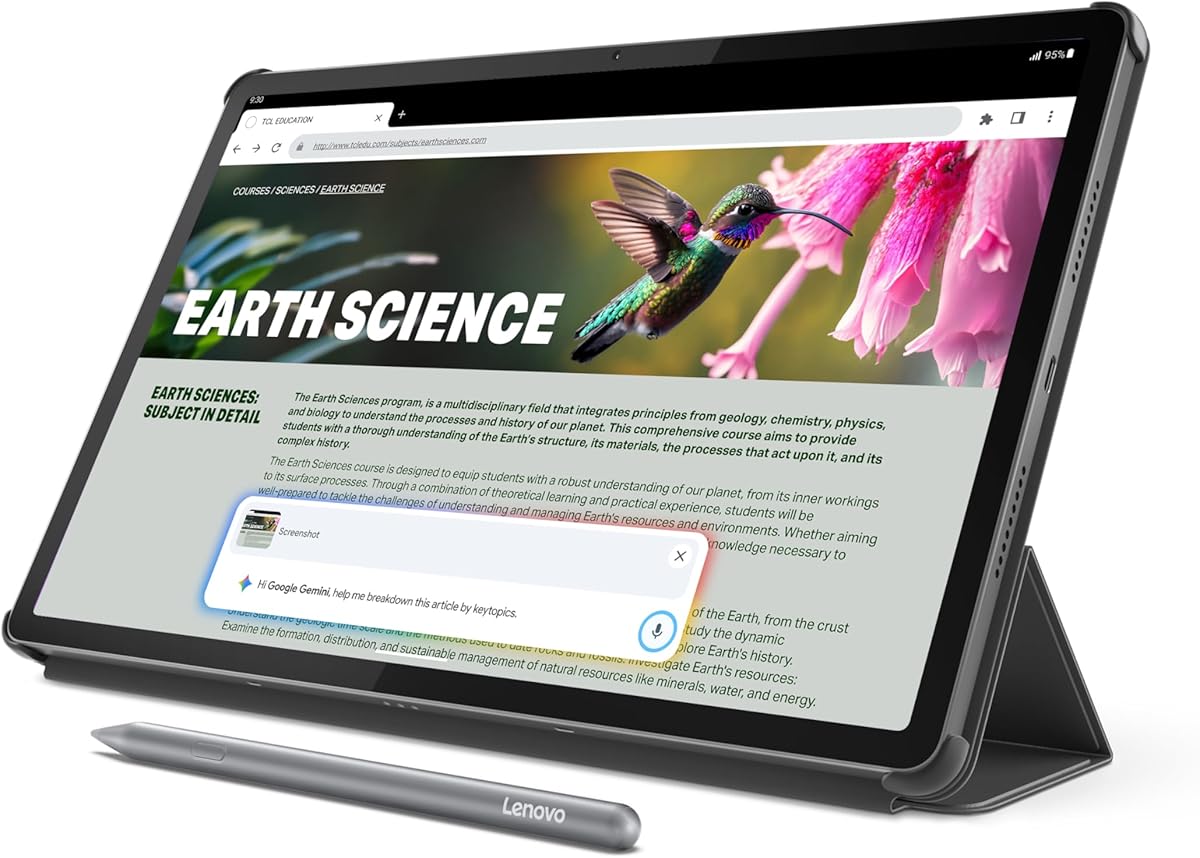
The Lenovo Idea Tab Pro is a multipurpose Android tablet designed around study, note-taking, research, entertainment, and light creative work. Its 4.6 rating is among the strongest in the group, while the 12.7-inch 3K LCD provides a generous, detailed canvas for technical documentation, visual problem solving, and mobile design review. The included Tab Pen Plus and folio case make it more immediately useful for sketching and annotation than a bare tablet.
We may earn a commission when you buy through this link, at no additional cost to you.
The MediaTek Dimensity 8300 processor, Wi-Fi 6E, and 8 GB of memory support multitasking, while 128 GB of storage provides room for applications and documents. Circle to Search lets users circle visible information with a finger or pen to initiate a search, and Google Gemini is positioned as an AI assistant for assignments. These capabilities are especially relevant to students who alternate between research, handwritten notes, and visual problem solving.
Its limitation is that it is not a dedicated CAD or graphics tablet with a pen-sensitive drawing display. Professional CAD suites are generally associated with desktop operating systems, and the supplied information does not identify specialized engineering applications. Pen performance is therefore part of a broader Android experience rather than a pressure-resolution specification optimized for illustration. The 3K LCD may also be more appropriate for general productivity than color-critical professional artwork.
Buy the Idea Tab Pro for a student or mobile professional who needs reading, research, handwriting, and light sketching in one device. It is especially compelling when a separate pen tablet would add another accessory but a conventional laptop is inconvenient. For precision drafting with established CAD software, a pen display connected to a workstation is a safer choice.
Circle to Search, Gemini assistance, and note-oriented features help users move from visual research to organized information without treating the tablet as a blank sketch surface alone.
The Dimensity 8300, 8 GB of memory, 128 GB of storage, and 45-watt charging support a tablet that can handle lessons, reference material, communication, and occasional design work.
We may earn a commission when you buy through this link, at no additional cost to you.
The Lenovo Idea Tab Pro Gen 2 is a high-resolution hybrid tablet aimed at students and professionals who want a large display, a pen, and sophisticated note handling. Its 4.3 rating reflects a capable general-purpose package, with a 13-inch 3.5K LTPS screen, 800 nits of brightness, and a refresh rate of up to 144 Hz. The pen and folio case are included, reducing the need to source basic accessories separately.
We may earn a commission when you buy through this link, at no additional cost to you.
Lenovo Notepad is central to its creative utility. Smart Capture can extract visuals from a page, Sketch to Image can turn hand-drawn ideas into refined images, and AI Notes can summarize or rewrite sections. AI Live Transcript records and structures meeting or class notes automatically. These features are especially useful for design reviews, site discussions, research, and converting rough diagrams into more shareable visual concepts.
Although the 144 Hz screen is impressive for scrolling and games, it does not directly represent pen precision, pressure levels, or CAD accuracy. The device remains an Android productivity tablet rather than a pen display engineered around CAD applications. Users with a requirement for parameterized modeling, desktop drafting, or professional illustration should confirm their required application is available and performant before choosing it.
The Gen 2 model is best for document-heavy work, collaborative concept development, lectures, and portable review sessions. Its large, bright display also suits outdoor reading and presentations. It may serve as a sketch and feedback device within a broader design workflow, but the Kamvas 13 is the stronger option when direct technical drawing and desktop application support are the primary goals.
Smart Capture and Sketch to Image can help users isolate visual concepts and refine rough diagrams, which is valuable during early design exploration when clarity is still developing.
Continuous transcription, automatic summaries, and note cleanup reduce the manual effort of recording meetings and classes, while the 3.5K panel keeps source documents and annotations legible.
We may earn a commission when you buy through this link, at no additional cost to you.
The Samsung Galaxy Tab S10+ combines a 12.4-inch Dynamic AMOLED 2X display with 256 GB of storage and an included S Pen. Its 4.7 rating is the highest in this group, making it a strong all-around choice for mobile creativity, visual review, note-taking, and multimedia work. The large screen is particularly attractive for detailed drawings, diagrams, and reference material.
We may earn a commission when you buy through this link, at no additional cost to you.
Galaxy AI adds Sketch to Image for transforming simple sketches, while Circle to Search provides a quick way to investigate visible content. Note Assist can organize and summarize recorded lectures and meetings, reducing some of the administrative work associated with research and consultations. The included S Pen supports handwriting and drawing without requiring a separate pen purchase.
The device is not a specialized CAD tablet, and the supplied information does not enumerate professional drafting applications. Its AMOLED screen is excellent for visual consumption, but creators whose work depends on calibrated color reproduction may need to evaluate the device against their specific requirements. As a general tablet, it also costs more than the dedicated pen tablets in this roundup without providing a pressure-level or active-area specification for professional technical illustration.
Choose the Galaxy Tab S10+ for a premium mobile tablet that can serve as a pen-enabled notebook, presentation surface, visual reference, and light illustration tool. It is well suited to users who value display quality, storage, and AI-assisted productivity more than access to a full desktop CAD application. For true CAD drafting, pair it with a computer-connected display instead of treating it as the specialized input device.
The AMOLED 2X panel provides a bright, high-contrast view for displaying 3D models, reference images, drawings, and collaborative material on the move.
Sketch to Image can transform a simple drawing into a developed visual, while Circle to Search and Note Assist reduce context switching during research and ideation.
We may earn a commission when you buy through this link, at no additional cost to you.
The Samsung Galaxy Tab S10 FE+ is a large, pen-enabled Android tablet that emphasizes entertainment, note-taking, and everyday productivity. It carries a 4.7 rating, matching the higher Galaxy Tab S10+ in the supplied data. The 13.1-inch display offers more canvas area than most tablets in the group, while 128 GB of storage and the included S Pen make it a capable mobile workspace for sketches, handwritten plans, and review sessions.
We may earn a commission when you buy through this link, at no additional cost to you.
Handwriting Assist straightens, aligns, and spaces handwritten notes, improving the appearance of freehand documentation. Math Solver can convert written equations into digital text, and Circle to Search provides quick contextual research. The S Pen is described as responsive and paper-like, supporting the kind of natural annotation useful during site visits, classroom sessions, and design conversations.
The Galaxy AI keyboard hot key and the tablet's water resistance make it especially practical for mobile use. The US Wi-Fi version also includes support for expanding storage through a microSD card, according to the product information. Nevertheless, this remains a general-purpose Android tablet. It does not advertise professional pressure levels, calibration, active-area dimensions, or a dedicated CAD application library, and those omissions matter for professional technical drafting.
The S10 FE+ is best for students and mobile workers who need a large, durable display for handwritten notes, diagrams, presentations, and entertainment. It is also a good portable review device for architects, engineers, and designers who already have specialized software elsewhere. Buyers who need direct line creation in a full CAD package should verify application support or choose a purpose-built pen display.
Handwriting Assist corrects the alignment, spacing, and shape of freehand notes, making classroom records, meeting minutes, and site annotations easier to revisit.
Water resistance provides greater confidence when the tablet accompanies users to classrooms, workshops, project sites, and other less controlled creative environments.
We may earn a commission when you buy through this link, at no additional cost to you.
The right tablet depends on the software you use, the precision your drawings require, and whether you need a separate computer. These factors help separate dedicated drafting tools from general-purpose tablets and prevent an attractive screen from distracting from input quality.
Choose a screenless tablet for desktop CAD and professional office workflows. Choose a pen display when direct hand placement, compactness, and drawing immediacy are more important.
Prioritize smooth, consistent pressure response and reliable tracking over a headline specification alone. Ensure your CAD or illustration software supports the tablet.
Match the active area to your typical document scale. Large projects benefit from generous room, but portable users may prefer a smaller surface they can use without reaching.
Standalone is ideal for sketching and learning. For professional modeling and drafting, prioritize verified desktop application and driver support.
For technical drawing, prioritize low parallax and a stable, readable surface. For color-sensitive output, check gamut and calibration specifications.
Check the connection method against your computer ports and working environment. Wireless convenience is useful, but dependable wired performance remains valuable for intensive sessions.
Prefer products that support your essential applications and offer controls you will actually use. Extra buttons are only useful when they can be mapped to relevant commands.
Balance portability with screen size and battery needs. For daily travel, consider weight, charging convenience, and protection as seriously as drawing specifications.
Begin by installing the current manufacturer driver and configuring the active area to match the orientation and dimensions of your monitor. For a pen display, set the drawing region so the pen cursor aligns accurately with the on-screen geometry. Calibrate the screen, confirm cursor speed, and test pressure before beginning a detailed drawing. In CAD software, assign the stylus buttons, dials, or shortcut keys only after establishing the basic mapping.
Work with a stable grip and keep the pen perpendicular when precision matters. Use a light, consistent hold rather than pressing hard, and avoid placing a palm on an active screen unless the software specifically supports palm rejection. Screenless tablets benefit from a consistent hand position and a pad that does not shift. For standalone tablets, verify that every required application, export format, and file is available before beginning a project that depends on a desktop workflow.
Protect the active surface from grit, oily fingers, and excessive pressure. Clean compatible displays with a soft microfiber cloth and follow the manufacturer's cleaning guidance, especially for anti-glare coatings. Store the pen in its case, avoid leaving it pressed against the glass, and keep replacement nibs available. Store standalone tablets away from extreme heat and moisture, and periodically back up creative files. Keeping firmware, applications, and drivers updated helps maintain compatibility and stability.
Not necessarily. A high-quality screenless tablet can provide excellent pen input for desktop CAD, often with a larger active area and fewer visual distractions. A pen display is preferable when you want to draw directly beneath the cursor, work more spatially, or frequently illustrate ideas. The best choice depends on your application, display arrangement, and preference for hand placement.
It can be, but compatibility is the critical issue. Professional CAD applications are commonly built for desktop operating systems and may require specific drivers, graphics libraries, plugins, or high graphics performance. Standalone tablets are strongest for sketching, concept development, and lightweight work unless the required applications and files are fully supported on the device.
Most technical line work benefits more from stable tracking and consistent pressure than from a very high pressure-level count. The 4,096-level options are adequate for many sketches, while 8,192 and 16,384 offer finer control when rendering, shading, or expressive strokes are important. Test the pen in your chosen software before making a final decision.
Dedicated graphics tablets are generally designed to work as input devices with many mainstream illustration and technical applications. Compatibility depends on the operating system, CAD program, driver, and tablet model. The HUION H420X explicitly lists broad software support, while the Kamvas 13 supports major desktop systems. Always verify your exact program and operating system before purchasing.
A large active area is usually more useful than a large physical screen because it provides room for the pen to travel across detailed plans. The Wacom Intuos Pro Large offers a large 16:9 screenless workspace, while a thirteen-inch pen display can also work well when the project is shown directly beneath the pen. Consider both document scale and available desk space.
Yes, the PicassoTab X14 and RubensTab T11 Pro are explicitly designed as standalone devices with internal processing, storage, batteries, and preinstalled creative applications. Lenovo and Samsung options are also conventional tablets that can run without a computer for general tasks. Their suitability for CAD still depends on the availability of the required professional application.
Calibration can improve cursor alignment, especially when the display is positioned at an angle or connected through a scaled or high-resolution setup. The HUION Kamvas 13 also provides factory color calibration, which is a separate concern from pen tracking. Users should follow the manufacturer's guidance and test alignment with their own display arrangement.
Prioritize weight, dimensions, battery life, charging method, and protection. A compact screenless model such as the H420X is easy to carry but still needs a computer, while standalone tablets are more independent but require charging. A folio or fitted case, a spare nib, and a reliable way to back up project files can be as important as peak specifications.
The HUION Kamvas 13 Gen 3 is the most balanced recommendation for users who want direct-on-screen drafting, high pressure resolution, calibrated color, and efficient hardware controls. The Wacom Intuos Pro Large is the stronger choice for a professional screenless workflow with a large active area, refined pen customization, and multi-computer wireless use, while the HUION H420X delivers the most accessible compact setup.
Your priority should determine the shortlist. Choose a screenless model for expansive desktop drafting, a pen display for close direct control, or a standalone tablet for mobile sketching and independent work. General-purpose Android models are most useful when note-taking, research, visual review, and light design matter as much as formal technical illustration. Software compatibility should be confirmed before any purchase.
Finally, check current product specifications, bundle contents, ratings, and availability before ordering because manufacturer configurations can change. Keep the intended computer, operating system, application, and project size in mind, and use the included accessories to test the pen in your real workflow whenever possible.