
PicassoTab A10
4.3Editor score
Compact 10-inch laminated display
4096-level active pressure stylus
Apps and beginner tutorials included
A standalone drawing tablet combines a display, stylus, processor, and creative software in one portable device, removing the need for a separate computer. The best model depends on screen size, drawing comfort, performance, battery life, included apps, and whether you create mainly at home or while traveling.
This guide compares ten drawing and pen-display products using the supplied specifications and customer ratings. It distinguishes fully standalone tablets from computer-based alternatives, evaluates displays, pens, processors, memory, storage, accessories, and learning resources, and identifies the strongest options for different creative needs.
Each review explains the product's most useful qualities and practical trade-offs, so you can match a device to your workflow rather than relying on screen size alone. Ratings and availability can change over time, and current prices should always be checked before making a purchase.
4.3Editor score

4.5Editor score

4.2Editor score
As an Amazon Associate we earn from qualifying purchases.
The table below compares display size, operating approach, stylus capabilities, performance, and key extras. It also highlights three computer-based Wacom choices, making clear which products can create independently and which still require a host computer.



The RubensTab T11 Pro is a compact standalone drawing tablet rated 4.4 out of 5, combining a 10.1-inch Full HD IPS display with an integrated computing environment and a pressure-sensitive pen. Its most appealing quality is straightforward independence: you can power it on and create without connecting a laptop, making it well suited to sketches, notes, design work, and travel.
We may earn a commission when you buy through this link, at no additional cost to you.
The 1920 by 1200-resolution screen offers enough detail for artwork, document annotation, and everyday visual tasks, while wide viewing angles support a variety of working positions. The battery-free pen provides adjustable pressure sensitivity, and multi-touch makes zooming, panning, and scrolling more convenient. Pre-installed drawing applications reduce the setup barrier for new users, while the adjustable stand case supports both desk work and portability.
Its main limitation is the stated five-hour continuous-use estimate from the 5800mAh battery. A longer session may require USB-C charging or a mobile power bank. The product description also does not mention a fully laminated anti-glare layer, so buyers who place their hand directly against the display may want to consider that physical difference carefully.
This is a sensible choice for artists and students who value a compact screen, wireless operation, and a useful pen without the expense or complexity of a larger workstation. It also works for meetings and classroom work. For people seeking the smoothest paper-like surface or a larger canvas, the PicassoTab X11, RubensTab T12, or KAMVAS Slate 11 may be more suitable.
Because the tablet runs without an external device, it is particularly useful for outdoor sketches, travel, classrooms, and locations where carrying a computer would be inconvenient. USB-C charging and power-bank support add flexibility when the five-hour battery limit is not enough for an entire session.
The included pen, preinstalled creative applications, Wi-Fi capability, and adjustable case create a relatively complete starting setup. New users can focus on learning the software, while experienced artists have a portable display for sketching, photo editing, and visual planning.
We may earn a commission when you buy through this link, at no additional cost to you.
The PicassoTab A10 is a portable 10-inch standalone drawing tablet with a 4.3 rating. It needs no computer, comes with five creative applications, and includes a laminated display, a 4096-level active pen, and a package of accessories intended to cover both creative work and guided learning.
We may earn a commission when you buy through this link, at no additional cost to you.
Its defining feature is the laminated, paper-like screen, which is designed to reduce glare and parallax. The 4096 pressure levels should give the pen a broad range of line-weight and shading responses. For performance, the octa-core processor and 6GB of RAM support drawing, schoolwork, streaming, and multitasking, while 64GB of storage can be expanded up to 1TB.
Beginner support is unusually prominent in the supplied specification. Lifetime upgrades for the Concepts drawing app and Artixo tutorial app are included, alongside step-by-step lessons, guided practice, and Xplore drawing guides. The package also includes a tablet case, drawing glove, universal power adapter, and preinstalled screen protector, reducing the need for immediate extras.
The A10 is best for beginners, students, and travelers who want a complete portable setup without moving to a larger device. Its base storage is lower than the X11 and X14, and the supplied information does not state the display resolution, so professionals seeking very detailed line work should examine the screen in person. Even so, it is one of the strongest value-oriented standalone choices in this roundup.
The bundled tutorials and drawing guides distinguish the A10 from a bare tablet-and-pen setup. These resources can help beginners understand basic shapes, exercises, and app workflows before moving into more advanced illustration work.
Full lamination and a 4096-level pen are the key creative specifications. Expandable storage gives users room to retain more artwork and project files than the listed 64GB capacity alone would normally provide.
We may earn a commission when you buy through this link, at no additional cost to you.
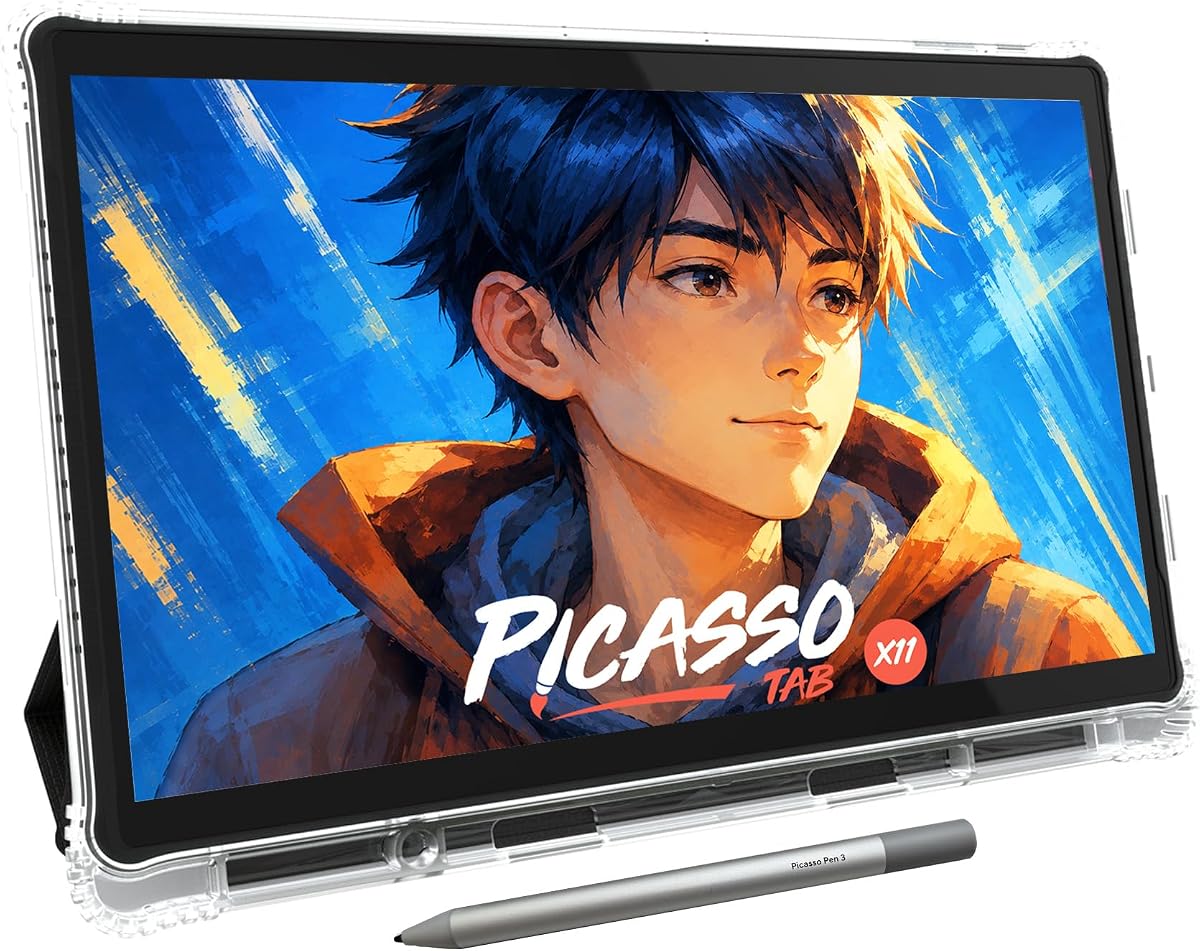
The PicassoTab X11 sits between the compact A10 and the larger X14, offering an 11-inch 2K fully laminated screen in a standalone design. Its 4.2 rating reflects a balanced combination of drawing hardware, beginner resources, and general-purpose performance for a device that can operate without a computer.
We may earn a commission when you buy through this link, at no additional cost to you.
The laminated display is designed to reduce parallax and glare, giving the 4096-level stylus a more paper-like drawing experience. An octa-core processor, 6GB of RAM, and 128GB of storage provide a stronger multitasking and storage foundation than the A10. The same selection of five creative apps, Concepts Pro upgrade, Artixo lifetime tutorials, and Xplore guidance supports both learning and regular artwork.
Unlike the T11 Pro, the supplied information does not give a battery capacity or continuous-use estimate. If all-day battery life is central to your decision, you would need to verify that detail before buying. Its larger footprint may also be less convenient for very compact travel, although the 11-inch canvas still offers a meaningful increase over a small display.
The X11 is a strong middle choice for students, illustrators, and note-takers who want more canvas and storage than the A10 without moving to the very large X14. It is also a logical choice for users who prioritize a smooth laminated surface and guided learning. For even more workspace, the X14 is the more natural companion.
The 2K panel and 11-inch format offer a useful middle ground between a compact sketch device and a large studio display. That makes the X11 versatile for detailed illustration, classroom work, and annotation without taking on the footprint of the 14-inch model.
Five preloaded applications, two lifetime upgrades, tutorials, a case, glove, adapter, and screen protector make the package approachable. The result is an environment designed for learning rather than merely opening a blank canvas.
We may earn a commission when you buy through this link, at no additional cost to you.
The PicassoTab X14 is the largest model in the PicassoTab family and offers a 14-inch laminated standalone canvas. With a 4.2 rating, it is aimed at users who want a generous workspace for illustration, animation, schoolwork, streaming, and multitasking without carrying a separate computer.
We may earn a commission when you buy through this link, at no additional cost to you.
A 4096-level active pen and a laminated surface designed to reduce glare and parallax are the most important drawing specifications. The octa-core CPU, 6GB of RAM, and 128GB of internal storage support demanding creative tasks, while expandable storage reaches 1TB. Five preloaded apps cover drawing, painting, animation, tutorials, and guides, with included Concepts Pro and Artixo lifetime upgrades.
The obvious trade-off is portability. A 14-inch screen offers less desk crowding and fewer hand movements than a compact model, but it is bulkier to carry and less convenient in tight spaces. The supplied information also does not state the panel resolution or battery capacity, making those details worth confirming if fine detail or long mobile sessions are priorities.
The X14 is best for artists who regularly work on broad compositions, animators needing room for timeline-like layouts, and students who want one device for creative work and school tasks. If your priority is a large screen, it makes more sense than the X11. If portability matters more, the A10 or T11 Pro is easier to carry.
A 14-inch display gives illustrations, concept boards, and school documents more working area. Users can keep tools, references, and artwork visible with fewer movements between areas of the screen.
The processing and memory specifications support more than basic sketching. With drawing, animation, streaming, and multitasking applications included, the X14 is positioned as a portable creative hub as well as a dedicated input device.
We may earn a commission when you buy through this link, at no additional cost to you.
The HUION KAMVAS Slate 11 is a premium standalone drawing tablet rated 4.2 out of 5. Its 10.95-inch Full HD display, 90Hz refresh rate, aluminum body, and detailed pen specifications make it a compelling all-in-one option for artists who want smoother visuals and a more advanced mobile-computing environment.
We may earn a commission when you buy through this link, at no additional cost to you.
The screen combines a 1920 by 1200 resolution with 207 pixels per inch and a stated 99% sRGB gamut. A nano-etched, anti-fingerprint matte surface and full lamination are intended to reduce glare, parallax, and eye strain. The H-Pencil supports 4096 pressure levels and 60-degree tilt recognition, while the 90Hz refresh rate helps keep lines and visual movement smooth.
Performance is another major strength. An eight-core processor, 8GB of RAM, 128GB of expandable storage, and an 8000mAh battery provide a higher specification baseline than most devices here. Android 14, Google Play access, Clip Studio Paint, and ibisPaint X expand the software options, while an 8MP front camera and 13MP rear camera add capture functions.
The main caveat is that its 4.2 customer rating is lower than the highest-rated models in the list, even though its specifications are particularly strong. The included membership periods are also described as limited, so buyers should distinguish permanent applications from temporary membership benefits. For smooth performance, a refined pen, and substantial internal memory, the Slate 11 remains the premium pick.
The 90Hz refresh rate and 207-PPI Full HD panel are the Slate 11's visual highlights. Together with the matte, fully laminated surface, they target a more polished and comfortable drawing experience.
Eight gigabytes of RAM is generous for a portable creative tablet, while the 8000mAh battery supports longer work periods. The expandable storage and Google Play access also make the device more flexible than a closed software environment.
We may earn a commission when you buy through this link, at no additional cost to you.
The RubensTab T12 combines a 4.5 rating with a 12-inch fully laminated display, standalone operation, and a broad creative software package. It is the most balanced recommendation in this guide because it offers enough canvas for serious artwork without the footprint of a 14-inch tablet, plus a mature selection of preinstalled tools.
We may earn a commission when you buy through this link, at no additional cost to you.
Sketchbook, Krita, Infinite Painter, and Flipaclip are included, covering sketching, painting, illustration, and animation. The Full HD display has enough resolution for detailed work, while full lamination minimizes parallax and the anti-glare coating is intended to create a more paper-like surface. These are meaningful benefits for digital artists who place a hand near the pen tip.
An octa-core CPU, 6GB of RAM, and 128GB of storage support multitasking and give the tablet a practical balance of speed and capacity. The case, drawing glove, universal power adapter, and pre-applied screen protector round out the package. A drawback is that no battery capacity or continuous-use estimate appears in the supplied specifications, so buyers who work for long periods away from power should verify runtime.
The T12 is the strongest general recommendation for illustrators, students, and mobile creators who want a reasonably large canvas, well-known drawing software, and no requirement for a separate laptop. It is less suitable for users who need maximum portability or require a stated high-resolution panel. Even with those caveats, the combination of screen, app suite, performance, and customer rating makes it a compelling overall choice.
Four recognized creative applications cover a broad range of workflows. This makes the T12 practical for users who do not want to begin by researching and configuring a drawing program.
The 12-inch display, 6GB of memory, and 128GB of storage create a useful middle ground. The screen provides comfortable working area, while the specifications leave room for creative apps, artwork, and everyday tasks.
We may earn a commission when you buy through this link, at no additional cost to you.
The RubensTab T14 is a large, independently operating drawing tablet rated 4.5 out of 5. It combines a 14.1-inch Full HD IPS screen, a pressure-sensitive pen, an octa-core processor, and a 10000mAh battery, making it a mobile creative option for artwork, notes, classroom work, and online resources.
We may earn a commission when you buy through this link, at no additional cost to you.
Its 1920 by 1200-resolution IPS display provides vibrant color, sharp detail, and wide viewing angles, while the 14.1-inch dimensions create ample canvas space. The battery-free pen supports adjustable pressure, and multi-touch adds convenient zooming, panning, and scrolling. A suite of preinstalled drawing applications helps new users begin quickly, and Wi-Fi supports tutorials, cloud storage, and other online resources.
The large chassis and screen reduce how easily the device fits into a small bag or compact workspace. The stated battery life of up to five continuous hours is less impressive than the 10000mAh capacity might initially suggest, particularly for full-day sketching, although USB-C charging and mobile power-bank support help extend working time.
This model is ideal for illustrators, students, and professionals who want a large screen and complete standalone operation. It is particularly compelling for fixed locations where the device can sit on its adjustable stand, such as a classroom, studio, or meeting table. Users who prioritize easy travel should consider the T12, T11 Pro, or A10 instead.
The 14.1-inch display gives users room for detailed illustrations, presentation notes, and reference images. Because no computer is required, that workspace is available wherever the tablet can be set up.
The 10000mAh battery is the largest specified in the RubensTab range, though the stated use estimate remains five hours. USB-C charging and compatibility with a mobile power bank provide useful ways to continue working while traveling.
We may earn a commission when you buy through this link, at no additional cost to you.
The Wacom Intuos Small is a wired pen tablet rather than a standalone drawing tablet, so it does not meet the core definition of this category. It earns inclusion because its 4.6 rating, established EMR pen technology, and compact format make it a useful comparison for anyone who already has a computer and prefers a dedicated input surface.
We may earn a commission when you buy through this link, at no additional cost to you.
There is no built-in screen, and the user draws on the tablet's active area while looking at a separate monitor. Wacom's EMR technology operates without a pen battery and is described as delivering a pen-on-paper feel. Because the device works with software programs, it can support drawing, painting, photo and video editing, graphic design, and document markup.
Its wired connection may be less convenient than a Bluetooth or all-in-one tablet, and carrying it without a computer adds little value for a mobile creative setup. However, its small footprint takes up less desk space than a display tablet, and the included software and online training provide a lower-friction path for new users.
The Intuos Small is best for a home or office workstation where a separate monitor is already available. It is not the correct choice for someone who wants to sketch while traveling without carrying a laptop. For that use case, the A10, T12, or KAMVAS Slate 11 provides a screen and computing system in one device.
Without a built-in display, the Intuos concentrates the desk around the computer. Artists who prefer a large monitor can gain drawing precision without dedicating a second screen to pen input.
The ability to work across software programs makes this familiar to users of conventional desktop graphics tools. Included creative software and Wacom training also help new owners begin working with supported applications.
We may earn a commission when you buy through this link, at no additional cost to you.
The Wacom Intuos Pro Large is another computer-based alternative, rated 4.3 out of 5. It brings a large active area, advanced pen controls, and wireless operation to a desk setup, but it cannot display artwork or run creative applications on its own.
We may earn a commission when you buy through this link, at no additional cost to you.
The Pro Pen 3 offers 8192 pressure levels, tilt support, and lag-free tracking. Its grip can be adjusted for straight or flared positioning, balance can be changed, and button layout can be customized. Ten ExpressKeys and two mechanical dials provide shortcuts close to the active area, allowing artists to reduce reliance on menus and keyboard commands.
Its 16:9 format is designed to fit modern wide and multiple-monitor arrangements, while the listed dimensions of 14.8 by 9.9 inches offer a large work area without the footprint of a 22-inch pen display. Bluetooth connectivity allows switching between multiple computers, although a USB connection is also available. As with the smaller Intuos, the absence of a display means the tablet is most useful at a stationary workstation.
This model is a strong choice for professional illustrators, designers, and photo editors who want Wacom pen technology, tactile controls, and wireless flexibility. It is not a standalone solution for travel or field sketching. Buyers should treat the 4.3 rating and extensive shortcut-oriented feature set as the basis for comparison, not as evidence of standalone capability.
Tilt support, 8192 pressure levels, adjustable balance, and configurable buttons give the Pro Pen 3 several ways to adapt to different drawing techniques. This makes the tablet particularly relevant to users who work across line art, shading, illustration, and editing.
ExpressKeys and mechanical dials place common actions near the pen hand. Bluetooth switching also lets one tablet move between computers, although the device still depends on those computers for software and a display.
We may earn a commission when you buy through this link, at no additional cost to you.
The Wacom Cintiq 22 is a professional pen display with a 4.5 rating, combining a 22-inch Full HD screen with the Pro Pen 2. It is not presented as a no-computer tablet, so it belongs in the comparison as a premium desk-based option rather than a mobile standalone device.
We may earn a commission when you buy through this link, at no additional cost to you.
The Pro Pen 2 provides 8192 pressure levels, tilt recognition, virtually lag-free tracking, and two customizable switches. The display has uniform brightness and is designed to show vivid, true-to-life color. Reduced parallax and fingertip control work together with the pen to create a direct drawing experience across the large surface.
The main limitation is portability. A 22-inch display requires a substantial desk and is impractical for casual travel. Since the supplied description refers to Windows and macOS operation and includes an AC adapter and connectivity cable, buyers should plan to use it with a compatible computer. It is therefore not a substitute for a self-contained tablet when independence is the priority.
The Cintiq 22 is best for established artists and students who want a large, dedicated pen display for studio, campus, or home use. Its accessories are comprehensive, including three replacement nibs, a nib remover, a three-in-one connectivity cable, power components, and a quick-start guide. For standalone portability, the KAMVAS Slate 11 or RubensTab models are the more relevant choices.
The 22-inch screen provides abundant room for illustration, retouching, and design. Working directly on the display can also reduce the eye movement required when a smaller pen tablet is paired with a separate monitor.
The Pro Pen 2's 8192 pressure levels, tilt recognition, and customizable switches support nuanced line work. Its lag-free tracking and the display's reduced parallax are designed to keep visual feedback closely aligned with the pen.
We may earn a commission when you buy through this link, at no additional cost to you.
The most important decision is whether you need true standalone capability or are happy to use a computer. From there, screen size, surface treatment, pen response, software, performance, battery, and accessories determine how well a tablet fits your work.
A true standalone drawing tablet includes its own display, processor, memory, operating environment, and applications, so you can create without attaching a computer. Products explicitly described as no-computer-needed can be used in classrooms, outdoors, and while traveling, although Wi-Fi and cloud access may still be useful for tutorials or file storage. By contrast, the Wacom Intuos models in this guide need a host computer, and the Cintiq 22 is likewise presented as a Windows and macOS pen display rather than an independent tablet.
Choose a standalone model if mobility or computer-free operation matters. Choose a computer-based pen tablet if you already own a large monitor, require desktop software, or prefer a smaller desk setup.
Screen size affects both the working canvas and portability. A 10-inch model is easy to carry and suitable for quick sketches, notes, and practice. An 11- or 12-inch tablet offers a more comfortable balance for illustration and detailed work, while a 14-inch display provides room for large compositions, reference images, animation, and classroom documents. The 22-inch Cintiq is a different category: a large, stationary pen display rather than a portable standalone device.
Match the display to your workspace. Favor compact sizes for travel and larger sizes when your priority is canvas area and reduced hand movement.
Resolution, pixel density, color gamut, brightness, and refresh rate all influence the viewing experience. Full HD resolution appears on the T11 Pro, T12, T14, and KAMVAS Slate 11, while the PicassoTab X11 specifies a 2K display. The KAMVAS Slate 11 stands out with 207 PPI, a 99% sRGB gamut, and a smooth 90Hz refresh rate. These figures are most useful when considered alongside screen size and the quality of the drawing surface.
Do not treat resolution alone as the deciding factor. A sharp panel still benefits from good lamination, manageable glare, accurate color, and sufficient contrast.
A laminated display places the screen surface closer to the drawing layer, reducing the visual separation between the pen tip and the line. This minimizes parallax and can make diagonal strokes appear more natural. Anti-glare or matte surfaces also help in bright rooms and reduce distracting reflections. The PicassoTab A10, X11, and X14, the KAMVAS Slate 11, and the RubensTab T12 explicitly include laminated surfaces with glare-related benefits.
Prioritize a low-parallax, anti-glare surface when you draw for long periods, use angled lines frequently, or work in locations with strong lighting.
Pressure sensitivity determines how many distinct pressure values the tablet can detect, which influences line weight, shading, and brush response. The included standalone products generally provide 4096 levels, while the Wacom Pro Pen 3 and Pro Pen 2 provide 8192. Tilt recognition is explicitly listed for the KAMVAS Slate 11's H-Pencil at 60 degrees, as well as the Wacom Pro Pen 3 and Pro Pen 2. Battery-free pen technology is also convenient because it removes the need to recharge or replace a pen battery.
Look for enough sensitivity for your intended medium, but also consider software support, latency, and the surface. Those factors influence real-world precision as much as the headline pressure number.
A standalone tablet must run drawing applications as well as the tools you use for schoolwork, communication, or entertainment. Most options use an octa-core processor and 6GB of RAM, while the KAMVAS Slate 11 raises the memory figure to 8GB. Storage ranges from 64GB in the A10 to 128GB in several larger models, and expandable options reach up to 1TB. More memory and storage can help with multitasking and retaining artwork, although the right amount depends on your application mix.
For basic sketching and notes, the listed processor, memory, and storage should be considered alongside screen quality. For animation, multiple open apps, and larger project libraries, favor higher memory and storage.
A standalone device should offer enough software to begin drawing without an additional purchase. The PicassoTab models include five creative apps, lifetime upgrades for Concepts and Artixo, and beginner tutorials. The RubensTab T12 includes Sketchbook, Krita, Infinite Painter, and Flipaclip, while the T11 Pro and T14 provide preinstalled suites of professional-grade drawing apps. The KAMVAS Slate 11 runs Android 14, includes Clip Studio Paint and ibisPaint X, and provides access to Google Play.
Check whether your preferred app is included permanently, whether membership periods expire, and whether the operating system supports the software you need.
Battery specifications vary significantly. The T11 Pro has a 5800mAh battery rated for up to five hours, the T14 has a 10000mAh battery with the same stated use estimate, and the KAMVAS Slate 11 has an 8000mAh battery. Other products do not list runtime in the supplied information. Accessories also matter: cases, gloves, universal adapters, and preinstalled screen protectors can make a new tablet easier to use. The PicassoTab X11 and X14 include one-year warranty coverage, while the T11 Pro includes a 12-month warranty.
For travel, prioritize measured battery life, charging method, and case protection. For desktop use, accessories, warranty coverage, and included training may be more important.
Begin by charging the tablet through its supported connection, then power it on and connect to Wi-Fi if you want to download applications, access tutorials, or use cloud storage. Open the installed drawing software, choose a suitable canvas and pressure-sensitive brush, and test several line weights before beginning a full illustration. Adjust the screen orientation, stand, or case so the pen hand does not rest on the edge, which helps reduce accidental input and improves viewing comfort.
For better results, calibrate the pen if the software provides that function, select the correct hand orientation, and set the app's pressure curve to match your preferred feel. Use light strokes for outlines and increase pressure gradually for shading. Clean the screen with a soft, lint-free cloth and avoid abrasive cleaners. Do not press the pen tip against the display, and replace worn nibs before they begin scratching or skipping during a stroke.
Treat the device as a portable computer as well as a drawing surface. Save work regularly, keep the charging port clear, and use the included case or another padded sleeve during transport. Avoid leaving the tablet in extreme heat, direct sun, or a damp environment. If the pen behaves inconsistently, check the app settings, restart the tablet, and try a fresh nib before assuming the hardware is faulty.
A standalone drawing tablet is an all-in-one digital art device with a built-in display, processor, memory, and software. It does not need a separate computer to display artwork or run drawing applications. This makes standalone tablets convenient for travel, classrooms, meetings, and locations where carrying a laptop would be inconvenient.
It depends on your workflow. A standalone tablet offers greater portability and immediate access to a display, while a computer-based pen tablet may suit users who already own a large monitor and prefer specialized desktop software. A pen tablet without a display is also usually more compact, while a built-in screen offers a more direct drawing experience.
A 10-inch tablet can be effective for sketching, illustration, notes, and smaller compositions. Artists working on broad scenes or detailed projects may prefer 11, 12, or 14 inches because the larger canvas reduces hand movement and leaves more room for tools and references. Screen resolution, lamination, and pen response also influence the experience.
Yes, because pressure sensitivity controls how the pen communicates line weight, opacity, and brush effects to the software. Most standalone options in this guide offer 4096 levels, while the Wacom Pro Pen products offer 8192. The visible benefit also depends on application support, nib choice, and the tablet's overall tracking performance.
Yes. The T11 Pro, T12, and T14 explicitly support note-taking, meetings, lectures, and brainstorming, while the PicassoTab and KAMVAS models can run drawing and productivity applications. Confirm that your preferred note-taking app is available before purchasing, especially if the tablet does not provide broad app-store access.
The Wacom Intuos Small and Intuos Pro Large are computer-based pen tablets without built-in displays, so they require a separate computer and monitor. The Cintiq 22 includes a display, but the supplied information describes it as a Windows and macOS tablet rather than a no-computer-needed model. These are included as alternatives for desk-based users.
A protective case, screen protector, drawing glove, and suitable power adapter can make a portable tablet easier to use. Some models include all four, while the RubensTab T11 Pro and T14 emphasize an adjustable stand case. Check the included accessories before buying, especially if you plan to travel frequently or work for long periods away from an outlet.
It varies. The T11 Pro's 5800mAh battery is stated to provide up to five continuous hours, as is the T14's 10000mAh battery, while the KAMVAS Slate 11 has an 8000mAh battery. For models without a listed runtime, check current manufacturer or seller information and consider USB-C charging or a power bank for extended mobile work.
The RubensTab T12 is the strongest all-around choice, combining a 4.5 rating, a 12-inch laminated display, 6GB of memory, 128GB of storage, and major drawing applications. The HUION KAMVAS Slate 11 is the premium pick for users who prioritize its 90Hz display, 8GB of memory, 8000mAh battery, Android 14 environment, and tilt-capable pen, while the PicassoTab A10 offers the best budget-oriented package.
Your priorities should guide the final choice. Choose the A10 for compactness, guided learning, and a broad accessory bundle; the T11 Pro for a compact Full HD standalone device; the X11 for a 2K mid-size canvas; and the T14 or X14 for a spacious working area. The KAMVAS Slate 11 is ideal when smooth visuals, expanded memory, and a broad Android app environment matter most.
Finally, confirm the operating requirement before buying. The Wacom Intuos models and Cintiq 22 are useful desktop alternatives, but they are not substitutes for a computer-free tablet. For any choice, verify the current specifications, app availability, accessories, warranty, and current price directly on the product page before placing your order.