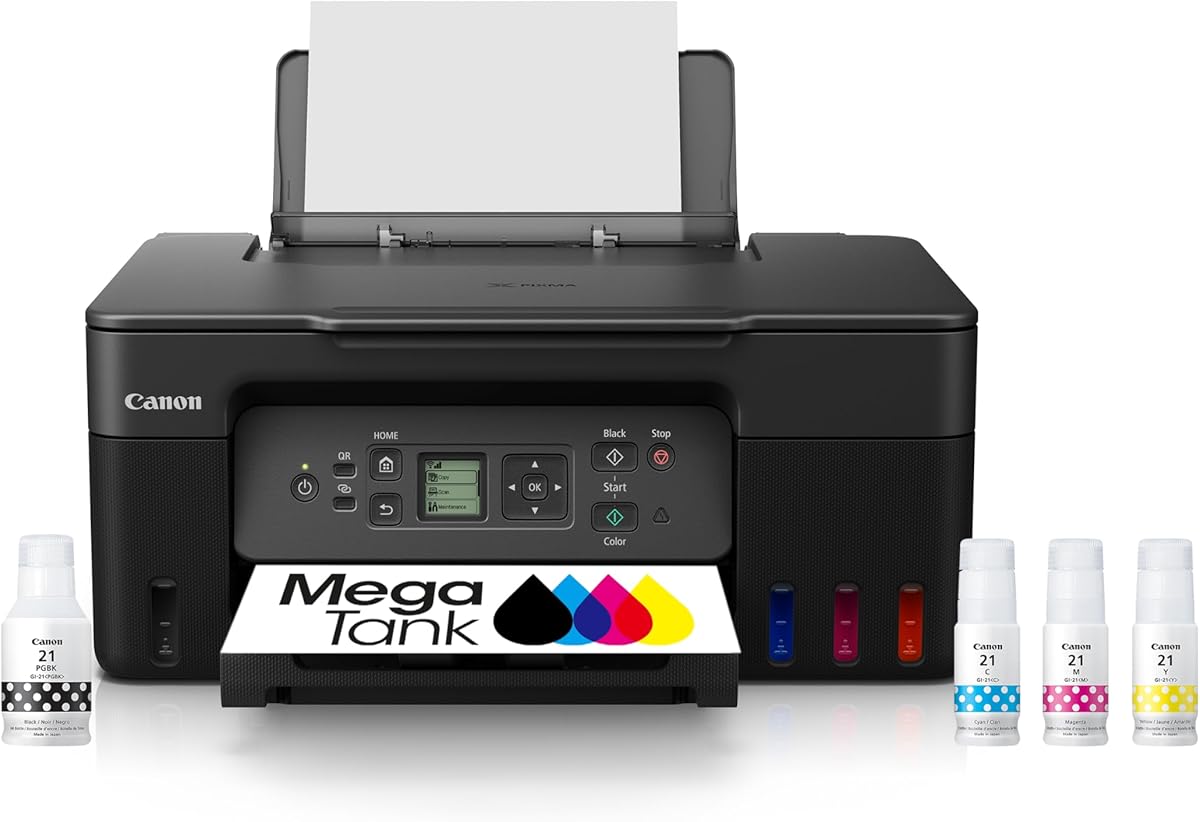
Canon MegaTank G3270
4.1Editor score
Large ink page capacity
Wireless print copy scan
Two-cartridge ink system
A printer for infrequent home use should make occasional printing simple without creating unnecessary maintenance, setup, or storage burdens. The right model balances approachable controls, wireless printing, reasonable ink handling, and enough paper capacity for letters, schoolwork, forms, recipes, and occasional photos.
We compared ten wireless all-in-one printers by examining their supplied functions, including printing technology, output speed, copying, scanning, automatic duplex printing, document feeders, displays, connectivity, and mobile-printing support. The list covers compact inkjets, tank-style printers, and a more capable home-office model.
Each review identifies the feature that makes the printer most useful for light-duty homes, along with any compromises worth considering. Ratings and availability can change over time, and current prices vary, so readers should verify the latest product details and terms before purchasing.
4.1Editor score

4.2Editor score
3.9Editor score
As an Amazon Associate we earn from qualifying purchases.
The table below compares all ten printers by their core hardware, connectivity, document-handling features, and practical appeal for occasional home printing.



The HP DeskJet 2923 is a straightforward color inkjet all-in-one for households that print only a few pages every week or month. Its supplied rating is 3.7, but the strongest features are its manageable size, wireless connectivity, familiar controls, and coverage of everyday color documents such as letters, recipes, to-do lists, and financial paperwork.
We may earn a commission when you buy through this link, at no additional cost to you.
Its 60-sheet input tray is sufficient for many low-volume users, while print speeds of up to 7.5 pages per minute in black and 5.5 pages per minute in color suit occasional jobs rather than sustained office workloads. Dual-band Wi-Fi can provide a more dependable connection and may automatically resolve network issues. The HP app also allows printing, scanning, copying, and faxing from a smartphone.
HP AI-assisted print formatting is useful when printing web pages and emails because it can remove unwanted content and reduce awkward layouts. The icon LCD also keeps basic operation approachable. The principal limitations are the absence of automatic duplex printing and the relatively modest input tray, both of which matter less if a household prints short, single-sided documents.
This printer is best for someone who values straightforward operation, wireless access, and a compact footprint more than advanced paper handling. It is less attractive to a home office that routinely prints lengthy reports or wants automatic two-sided pages. For occasional family use, however, the 2923 covers the essentials without requiring a large or complicated device.
The icon-based LCD and HP app keep common jobs accessible from either the printer or a phone. That combination is especially useful for users who do not print frequently enough to remember every menu path.
Dual-band Wi-Fi makes the printer easier to place where it is convenient rather than directly beside a computer. Mobile printing also reduces the need to transfer files through a laptop.
We may earn a commission when you buy through this link, at no additional cost to you.
The Canon PIXMA TS6520 combines an approachable footprint with features that are often missing from basic home printers. It carries a supplied rating of 4.2 and is the strongest all-around recommendation for households that need color documents, occasional photos, copying, scanning, wireless printing, and automatic two-sided output.
We may earn a commission when you buy through this link, at no additional cost to you.
Automatic duplex printing is the standout feature. Users can print both sides of a document without manually turning the sheet, reducing paper use and making the printer more practical for forms, worksheets, recipes, and longer personal documents. The 1.42-inch monochrome OLED display provides a concise view of ink levels, status, and settings without turning a tiny printer into a complicated control center.
Canon combines a two-cartridge hybrid ink system with support for documents and photos up to 8.5 by 11 inches, with or without borders. Dual-band Wi-Fi supports 2.4GHz and 5GHz networks, and the Canon PRINT app, Apple AirPrint, and Mopria Print Service cover several convenient ways to print from a phone or tablet. The lack of an automatic document feeder is the main compromise.
The TS6520 is ideal for a household that values duplex printing but does not regularly scan multi-page stacks. It offers a meaningful step above basic single-sided models without moving into the larger, more complex home-office category. For general family use, this is the most balanced and complete choice in the list.
Automatic two-sided printing is especially useful for school assignments, household forms, and long web pages. It removes a repetitive manual step and reduces the amount of paper needed for routine jobs.
The OLED screen gives quick access to ink and status information without making the printer excessively large. That makes it a good compromise between a minimal control panel and a full touchscreen.
We may earn a commission when you buy through this link, at no additional cost to you.
The HP DeskJet 2955 is a wireless color inkjet all-in-one aimed at straightforward home use. Its supplied rating is 3.7, and the model belongs to HP's familiar DeskJet line, which emphasizes basic printing, copying, and scanning rather than the more advanced paper handling found in OfficeJet models.
We may earn a commission when you buy through this link, at no additional cost to you.
Wireless connectivity is the most clearly stated feature, allowing the printer to be used around a home without a direct cable to a computer. Its all-in-one configuration also means users can handle everyday color documents, copies, and scans with one compact device. The listed weight of 10.45 pounds gives it a reasonably manageable profile for a home office or multipurpose room.
Compared with the DeskJet 2923, the available product data for the 2955 is much more limited, so buyers should verify the current package contents, paper specifications, ink format, and control interface on the listing. The absence of advertised automatic duplexing, a document feeder, or a specialized display suggests it is intended for uncomplicated, light-volume jobs.
The HP DeskJet 2955 is a sensible candidate for a household that wants a recognizable wireless brand and basic all-in-one functions in a modest package. It is best suited to short documents, occasional forms, and basic copies rather than school projects that require two-sided printing or a large pile of pages.
The model combines wireless printing with copying and scanning, covering the routine functions most households need. That focused feature set can make ownership less complicated than a larger office-oriented model.
Its stated weight and home-oriented design should make placement easier in a smaller workspace. Wireless access also allows printing from compatible phones, tablets, and computers around the home.
We may earn a commission when you buy through this link, at no additional cost to you.
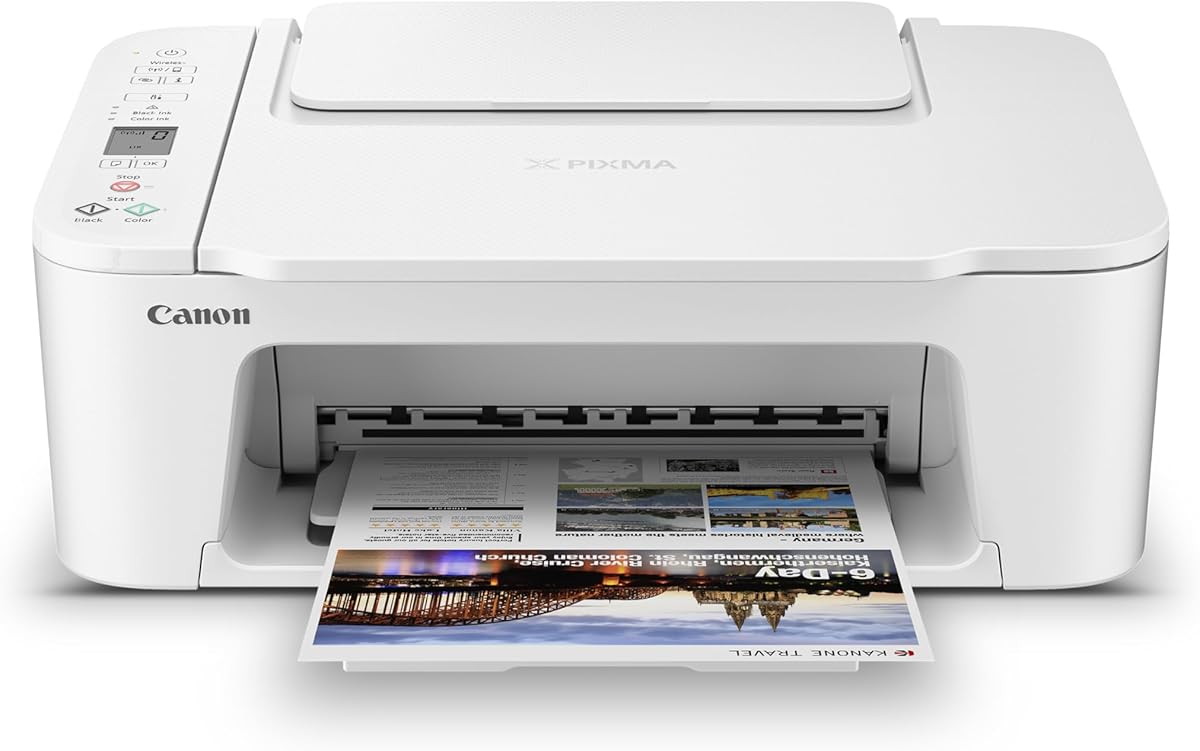
The Canon PIXMA TS4320 is a wireless all-in-one that brings automatic duplex printing to a compact, budget-oriented home model. Its supplied rating is 3.9, and its EPEAT Silver and ENERGY STAR certifications make environmental credentials one of the most notable parts of the feature set.
We may earn a commission when you buy through this link, at no additional cost to you.
It prints, copies, and scans in color, supports documents and photos up to 8.5 by 11 inches, and can print bordered or borderless. The automatic two-sided mode is valuable for schoolwork, forms, and lengthy web content. Its dual-band Wi-Fi uses either 2.4GHz or 5GHz, while Canon PRINT, Apple AirPrint, and Mopria support mobile printing from common devices.
The 1.42-inch monochrome OLED display helps users check ink levels and printer status, making routine maintenance more transparent. As with the TS6520, Canon uses a two-cartridge hybrid ink system, and there is no automatic document feeder. Those points make it less suitable for users who frequently scan folders of paper or produce heavy two-sided workloads.
The TS4320 is a good fit for environmentally conscious households that want duplex capability, mobile printing, and an all-in-one format without moving to a larger office model. It is especially attractive when duplex convenience matters more than professional document feeding.
EPEAT Silver and ENERGY STAR certification provide useful, standardized indicators of energy and environmental considerations. Buyers can use those labels alongside their own printing habits when making a selection.
Automatic two-sided printing adds practical value while the compact design remains suitable for a home. The result is a useful middle ground between a basic single-sided printer and a full home-office machine.
We may earn a commission when you buy through this link, at no additional cost to you.
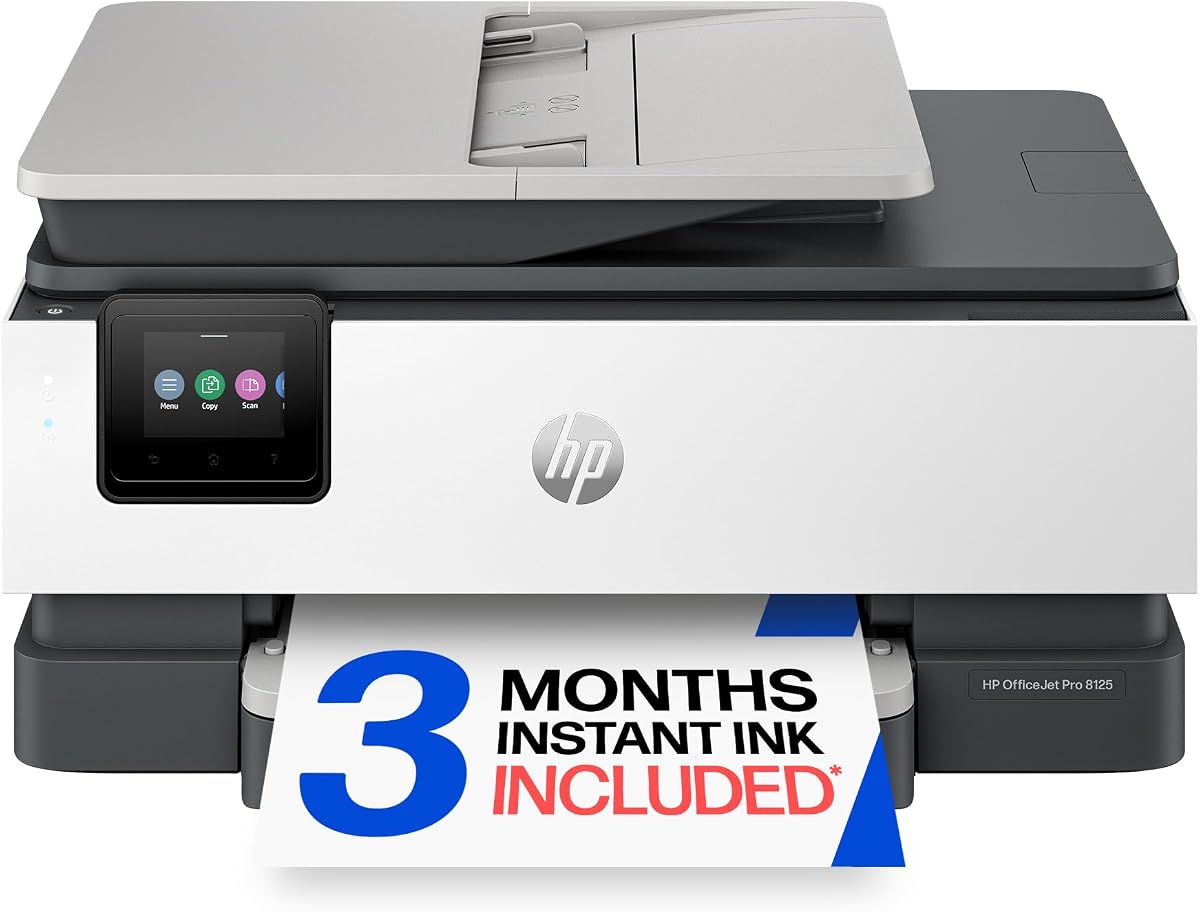
The HP OfficeJet Pro 8125 is the premium and most office-oriented option in this guide. It is intended for users who still print infrequently but want professional document handling, faster output, and features normally associated with a dedicated home office.
We may earn a commission when you buy through this link, at no additional cost to you.
Its standout hardware includes an automatic document feeder, automatic duplex printing, a 225-sheet input tray, and a 2.7-inch color touchscreen. Print speeds reach up to 20 pages per minute in black and 10 pages per minute in color, making it better suited to bursts of reports, presentations, flyers, and business documents than the slower compact models.
The color touchscreen offers phone-like navigation, while dual-band Wi-Fi and the HP app support printing, scanning, copying, and faxing from a smartphone. HP AI-assisted print formatting can simplify web pages and emails. The enclosure contains more than 45% recycled plastic, and HP Wolf Essential Security is included to help protect the network. The included Instant Ink trial has a monthly fee after its introductory period unless canceled.
This printer is intended to work only with cartridges containing original HP chips or circuitry, which may limit cartridge flexibility and is an important consideration for buyers who prefer aftermarket supplies. Its size, capabilities, and subscription-related features also make it excessive for a household that prints only a handful of pages. Even so, it is the clear premium choice for hybrid workers and home offices that occasionally need serious throughput.
The 225-sheet tray and automatic document feeder reduce interruptions during short but substantial projects. Automatic duplexing further improves efficiency when reports or educational materials require multiple pages.
The 2.7-inch color display makes a more capable feature set easier to navigate. Users can see status information and reach common copy, scan, and print controls without relying entirely on a phone.
We may earn a commission when you buy through this link, at no additional cost to you.
The Canon PIXMA TR7120 is an excellent choice for a household or hybrid worker who occasionally needs to scan several pages and print double-sided documents. Its supplied rating of 4.2 matches the TS6520, but the automatic document feeder gives the TR7120 a distinct advantage for multi-page paperwork.
We may earn a commission when you buy through this link, at no additional cost to you.
Printing, copying, and scanning are supported in color, with automatic two-sided output and media support up to 8.5 by 11 inches. The ADF allows multi-page documents to be handled for copying or scanning without manually replacing each sheet. Canon PRINT, Apple AirPrint, and Mopria provide several ways to print from a phone or tablet, while dual-band Wi-Fi supports both 2.4GHz and 5GHz connections.
The 1.42-inch monochrome OLED display provides ink-level and status information in a compact format. Although it is not a touchscreen, it keeps the machine smaller and the operating interface more restrained. The two-cartridge hybrid ink system and lack of a large touchscreen are the main differences from higher-end models, but neither undermines the TR7120's document-handling strengths.
Buy the TR7120 if occasional family administration is your primary need and you regularly handle multi-page forms, recipes, work documents, or school papers. It combines a compact footprint with features that are usually found on larger machines, making it one of the most versatile choices in the guide.
The automatic document feeder is especially useful for signed forms, household records, and school packets. It saves repeated manual placement on the flatbed glass.
The OLED display supplies essential information without the bulk of a large touchscreen. Dual-band Wi-Fi and broad mobile-printing support make the printer convenient for shared home use.
We may earn a commission when you buy through this link, at no additional cost to you.
The Canon MegaTank G3270 is a wireless color all-in-one built around economical, high-capacity ink. With a supplied rating of 4.1, it is a strong budget recommendation for a household that wants fewer cartridge replacements and still receives printing, copying, and scanning.
We may earn a commission when you buy through this link, at no additional cost to you.
Its most significant advantage is the stated ink endurance. The supplied information says a single set can print up to 6,000 black-and-white pages or 7,700 color pages, with up to two years of ink included. These figures are especially relevant to infrequent users because a printer sitting unused for long periods should not force frequent cartridge turnover.
A 1.35-inch square LCD provides basic status control, and the machine supports wireless printing, copying, and scanning. The design avoids the subscription model associated with some ink-tank products, using a conventional two-cartridge arrangement according to the supplied information. That may make ownership straightforward for a buyer who wants simple replenishment rather than bottle-based refilling.
The important limitation is that the G3270 supports single-sided printing only. It also lacks the automatic duplex mode and document feeder found on the TS6520 and TR7120. Nevertheless, for occasional color documents, photos, and copies, the high page capacity and potentially low ink costs can outweigh those missing conveniences. It is our best budget pick for infrequent users who prioritize ink efficiency.
The stated black-and-color page capacities make ink planning easier. A light household can use the printer without treating cartridge replacement as a frequent maintenance event.
Wireless printing, copying, and scanning cover the core home needs. The small square display adds useful feedback without turning the unit into a complex office machine.
We may earn a commission when you buy through this link, at no additional cost to you.
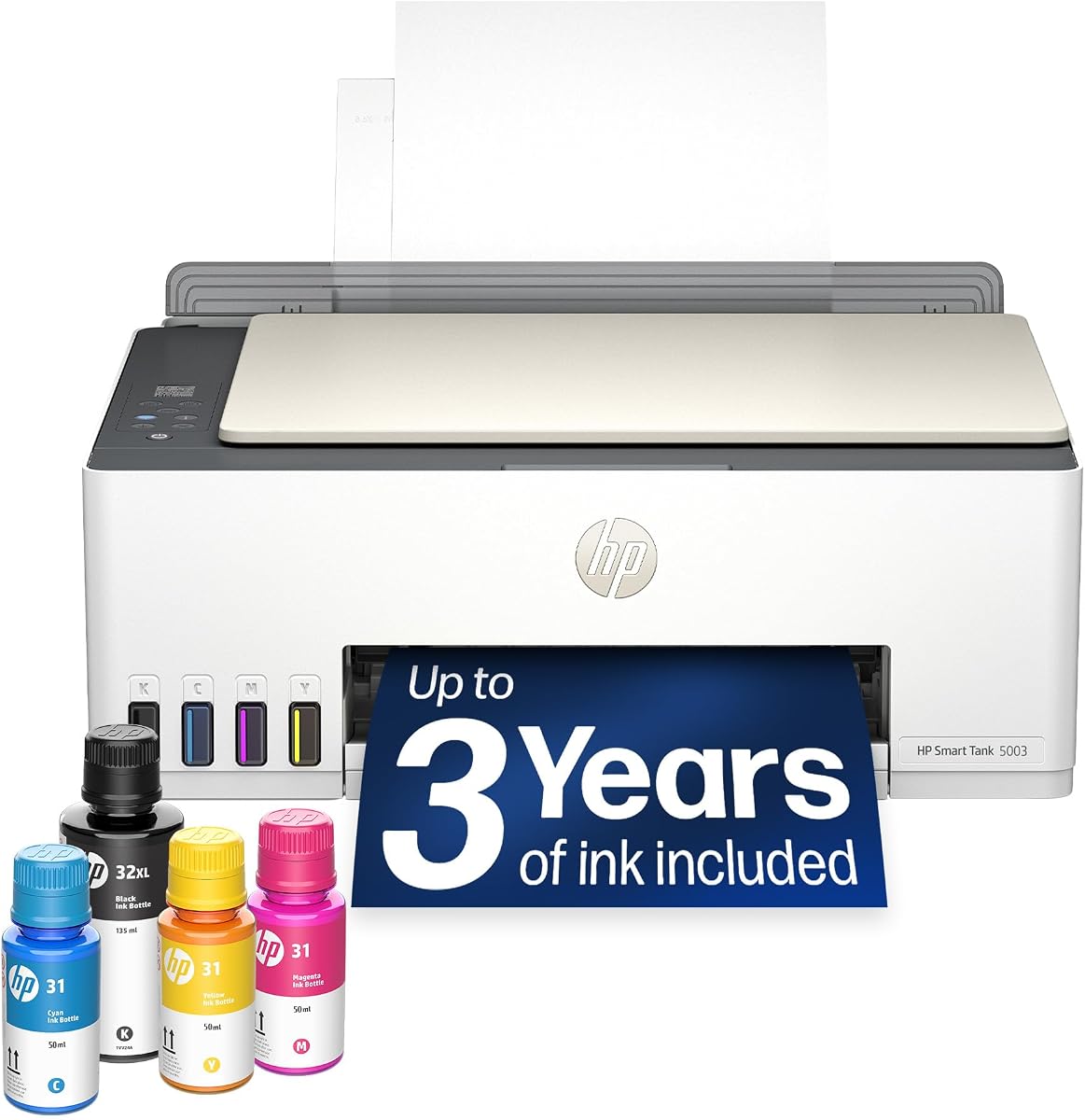
The HP Smart Tank 5003 is an ink-tank all-in-one for users who want a low-maintenance way to print occasional color documents and photos. Its supplied rating is 3.9, and the defining feature is the cartridge-free reservoir system, which can be replenished with ink bottles.
We may earn a commission when you buy through this link, at no additional cost to you.
The supplied information states that up to three years of HP ink are included, with up to 6,000 color or black pages available out of the box. HP's refill system is designed to be mess-free: users plug bottles into the ink tanks and allow the ink to drain rather than squeezing or pouring directly. That design can make ownership more comfortable for people who find cartridge replacement awkward.
The printer supports printing, copying, scanning, borderless output, and wireless or mobile printing. It is intended for low-cost, high-volume use despite also being well suited to households that print in bursts. A separate print-and-scan unit and an ink tank can take up more space than a compact cartridge model, and buyers should account for the size of that refill system.
The product data does not list automatic duplex printing or an automatic document feeder, so it is not the most versatile choice for lengthy office-style jobs. Its appeal lies instead in simple ink replenishment and a large stated starting supply. Consider it when low maintenance and extended ink capacity outweigh the need for advanced paper handling.
The tank system accepts refill bottles, avoiding the need to install a conventional cartridge for each replacement. Its straightforward design can be particularly useful for households that print only a few pages at a time.
Borderless printing expands the range of creative projects, while wireless controls support printing from phones and other connected devices. The printer still includes the practical copy and scan functions expected from an all-in-one.
We may earn a commission when you buy through this link, at no additional cost to you.
The Brother Work Smart 1360 is a compact wireless all-in-one that brings a useful mixture of home and home-office features. Its supplied rating is 3.8, and the most important additions over a basic printer are automatic duplex printing, a 20-sheet ADF, a 150-sheet paper tray, and a 1.8-inch color display.
We may earn a commission when you buy through this link, at no additional cost to you.
Print speeds reach up to 16 pages per minute in black and 9 pages per minute in color. The paper tray can hold 150 sheets, while the automatic document feeder accepts up to 20 single-sided sheets for scanning or copying. This makes the printer more prepared for a sudden school-project deadline or a short burst of paperwork than a minimal document model.
Cloud connectivity is a major strength. The printer can print from and scan to Google Drive, Dropbox, Box, OneDrive, and other popular services. Users can manage the device through Brother Mobile Connect, monitor ink usage with Page Gauge, and connect over a wireless network or USB. These functions make it a good fit for households already working in cloud-based documents.
The ADF is single-sided, so it does not automatically scan both sides of a document, and the display is not a touchscreen. Even so, the combination of duplex printing, cloud access, and a modest footprint is unusually useful. The Work Smart 1360 is best for users who want more capability than a basic printer without the complexity of the OfficeJet Pro 8125.
Support for major cloud storage services reduces the need to save files locally before printing. The same ecosystem makes scanned documents easier to place directly where they are needed.
Automatic duplexing and a compact ADF make routine projects less dependent on manual sheet handling. The result is a practical printer for users whose printing is occasional but not entirely trivial.
We may earn a commission when you buy through this link, at no additional cost to you.
The Canon PIXMA TS3720 is a basic wireless all-in-one designed for straightforward home printing. Its supplied rating of 4.0 reflects a balanced package centered on easy setup, clear controls, mobile access, and versatile media support rather than advanced paper handling.
We may earn a commission when you buy through this link, at no additional cost to you.
It prints, copies, and scans, with approximate speeds of 7.7 pages per minute in black and 4 pages per minute in color. The 1.5-inch segment LCD provides an intuitive way to review status and make common selections. Setup is designed to be completed in a few minutes, and the printer can join a 2.4GHz or 5GHz Wi-Fi network without requiring a computer.
The Canon PRINT app, Apple AirPrint, and Mopria Print Service support printing from compatible mobile devices, and Chromebook compatibility is noted for school documents. Media options include envelopes, photos, high-resolution paper, banners, 5-by-5-inch square photos, and borderless photos up to 5 by 7 inches. POSTERARTIST Online provides a free browser-based tool for posters, banners, and signage.
Its main limitation is that it prints only on one side. There is also no automatic document feeder, so multi-page scanning remains manual. Even so, the uncomplicated two-cartridge system, quick setup, and one-year warranty make the TS3720 a strong choice for a household that needs an uncomplicated printer for forms, correspondence, recipes, and occasional snapshots.
The streamlined installation and simple segment display reduce the learning curve. Computer-free Wi-Fi setup is also convenient for households adding a new shared device.
Square photos, borderless snapshots, envelopes, banners, and high-resolution media broaden the model's usefulness. Online poster software adds another way to prepare creative material.
We may earn a commission when you buy through this link, at no additional cost to you.
The right light-use printer should stay ready for occasional jobs without demanding frequent setup, complicated maintenance, or unnecessary equipment. Consider paper handling, ink approach, wireless access, and the kinds of documents your household actually prints.
Infrequent use does not automatically mean low performance, but it does mean that speed should be matched to actual demand. A model rated at 7.5 black pages per minute, like the HP DeskJet 2923, may feel relaxed for a handful of letters, while the HP OfficeJet Pro 8125 can handle a sudden stack of reports much more efficiently. Consider both black and color speeds, because the color rating is usually lower and can govern the wait for occasional photo or presentation printing.
Choose a slower model for regular single-page jobs and a faster model for occasional bursts. Speed is only one part of the experience because ink type, wireless signal, and document complexity also affect real-world completion times.
Automatic duplex printing is a major convenience for anyone who prints reports, worksheets, recipes, or multi-page forms. The Canon PIXMA TS6520 and TS4320 include it in a relatively compact design, while the Brother Work Smart 1360 combines it with a small document feeder. An ADF is useful when scanning several pages, but a single-sided feeder still requires manual flipping for double-sided originals.
Prioritize duplexing for paper savings and quicker multi-page jobs. Prioritize an ADF for scanning and copying. If neither function is needed, a basic flatbed model may provide the simplest experience.
Consider how often you print before choosing a cartridge or tank-style system. Conventional two-cartridge models are straightforward and familiar, while high-capacity options such as the Canon MegaTank G3270 and HP Smart Tank 5003 are designed to reduce replacement frequency. The HP Smart Tank's bottle-based refill system also removes the need to swap conventional cartridges. At the same time, refillable tanks may require more space and a more deliberate refilling routine.
Match the ink system to your tolerance for maintenance. Choose cartridges for simplicity, or consider a tank model when low replacement frequency is a priority.
Wireless printing is nearly essential for convenient placement in a home. Every featured model supports wireless operation, while several specify dual-band Wi-Fi at 2.4GHz and 5GHz. That can be useful on crowded networks because the printer can select an appropriate band. Canon PRINT, HP App, Brother Mobile Connect, Apple AirPrint, and Mopria provide different paths for sending jobs from compatible devices.
Check whether your household primarily uses a particular phone, tablet, computer, or Chromebook. Confirm the listed app and service support before buying.
A small display can make an all-in-one easier to operate without forcing a large control panel. The HP DeskJet 2923 uses an icon LCD, the Canon PIXMA TS6520 and TR7120 use 1.42-inch OLED screens, and the Brother Work Smart 1360 uses a 1.8-inch color display. The HP OfficeJet Pro 8125 goes further with a 2.7-inch color touchscreen, which suits its broader feature set but also increases the machine's complexity and physical size.
Choose a simple status screen for occasional use and a touchscreen when frequently changing settings. Match the interface to the user's comfort rather than assuming more controls are always better.
Most of the models use a hybrid two-cartridge ink system designed to balance text and color output. Canon's TS6520, TS4320, and TR7120 support documents and photos up to 8.5 by 11 inches, with or without borders. The TS3720 goes further for smaller creative work with 5-by-5-inch square and borderless 5-by-7-inch photos, while the HP Smart Tank 5003 supports borderless output.
For school forms and recipes, sharp text matters more than photo capability. For family photos or crafts, check borderless sizes and supported media before deciding.
A printer used only occasionally should still fit comfortably in its designated space. The HP DeskJet 2923 is explicitly described as compact, and the Canon TS6520 and TR7120 balance their features with smaller footprints. By comparison, the OfficeJet Pro 8125 includes a larger touchscreen, a 225-sheet tray, and a document feeder, while ink-tank systems can require room for tanks and refill bottles.
Measure the intended shelf or cabinet before buying. A model that stays out of sight is less likely to be used, while one that is easy to reach is more likely to serve occasional needs.
Some products include a trial of an ink delivery service. The HP DeskJet 2923 includes a six-month Instant Ink trial, and the OfficeJet Pro 8125 includes a three-month trial. In both cases, a monthly fee applies after the trial unless canceled. These programs can be useful when compatible cartridge usage is high, but an infrequent printer owner may rarely consume enough ink to benefit.
Review the service terms before enrolling. If you use the included cartridges as intended, a trial may be convenient; if you print rarely, do not let the introductory offer determine the printer choice.
Begin with the manufacturer's setup instructions, remove any packing material, install the supplied ink, and load a small amount of plain paper. Connect the printer to your 2.4GHz or 5GHz Wi-Fi network, complete the on-screen or app-based setup, and print a test page. Confirm that the operating system recognizes the printer and test both a computer and a mobile device before putting away the installation materials.
For a cartridge printer, keep spare ink sealed in its original packaging and store it in a cool, dry area away from direct sunlight. Tank printers should be refilled according to the supplied bottle and reservoir instructions, with the ink level checked before a long job. Clean the scanner glass with a soft lint-free cloth, and avoid spraying cleaner directly onto the glass, controls, or exterior.
Run the printer every few weeks or before an anticipated project. A brief test page can help identify a nozzle issue, low ink warning, or Wi-Fi problem before it becomes inconvenient. Keep the paper tray stocked but avoid overfilling it, use supported media for photos and specialty paper, and address error prompts promptly rather than repeatedly restarting the printer.
Not necessarily. If you only print and never copy or scan, a basic printer may be sufficient. An all-in-one becomes more useful when occasional forms, school assignments, or household records also need to be copied or digitized. Choose the added functions only if you expect to use them at least occasionally.
A tank printer can be attractive because it is designed for a large number of pages between refills. That does not make it essential for light use, however. The refill system may require more space and a little more care than conventional cartridges, so compare convenience as well as stated page capacity.
Automatic duplexing is worthwhile if you regularly print reports, worksheets, recipes, forms, or other multi-page documents. It reduces paper use and avoids manually rearranging sheets. For an occasional single-page letter, it may be less important, but it is a useful feature to have when the need arises.
Dual-band Wi-Fi can improve flexibility because the printer can communicate on either 2.4GHz or 5GHz networks. It may be especially helpful in crowded homes with several wireless devices. Actual performance also depends on the router, placement, network configuration, and distance between the printer and access point.
An automatic document feeder is useful for copying or scanning several pages, particularly when you need to process a multi-page set. For rare single-page scans, a flatbed scanner remains sufficient. Note that some compact ADFs process only one side at a time, so check the specifications before assuming they handle two-sided originals automatically.
Printing a test page every few weeks or before an important project can reveal ink or connectivity problems early. Keep the scanner glass clean, remove dust from the paper path when needed, and follow the manufacturer's cleaning guidance. Do not run repeated full clean cycles unless the printer reports a specific issue.
Review the included ink, expected usage, and subscription terms before enrolling. A trial may be convenient if the printer will consume the compatible cartridges regularly. For very light use, traditional ink purchases or a high-capacity system may offer more predictable control, and canceling before the trial ends can prevent a recurring fee.
Choose a dry, dust-free location with enough clearance for the paper tray and output path. Wireless connectivity allows placement away from a computer, but the printer should remain close enough to the Wi-Fi signal for reliable use. Avoid enclosed cabinets if ventilation is limited or if you prefer easy access to the paper and controls.
The Canon PIXMA TS6520 is the strongest overall choice because it combines automatic duplex printing, an OLED status display, dual-band Wi-Fi, and useful document and photo functions in a compact package. The Canon MegaTank G3270 is the best budget option for ink efficiency, while the HP OfficeJet Pro 8125 is the premium choice for users who occasionally need faster output and more advanced document handling.
For most households, prioritize the functions you will actually use: simple wireless setup for occasional letters, duplex printing for longer documents, an ADF for multi-page scanning, or a tank system for fewer ink replacements. There is little value in paying for advanced controls and larger paper capacity when a compact model will sit unused for months at a time.
Product ratings, promotional ink offers, subscription terms, and prices can change, so verify the current listing before buying. Checking the latest package details and cartridge requirements can prevent surprises, particularly for models with introductory ink programs or proprietary cartridge restrictions.