
UGREEN 2K@30Hz 1080P 60FPS Video Capture Card 4K Input HDMI to USB 3.0
4.5Editor score
1080p at 60FPS
4K30 HDMI input
USB-A and USB-C
Driver-free operation
Discover the best external capture card for PS4, comparing capture resolution, latency, HDMI passthrough, audio, compatibility, and setup ease.
An external capture card for PS4 can transform console gameplay into a stream, recording, or webcam feed, but the best choice depends on resolution, latency, passthrough, and software compatibility. A good card should preserve smooth gameplay while sending a clean signal to your computer, whether you are creating polished videos or broadcasting live.
This guide compares ten capture cards based on the specifications and stated capabilities supplied for each model. It covers 1080p and 4K capture options, HDMI loop-out behavior, microphone inputs, operating-system support, high-frame-rate modes, and suitability for gaming, streaming, teaching, and video conferencing.
Each review identifies the product's strongest use case and relevant trade-offs, helping readers distinguish between straightforward 1080p devices and more advanced cards aimed at high-resolution or high-frame-rate workflows. Product availability and prices change, so readers should confirm current specifications and offers before purchasing.
4.5Editor score

4.4Editor score
4.5Editor score
The comparison below highlights each card's headline capture mode, passthrough capabilities, audio features, and key compatibility considerations for PS4 creators.

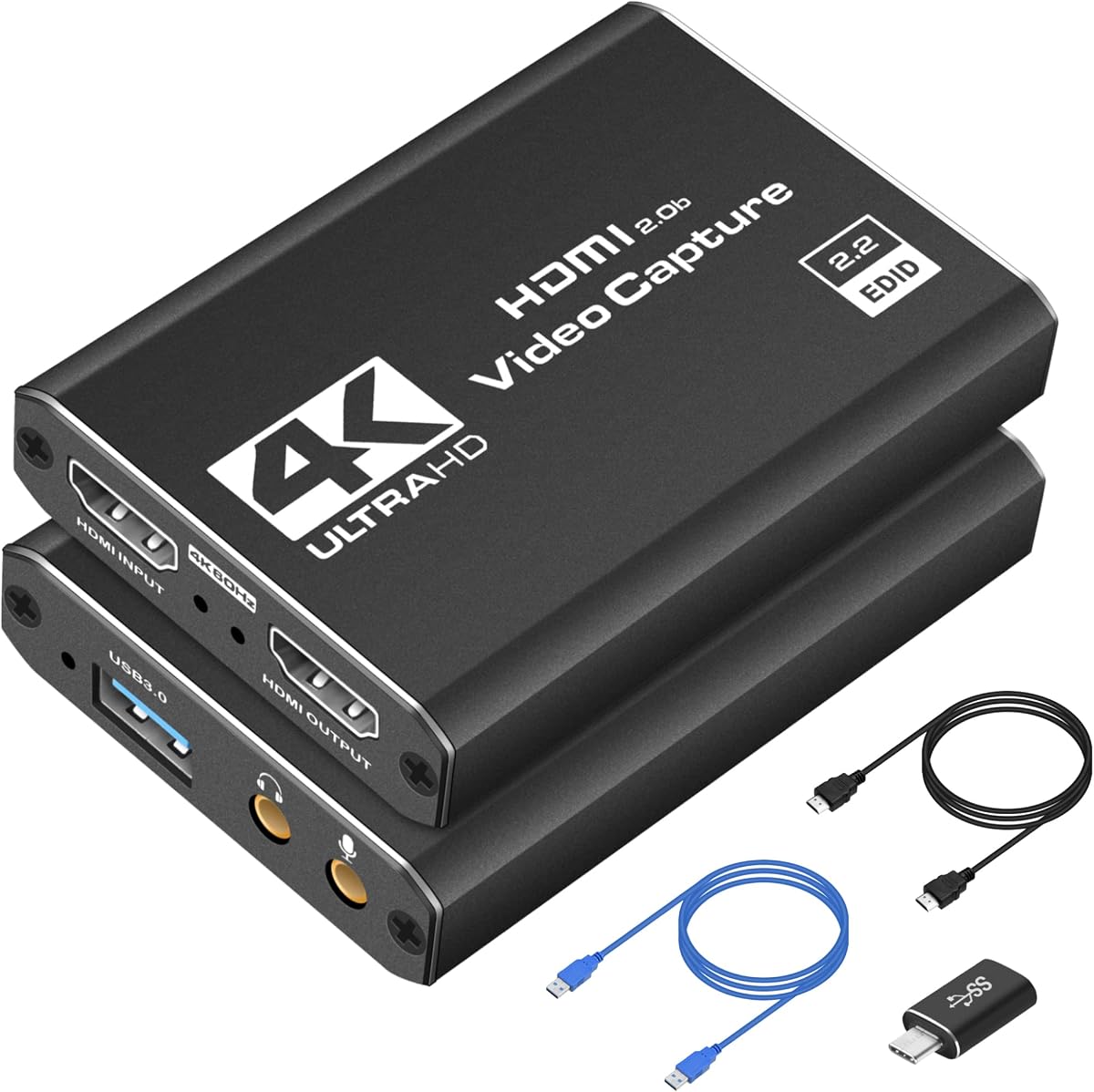
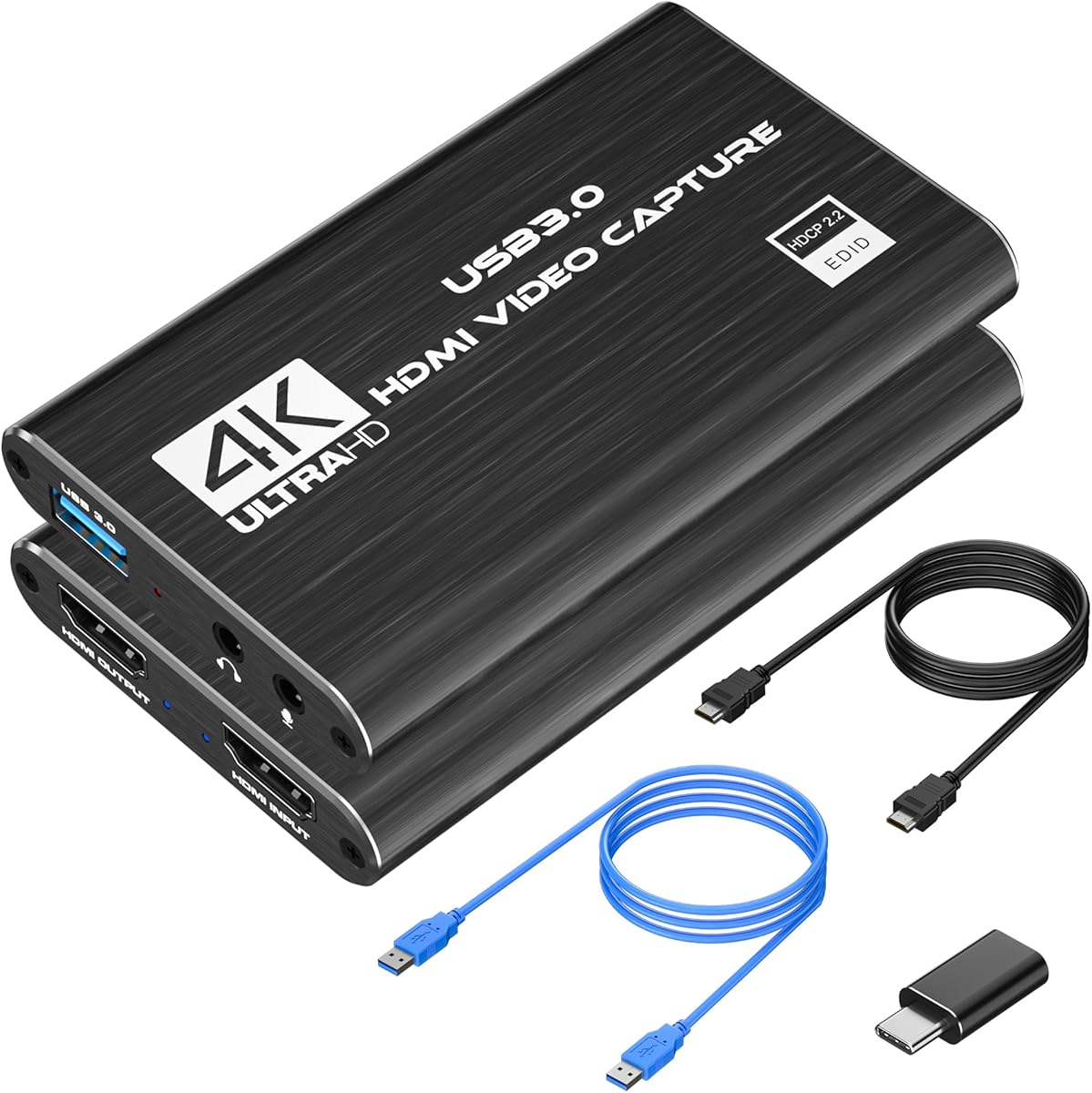


The Rybozen capture card is a general-purpose HDMI-to-USB solution for PS4 owners who want a straightforward path to recording or streaming. It holds a 4.3 rating and stands out for its broad device support, straightforward USB 3.0 connection, automatic webcam-style detection, and support for 1080p60 capture.
We may earn a commission when you buy through this link, at no additional cost to you.
Its input specification is more ambitious than its capture specification. The HDMI input accepts 4K at 30Hz or 60Hz, as well as 1080p at 120Hz or 144Hz, while USB output reaches up to 2K30. That makes it useful for receiving modern console signals, although it does not provide native 4K capture. The HDMI loop-out also allows the PS4 picture to remain visible on a display while the computer captures the feed.
Commentary can be added through the 3.5mm TRS microphone headset input. The card is compatible with Windows and macOS and works with major streaming and playback applications, including OBS, VLC, and PotPlayer. Its main limitation is that advanced 4K capture is unavailable, and the stated loop-out feature should not be interpreted as an effortless substitute for an all-purpose professional production workflow.
This is a sensible pick for a PS4 creator who wants microphone input, loop-out, broad source compatibility, and easy installation in one package. It is particularly attractive when 1080p60 recording is the main goal. Those wanting native 4K files or high-frame-rate 1080p capture should examine the more specialized options later in the guide.
The card requires no separate driver or external power and is automatically recognized as a webcam. After connecting the PS4 through HDMI and the card to a computer through USB 3.0, a creator can add the source in OBS or another compatible application and begin configuring the recording or stream.
The dedicated 3.5mm TRS microphone input lets a creator record narration alongside console audio. Compatibility with cameras, Xbox consoles, set-top boxes, and other HDMI sources also makes the device reusable when the project moves beyond gaming.
We may earn a commission when you buy through this link, at no additional cost to you.
The acer USB 3.0 HDMI capture card combines a practical 4K input stage with 1080p60 output, making it an effective all-rounder for PS4 gameplay. Its 4.4 rating reflects a feature set that includes low-latency operation, YUY2 color, HDMI loop-out, direct microphone support, and broad compatibility with consoles and streaming software.
We may earn a commission when you buy through this link, at no additional cost to you.
YUY2 support is a notable advantage because the product description positions it as providing richer color than MJPEG. The card accepts 4K HDMI input while outputting smooth 1080p at 60Hz, a combination that fits creators who want modern source compatibility without needing 4K recording. Its low-latency design is also appropriate for live broadcasts where keeping the game feed responsive matters.
There is no need for extra drivers or an external power supply, which simplifies first-time setup. The 3.5mm microphone connection allows voice commentary to be mixed directly into a stream or recording, and the card is listed for OBS, XSplit, VLC, YouTube, Facebook, and other common platforms. The trade-off is that the headline 4K specification refers to input, while actual capture is listed at 1080p60.
This card is our Editor's Choice because it offers a particularly balanced combination of image quality, ease of use, audio features, and cross-device support. It suits PS4 players who want dependable 1080p60 capture, live commentary, and HDMI passthrough without navigating a complicated installation. High-end 4K or 120fps workflows call for a more specialized model.
YUY2 is a particularly relevant format for creators who prioritize color consistency. Rather than relying only on compressed MJPEG output, the card offers another available format that can produce more lifelike-looking gameplay under the stated specifications.
Its compact, driver-free design reduces the distance between unpacking the device and recording. The same simplicity carries into mobile work, classes, conferences, and emergency streaming situations where quick setup is valuable.
We may earn a commission when you buy through this link, at no additional cost to you.
This compact USB 3.0 capture device is designed for gamers and content creators who want crisp 1080p60 footage without a complicated installation. Its 4.4 rating and broad platform support make it a practical PS4 option for recording to Twitch or YouTube and for working with OBS Studio, Streamlabs, and XSplit.
We may earn a commission when you buy through this link, at no additional cost to you.
The product description emphasizes smooth, vibrant 1080p60 output, low-latency capture, and seamless passthrough so gameplay can continue on a display while the computer receives the signal. It supports a wide range of HDMI sources, including PS4, PS5, Nintendo Switch, Xbox Series X, cameras, and PCs, which gives it a useful role beyond a single-console setup.
As a plug-and-play device, it requires no extra drivers and is described as ready to use after connecting it to a PC or laptop. Its compact, lightweight construction makes it convenient for travel, events, LAN parties, and mobile studio sessions. The available information does not highlight a dedicated 3.5mm microphone input or specific HDMI loop-out details, so those functions should not be assumed.
This card is a good fit for a creator who prioritizes 1080p60 capture, portability, broad software support, and quick setup over specialist audio features or 4K recording. It can serve as an uncomplicated introduction to console streaming, although more specialized models may fit a professional multi-device production setup better.
The no-driver design keeps setup approachable: connect the HDMI source, attach the card to the computer, and select it in the chosen capture application. OBS Studio, Streamlabs, and XSplit support makes it convenient for both beginning and experienced creators.
Its small, lightweight design reduces the amount of equipment needed for a mobile streaming kit. That portability is useful at tournaments, community events, temporary studios, and other situations where a full desktop capture setup would be inconvenient.
We may earn a commission when you buy through this link, at no additional cost to you.
The Kedok capture card presents a well-rounded package for PS4 users who want 1080p60 recording, HDMI loop-out, and a direct microphone connection. It carries a 4.4 rating and uses a true plug-and-play design that identifies itself automatically as a webcam after connection.
We may earn a commission when you buy through this link, at no additional cost to you.
The feature set extends beyond basic gameplay capture. Its HDMI loop-out allows a PS4 image to remain available on a local display while the computer receives the feed, and the 3.5mm TRS headset input supports commentary. Compatibility is listed for Windows and macOS, along with Twitch, YouTube, Facebook, Twitter, OBS, PotPlayer, and VLC.
The description states that the card does not occupy CPU resources and can detect input and adjust output automatically when settings are correct. That makes it convenient for users who want the operating system to treat the capture device much like a standard webcam. Its practical limitation is the 2K30 maximum USB output, with 1080p60 being the more relevant capture target.
This model suits a PS4 creator who values automatic webcam recognition, loop-out, and direct voice input in a simple package. It is particularly useful when a game needs to remain visible during recording or commentary is central to the content. It will not satisfy someone whose main goal is native 4K capture.
Automatic webcam identification can save configuration time in OBS, conferencing software, and other tools that already recognize common UVC-style devices. Creators can then focus on scene layout, bitrate, and recording settings instead of troubleshooting a specialized capture source.
HDMI loop-out keeps the console visible during capture, while the microphone input adds a narration track. Together, these features suit gameplay videos, interviews, demonstrations, and streams in which the presenter wants to comment without relying entirely on system-level audio routing.
We may earn a commission when you buy through this link, at no additional cost to you.
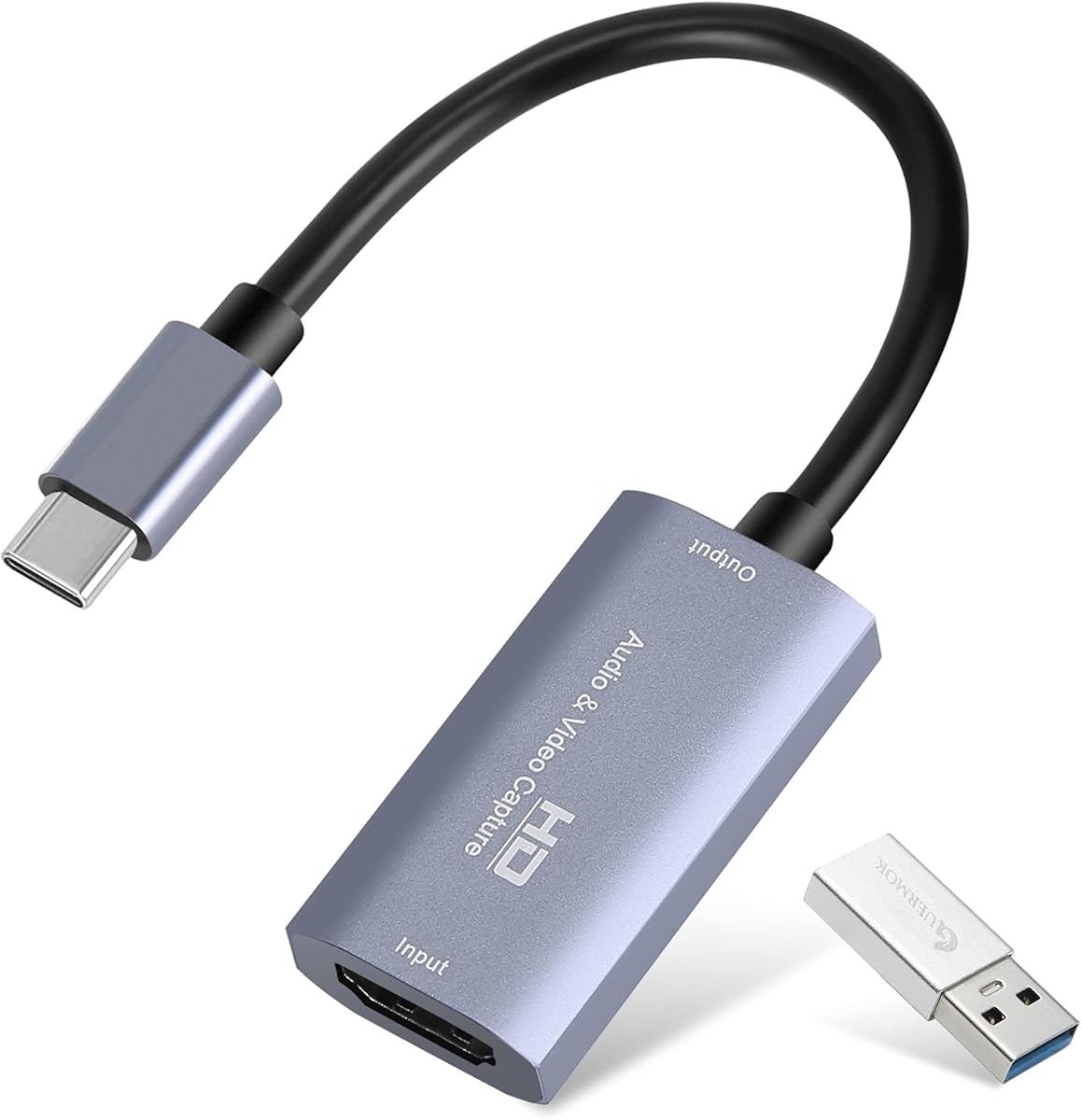
The Guermok card combines USB 3.0 and USB-C connectivity with 1080p60 capture, making it a versatile option for PS4 owners working across different computers. Its 4.4 rating is supported by a detailed specification list that includes 4K30 input, 2K30 output, low latency, broad software compatibility, and an aluminum-alloy housing.
We may earn a commission when you buy through this link, at no additional cost to you.
This model supports one-way transmission from HDMI to USB-C and requires capture software for its intended function. It records or streams through applications such as OBS Studio rather than acting as a direct display adapter. The package includes a USB 3.0-to-USB-C adapter, although the product notes recommend using a USB 3.0 connection when possible to preserve bandwidth.
Compatibility is unusually broad, covering Windows, macOS, Linux, and Android as well as PS4, PS5, Xbox One, cameras, DVDs, set-top boxes, Switch systems, and software including OBS Studio, VLC, PotPlayer, and Zoom. The stated output modes include 2K at 30Hz and 1920 by 1080 at 60Hz, making 1080p60 the mode most relevant to standard gameplay capture.
Guermok is a good option for creators who alternate between desktop and USB-C-equipped systems, teach online, stream from different locations, or want a capture device that supports several operating systems. The trade-off is that its USB-C adapter can introduce speed or recognition complications, and users must understand that this is a capture device rather than a monitor passthrough adapter.
Support for Windows, macOS, Linux, and Android makes the card adaptable to a broad range of capture environments. The USB-C connection is especially helpful for creators whose primary computer lacks a convenient full-size USB-A port.
The aluminum-alloy shell is described as aiding heat dissipation during extended recordings. That design can be valuable in a live stream or long capture session, where sustained heat and signal instability are more relevant than during brief device testing.
We may earn a commission when you buy through this link, at no additional cost to you.
The Newhope USB 3.0 capture card is a straightforward 1080p60 solution with real-time HDMI pass-through. Its 4.2 rating reflects a practical feature set that includes automatic setup, a 3.5mm microphone input, and compatibility with Windows, macOS, Linux, OBS, VLC, and Zoom.
We may earn a commission when you buy through this link, at no additional cost to you.
For a PS4 creator, the important combination is familiar capture performance with a pass-through port that lets gameplay remain visible on another screen. The microphone input supports commentary, while the broader source list includes PS4, PS5, Xbox, Switch, DSLR cameras, and set-top boxes. Third-party software such as OBS is required for the actual capture and streaming workflow.
The card is driver-free and does not require external power, which makes setup convenient across multiple operating systems. Its limitations are visible in the headline specifications: capture reaches 1080p at 60FPS, while 4K applies to pass-through rather than native recording. That distinction is important when comparing it with the XIIXMASK 4K60 model and Elgato's high-frame-rate card.
This is a sensible choice for users who prioritize simplicity, commentary support, and pass-through over advanced formats. It fits a straightforward PS4 streaming setup, a Zoom presentation, or a reusable HDMI capture workflow for several devices. Creators seeking detailed 4K source capture should look for a card that explicitly states 4K capture rather than only 4K pass-through.
The HDMI loop-out provides a convenient local display path while the computer captures the PS4 feed. This is useful for creators who want to see gameplay, monitor a recording, or guide viewers during a live broadcast.
Automatic recognition across Windows, macOS, and Linux makes the card accessible for creators who move between computers. The same driver-free approach supports quick setup with common streaming and conferencing applications.
We may earn a commission when you buy through this link, at no additional cost to you.
The XIIXMASK USB 3.0 capture card is designed around 1080p60 or 2K30 capture while providing a notably capable 4K60 HDMI loop-out. Its 4.3 rating and extensive port layout make it an interesting middle ground between simple capture devices and premium cards with true high-resolution recording.
We may earn a commission when you buy through this link, at no additional cost to you.
The card supports 4K60 HDMI input and loop-out, while USB output reaches 1080p60 or 2K30. Its five-port design, YUY2 support, aluminum-alloy construction, and revised cable layout are intended to improve stability, picture quality, heat dissipation, and overall usability. For PS4 gameplay, it provides a modern local-display path and a direct 3.5mm headset input.
Compatibility spans Windows, macOS, Linux, and Android, with support stated for OBS Studio, VLC, PotPlayer, Zoom, YouTube, Twitch, and Facebook. The card can also receive signals from multiple console generations, cameras, webcams, Steam devices, and set-top boxes. One operational note is that OBS should be restarted after audio setup or sound may not appear.
This XIIXMASK model is a good option for a creator who wants 4K60 pass-through and microphone support without moving to a premium native-4K card. It may also appeal to users who need several connection options in one unit. Those creating 4K files should choose the later XIIXMASK model specifically labeled for 4K60 capture.
A 4K60 loop-out is useful when the console is also connected to a modern television or monitor. The computer can record at the stated 1080p60 or 2K30 modes while the player continues to view the source through the card.
Five ports provide access to HDMI input and output, USB data connections, and audio options. This can reduce the need for additional adapters in a fixed streaming station and makes the device more adaptable to different console arrangements.
We may earn a commission when you buy through this link, at no additional cost to you.
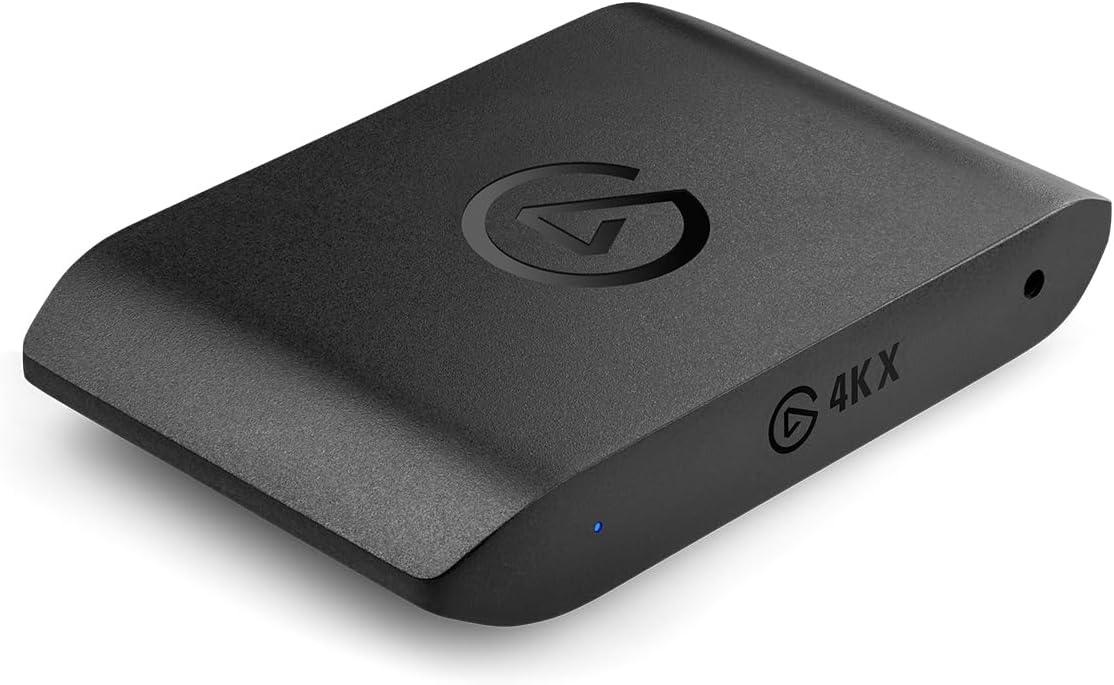
The Elgato 4K X is the premium selection for PS4 creators who want more than standard 1080p60 capture. With a 4.5 rating, HDMI 2.1, 4K144 capture, 1080p recording up to 240fps, VRR passthrough, and ultra-low latency over USB 3.2 Gen 2, it targets demanding gameplay and professional streaming workflows.
We may earn a commission when you buy through this link, at no additional cost to you.
Its headline capability is high-frame-rate capture. The card can document 4K visuals at up to 144fps and high-frame-rate 1080p output up to 240fps, giving editors and broadcasters more options for motion-heavy recordings. HDMI 2.1 input and output support modern high-bandwidth displays, while Variable Refresh Rate passthrough is designed to maintain a smooth local gaming experience.
The device integrates with OBS, Streamlabs, Twitch Studio, Restream, Zoom, Teams, and other popular applications, and it can broadcast to YouTube, Twitch, Discord, and Facebook Gaming. Its ultra-low-latency design is intended to keep the captured image and gameplay closely synchronized. Those attributes are particularly valuable for fast-paced titles and creators producing polished, high-motion footage.
This is the best premium option for a creator who regularly records at high frame rates, expects to use VRR locally, or wants a card built around modern HDMI standards. A PS4 cannot generate every format the hardware supports, but the card remains well suited to 1080p60 capture and offers meaningful headroom for evolving workflows. For basic use, less advanced cards provide a more economical path.
Capturing at 4K144 or up to 240fps in 1080p gives editors more temporal detail and makes high-speed gameplay easier to review. The advantage is most meaningful when the source device, display, software, and storage workflow can all support the selected format.
HDMI 2.1 expands bandwidth for modern displays, while VRR passthrough helps reduce visual tearing during local play. Together with ultra-low-latency USB 3.2 Gen 2 transfer, these features create a more advanced foundation for high-end console capture.
We may earn a commission when you buy through this link, at no additional cost to you.
The UGREEN capture card is an excellent value-focused option for PS4 users who want dependable 1080p60 capture alongside modern input and output flexibility. It holds a 4.5 rating and supports 4K30 input, 2K30 output, 1080p60 capture, USB-A, and USB-C in a driver-free design.
We may earn a commission when you buy through this link, at no additional cost to you.
Its 5Gbps USB 3.0 transfer rate is intended to provide low-delay streaming, while USB 2.0 backward compatibility broadens its usability. The card works with Windows, macOS, Linux, and compatible phones or tablets, making it useful for console gameplay, camera feeds, mobile devices, and Quest headsets. OBS Studio, XSplit, PotPlayer, and QuickTime Player are among the listed software options.
PS4 and PS5 are supported when HDCP mode is disabled, while Switch and Xbox also work with HDCP off. The unidirectional signal path runs from HDMI input to USB output. USB-C compatibility with an iPad requires iPadOS 17 or later, and the aluminum housing, tinned-copper conductors, and EMI shielding are intended to improve heat management and signal reliability.
This is the best budget pick for a creator who wants 1080p60 gaming capture, broad operating-system support, and both USB-A and USB-C without moving to premium hardware. The main caveat is that it does not natively record 4K, and content protection may need to be disabled. Even so, its feature set makes it a practical everyday choice for PS4 streaming and recording.
Having both USB-A and USB-C connections broadens compatibility with desktops, laptops, tablets, and other supported devices. It also gives creators an easier way to connect the card when their preferred computer does not have the port type used by the bundled cable.
At 1080p60, this card covers the format most PS4 gameplay streams use. Driver-free installation, broad software support, and durable construction make it attractive for creators who want dependable performance without a specialized high-end device.
We may earn a commission when you buy through this link, at no additional cost to you.
The XIIXMASK 4K60 Capture Card provides one of the more advanced specification sheets in this roundup. Its 4.2 rating accompanies support for 4K60 capture, 4K HDMI pass-through, 1080p120 recording, MJPEG, YUY2, NV12, and XRGB formats, plus separate 3.5mm audio input and microphone output ports.
We may earn a commission when you buy through this link, at no additional cost to you.
This capability makes the card relevant to PS4 creators who want room to work at 1080p120 or 4K60. A PS4 may not offer 4K gaming, but modern content workflows can still benefit from a capable ingestion device, particularly when a setup is shared with newer sources. The 4K pass-through also supports local monitoring while recording or streaming.
Setup remains driver-free and does not require external power. The device supports Windows, macOS, Linux, Android 5.0 and later, and iPadOS 17 or later, with compatibility listed for PS4, PS5, Xbox, Switch, Quest, cameras, webcams, TV boxes, and DVDs. OBS Studio, Streamlabs, VLC, PotPlayer, Zoom, YouTube, and Twitch are among the named applications.
This model is best for creators seeking advanced capture formats without moving to the most premium high-frame-rate category. The principal trade-offs are a lower overall rating than several alternatives and the need for a suitable USB 3.0 connection and computer to handle demanding modes. PS4 owners primarily recording standard 1080p60 footage may gain little from its extra capabilities.
Unlike cards that only accept a 4K signal while recording at 1080p, this model states that it can capture up to 4K60. That distinction makes it more relevant to editors producing high-resolution source files from compatible modern equipment.
Separate 3.5mm audio input and microphone output ports provide useful routing options. Creators can integrate a headset, external microphone, commentary track, or ambient source without depending entirely on the computer's built-in audio connections.
We may earn a commission when you buy through this link, at no additional cost to you.
The right PS4 capture card depends on the recording format, local-display arrangement, computer connection, audio needs, and the degree of setup simplicity you prefer. Comparing these factors before buying prevents confusion between input resolution, output resolution, and actual capture capability.
A 4K input specification does not automatically mean the card records a 4K file. Some devices accept 4K signals but cap USB capture at 1080p60 or 2K30, while others explicitly support native 4K60 or higher. PS4 gameplay is commonly captured at 1080p60, so that mode is the practical baseline, but creators should understand whether passthrough and recorded resolution differ.
Prioritize the actual capture output when comparing specifications. Choose a card that records at the format required for your editing timeline rather than one that merely accepts a high-resolution source.
Frame rate determines how many individual images are captured each second. A 1080p60 card is suitable for many standard streams, while 1080p120 can make fast movement look smoother in the recording. High-end options such as the Elgato 4K X also support much higher rates, including 4K144 and 1080p240 capture.
For ordinary PS4 uploads, 1080p60 is usually the most straightforward target. Choose higher rates when your subject, display, storage, software, and editing process can genuinely use the extra detail.
HDMI loop-out sends the console signal back to a television or monitor while the computer records the USB feed. This is valuable when a creator wants to see gameplay directly or use a large display for monitoring. It should not be confused with direct screen casting, because the capture card still requires software for recording and streaming.
Check whether the card supports the desired input and loop-out modes. A 4K60 input with 4K60 loop-out is more useful for local display than a lower-resolution loop, particularly in a shared or modern setup.
Latency is the delay between the PS4 image and its appearance in the capture preview or broadcast. Low latency is valuable for fast games because it helps the creator remain responsive to what viewers see. Some cards achieve this through optimized USB transfer, efficient encoding, and stable hardware design.
Latency can also be affected by the source device, capture software, encoder settings, display configuration, and network performance. A low-latency capture card is a strong foundation, but it cannot eliminate delay introduced elsewhere in the workflow.
Game audio and creator commentary need to be balanced correctly before recording or broadcasting. Many cards include a 3.5mm microphone input, while some provide separate audio input and microphone output ports. The exact behavior depends on the card and the software configuration selected in OBS or another application.
Owners who narrate gameplay should prioritize an accessible microphone connection and confirm that the application recognizes the selected audio source. After changing audio settings, it may be necessary to restart OBS for sound to appear.
Windows and macOS are the most commonly listed desktop environments, but some products also support Linux, Android, and iPadOS. The application also matters: OBS Studio is ubiquitous, while Streamlabs, XSplit, VLC, PotPlayer, Zoom, Teams, Twitch Studio, and Restream may be used for particular workflows.
Confirm the computer operating system, USB port type, and intended capture application before purchasing. Driver-free operation is convenient, but software compatibility still determines whether every required source and audio control appears as expected.
USB 3.0 is the practical baseline for reliable high-resolution capture, while premium devices may use faster USB 3.2 Gen 2 connections. USB-A, USB-C, or both are offered across the featured products. USB-C is convenient for modern laptops and tablets, although adapters can occasionally be recognized at a lower speed.
Use a direct connection whenever possible and avoid unnecessary hubs or adapters. If a USB-C adapter is included, connect with the appropriate side and verify that the computer recognizes the full advertised USB speed.
A compact capture card is easier to move between a home studio, event space, classroom, and mobile streaming kit. Aluminum-alloy housings are used by several models to improve heat dissipation and resist electromagnetic interference. Portable does not mean fragile, however, so the cable and connector should still be handled carefully.
Choose a rugged, compact design if travel is frequent, or a larger stationary setup if it will remain permanently installed. Match the form factor to the production environment rather than treating size as the primary performance measure.
Begin by placing the PS4 near the computer and changing the console's video output to HDMI. Connect the console's HDMI output to the card's HDMI input. Connect the card's USB data cable to a USB 3.0 or USB 3.2 port on the computer, then connect the card's HDMI output to the television or monitor if local loop-out is desired.
Open OBS Studio or another compatible capture application and select the capture card as the video source. Choose a resolution and frame rate supported by the computer, card, and intended workflow. Add the appropriate HDMI or 3.5mm audio source, adjust the game and commentary levels, and confirm the preview before recording. Restart OBS after changing audio settings if sound does not appear.
For care, keep the device and cables dry, avoid sharp bends in the USB and HDMI leads, and provide ventilation around the capture card during long sessions. Firmly seat connectors without forcing them, protect the aluminum housing from impact, and inspect ports for dust. Test the complete signal path after moving the setup, and remember to disable HDCP on supported console sources when required for capture.
No. A capture card's 4K input capability means it can receive a 4K signal, but the PS4's native output mode still determines what can be recorded. The card may also cap capture at 1080p60 or 2K30. Check both the console output and the card's actual recording specifications.
For most PS4 gameplay, streaming, and tutorial videos, 1080p60 is the standard practical target. It provides a familiar frame rate and is supported by every card in this guide. High-frame-rate and 4K modes are more relevant to advanced workflows or setups that also use newer source devices.
Not when the selected capture card includes HDMI loop-out. The PS4 connects to the card, and the card sends the signal onward to the display while the USB connection carries the feed to the computer. A card without loop-out may require another way to maintain a local display.
Check the selected audio source in OBS, confirm the console and capture card connections, and verify that the application is monitoring the correct device. Some featured products specifically recommend restarting OBS after completing audio setup. Also confirm that content protection has not replaced the protected source with a blank signal.
Most of the featured products list Windows and macOS support, and several explicitly include Linux. Compatibility can vary by capture application and device model, so check both the operating system and software requirements before purchase. USB-C support on an iPad also requires the stated iPadOS 17 or later for applicable models.
It can, because the signal may pass through decoding and conversion electronics. Cards advertising low or ultra-low latency are designed to minimize that delay, but the entire setup matters. Source output, display mode, capture software, and encoding settings can all influence the final result.
Only if the workflow will use it. The PS4 generally centers on 1080p gaming, so a reliable 1080p60 card is usually sufficient for basic streaming and recording. Native 4K60 capture becomes more valuable if the same setup handles newer consoles, cameras, or high-resolution production tasks.
Yes, if the capture card provides a compatible 3.5mm microphone or headset input. Several featured devices also offer separate audio input and microphone output ports. Connect the microphone, select the appropriate source in the capture software, and adjust the voice and console-audio levels separately.
The UGREEN model stands out as the best budget selection because it combines a strong rating, 1080p60 capture, 4K30 input, USB-A and USB-C, and broad platform support. The acer card earns the Editor's Choice position for its balanced 1080p60 workflow, YUY2 color, low latency, HDMI loop-out, and direct microphone input, while the Elgato 4K X provides the strongest premium performance.
Most PS4 creators should prioritize a reliable 1080p60 signal, low latency, stable software recognition, and a loop-out arrangement that suits their display setup. Advanced users should examine actual capture resolution, frame-rate limits, audio routing, USB bandwidth, and content-protection behavior rather than relying on broad compatibility labels alone.
Specifications and prices can change, and current user ratings may evolve over time. Before buying, verify the latest device details, confirm that the required PS4 output mode and capture application are supported, and compare the current offer with the features that matter most to your recording or streaming workflow.