
Acer SB240Y G0bi
4.6Editor score
Zero-frame edge-to-edge design
Up to 120Hz refresh rate
FreeSync-compatible adaptive sync
Compact 23.8-inch IPS format
An edge to edge monitor creates a broad, nearly uninterrupted viewing surface by minimizing visual boundaries and, in many cases, using an ultrawide aspect ratio. The best examples balance immersive size with readable text, accurate color, responsive motion, useful connectivity, and a desk footprint that suits the room.
This guide compares ten products ranging from a compact 23.8-inch display to expansive 57-inch curved models. The evaluation focuses on panel resolution, refresh rate, response time, color capability, multitasking features, ports, speakers, ergonomic controls, and the practical value each design offers to gamers and professionals.
Each pick highlights a distinct approach, including a budget-friendly IPS option, versatile WQHD models, premium OLED technology, and workstation-scale displays. Product details and availability can change over time, so readers should verify current specifications, compatibility, and deal terms before purchasing.
4.6Editor score
4.4Editor score

4.3Editor score
As an Amazon Associate we earn from qualifying purchases.
The comparison below highlights the major differences in screen size, resolution, panel technology, refresh rate, and connectivity, helping readers identify the model that best matches their desk, workload, and gaming priorities.





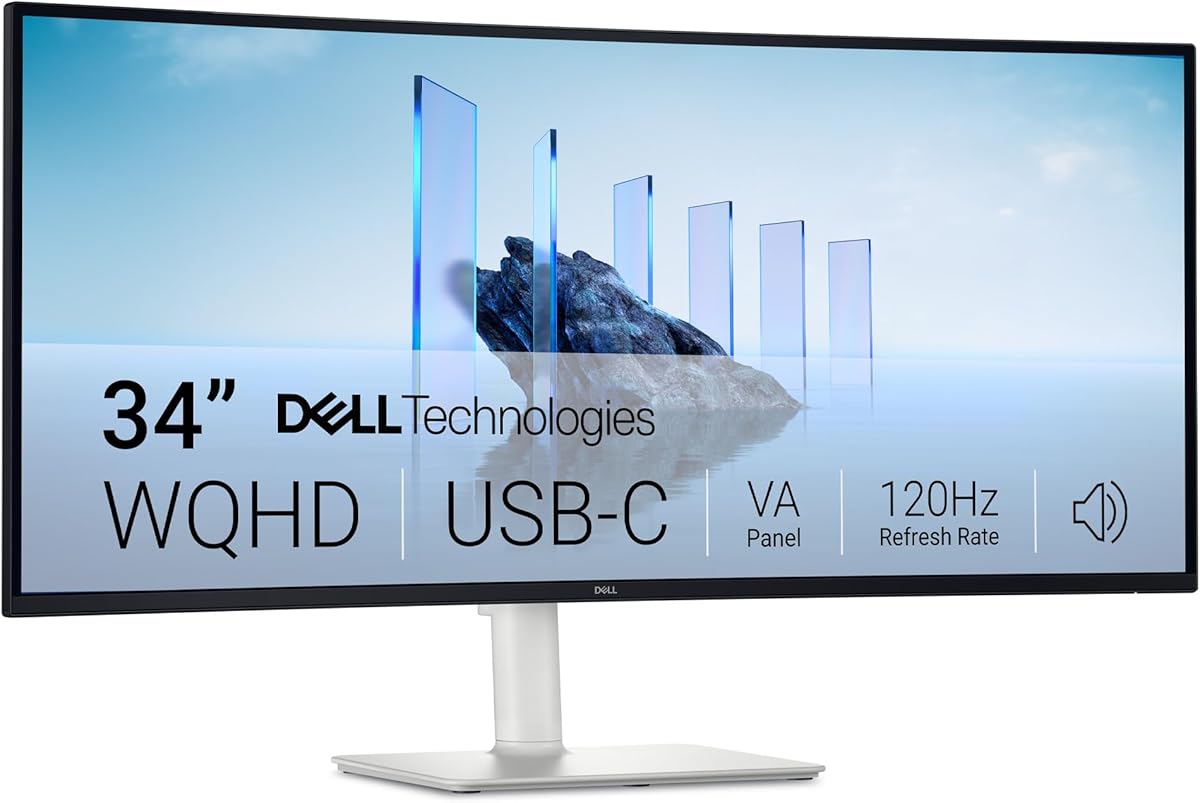
The Dell S3425DW is a well-rounded 34-inch edge to edge monitor for buyers who want one display to handle office work, media, and casual gaming. Its 4.4 rating reflects a favorable balance of features, with a curved WQHD panel, high refresh rate, broad color coverage, and streamlined USB-C connectivity.
We may earn a commission when you buy through this link, at no additional cost to you.
The 3440 x 1440 resolution gives applications noticeably more horizontal room than a conventional Full HD screen while avoiding the extreme footprint of a 49-inch model. A VA panel and 3000:1 contrast ratio support deep blacks and immersive imagery, while 99% sRGB and 95% DCI-P3 coverage suit colorful creative work and everyday entertainment.
Motion performance is more than adequate for most users because the monitor reaches 120Hz and offers a 0.03ms response time. AMD FreeSync Premium supports smoother gameplay when paired with a compatible graphics card. The main limitation is that its maximum refresh rate and specification focus do not target the very fastest competitive gaming experience.
This monitor is a strong recommendation for hybrid users, office professionals, and gamers who value a wide canvas without an extreme 49-inch or 57-inch footprint. Its USB-C connection, up to 65W power delivery, ComfortView Plus feature, and integrated sound make it particularly convenient for a streamlined modern desk.
The WQHD canvas is wide enough to place dense documents, communication windows, and editing tools side by side. Its 34-inch size also makes it a more manageable introduction to ultrawide computing than the 49-inch and 57-inch alternatives in this guide.
A single USB-C cable can handle data, video, and up to 65W of power delivery, reducing desk clutter. This makes the Dell particularly attractive for laptop users who want a larger display without maintaining a complicated collection of adapters.
We may earn a commission when you buy through this link, at no additional cost to you.
The Z-Edge 49-inch Ultrawide is a productivity-focused edge to edge monitor with a 4.5 rating. Its 5120 x 1440 resolution, 32:9 format, and 1500R curve create a panoramic display that can function like two widescreen panels without a visible divider.
We may earn a commission when you buy through this link, at no additional cost to you.
Picture-in-Picture and Picture-by-Picture modes make the display especially practical for analysts, editors, streamers, and anyone who regularly works with multiple systems. The built-in KVM function also allows two computers to share one keyboard and mouse, while the adjustable stand supports better positioning.
For gaming, the monitor offers up to 165Hz through HDMI 2.1 or DisplayPort 1.4, a 1ms MPRT response time, and FreeSync support. Features such as a crosshair, shadow balance, and an on-screen timer add useful competitive and training tools without requiring another application.
The principal trade-off is size. A 49-inch curved monitor demands adequate desk depth and careful attention to text scaling, even though the resolution provides substantial pixel density. It is best suited to users who actively benefit from multiple full-size windows rather than those seeking a modest upgrade.
PIP and PBP modes make it possible to keep a game, video feed, document, or camera preview visible alongside another task. Combined with KVM switching, these features turn the display into a practical command center for power users.
The 1500R curve wraps content around the viewer without becoming as aggressive as the 800R and 1000R designs found on some premium models. This can feel enveloping while remaining practical for regular office use.
We may earn a commission when you buy through this link, at no additional cost to you.
The Dell UltraSharp U4924DW is designed for professional workflows that benefit from a very broad canvas. It carries a 4.2 rating and combines a 49-inch 32:9 screen, DQHD resolution, Edge WLED backlighting, and USB Type-C connectivity in a business-oriented design.
We may earn a commission when you buy through this link, at no additional cost to you.
The 5120 x 1440 resolution offers approximately twice the horizontal capacity of a standard QHD display, allowing multiple applications to remain visible at once. Its 350-nit brightness supports clear and consistent on-screen presentation, while VESA compatibility gives users more freedom when arranging the monitor.
This is not the most competitive gaming model in the lineup. Its 5ms GTG response time is suitable for general use and many games, but the 120Hz-class panels in this guide are better for fast competitive play. Its strength instead lies in workspace organization, media review, and content-oriented productivity.
Professionals who routinely compare documents, edit timelines, or need two complete application windows should consider the U4924DW. It is also a sensible option for buyers who want an expansive Dell display but do not need OLED contrast, extreme refresh rates, or dedicated gaming utilities.
The 32:9 format can replace a conventional two-monitor arrangement in many workflows. Windows can be arranged without external monitor bezels, creating a cleaner software workspace while keeping every application in one physical display.
Edge WLED backlighting supports clear, even illumination, and 350-nit brightness is suitable for most desktop environments. USB Type-C provides an efficient path for modern devices, while VESA mounting supports cleaner desk arrangements.
We may earn a commission when you buy through this link, at no additional cost to you.
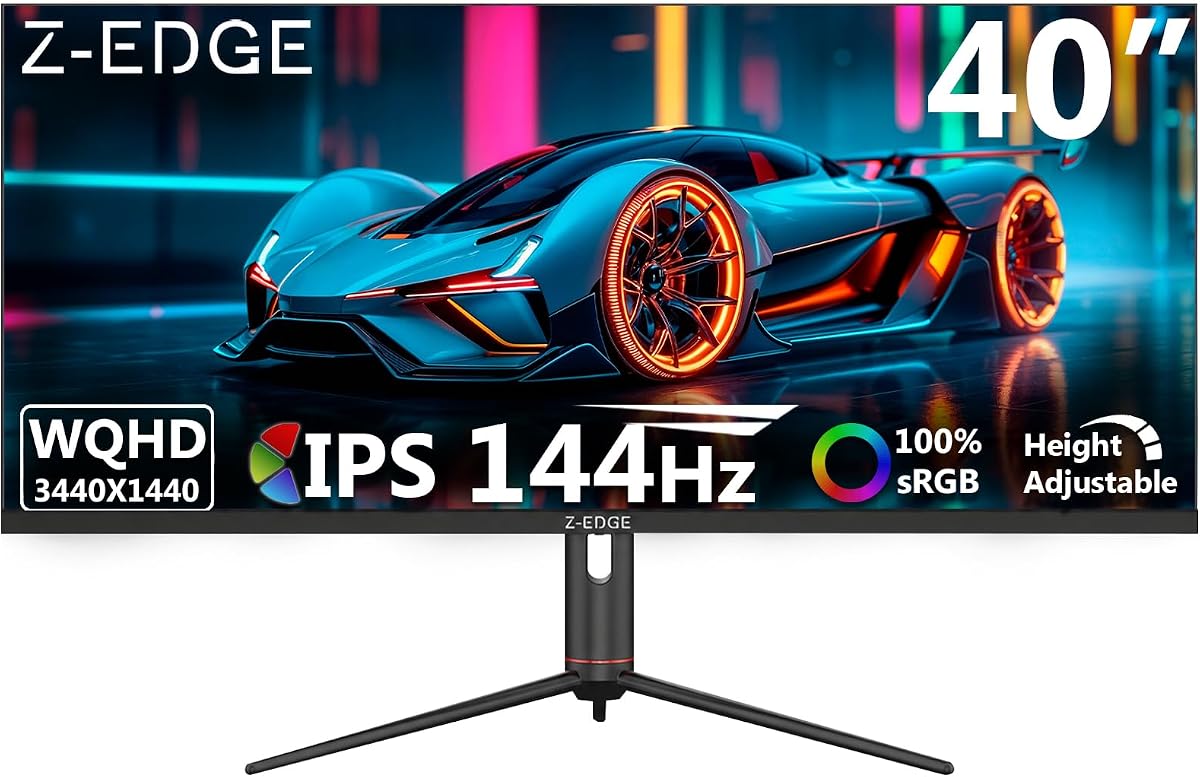
The Z-Edge 40-Inch Ultrawide offers a compelling middle ground between a conventional 34-inch monitor and a massive 49-inch model. Its 4.5 rating reflects strong versatility across gaming, creative work, and productivity, with a 3440 x 1440 IPS panel and refresh rate of up to 144Hz.
We may earn a commission when you buy through this link, at no additional cost to you.
The 21:9 format provides enough room for side-by-side documents, timelines, and game views without overwhelming a standard desk. IPS technology and 178-degree viewing angles make it a sensible choice for shared screens or situations where users may move around the workstation.
DisplayPort supports up to 144Hz, while the supplied HDMI path is listed at up to 100Hz. A versatile Type-C port supports data transfer, PIP and PBP handle multiple inputs, and gaming utilities include shadow balance, a crosshair, magnifier, refresh-rate display, and timer.
This is an attractive recommendation for gamers and creators who want more immersion than a 34-inch ultrawide without the footprint of a 49-inch display. Its fully adjustable stand, built-in speakers, and broad feature set also make it a convenient all-purpose option for everyday use.
At 40 inches, the monitor provides a panoramic 21:9 workspace while remaining easier to accommodate than a 49-inch model. It suits desks that cannot support the deepest curve or enormous footprint of the largest options in the guide.
PIP and PBP modes support productive multitasking, while the crosshair, magnifier, shadow balance, and timer help competitive gamers. The combination makes the display more versatile than a basic productivity ultrawide.
We may earn a commission when you buy through this link, at no additional cost to you.
The Corsair XENEON Edge takes a different approach to the edge to edge category. This 14.5-inch portable LCD can function as a standalone monitor, an internal PC display, or an external display mounted to a compatible computer case.
We may earn a commission when you buy through this link, at no additional cost to you.
Its 2560 x 720 native resolution, 60Hz refresh rate, wide viewing angles, and vibrant color make it useful for system metrics, chat channels, calendars, weather applications, and light gaming. The five-point capacitive touchscreen provides a more interactive experience than a conventional auxiliary panel.
Installation is flexible. Magnets hold the display inside a compatible case, four corner screws align with 360mm fan mounting positions, and the included stand supports standalone vertical or horizontal use. HDMI and USB-C connectivity broaden its compatibility with different systems.
This is not a replacement for a conventional desk monitor, so buyers should not expect standard productivity comfort or gaming performance from its unusual 2560 x 720 canvas. It is best for PC builders and enthusiasts who want a dedicated secondary display for information, controls, or a distinctive build component.
The XENEON Edge can keep system information, communication tools, or a secondary application visible without occupying the main monitor. Its touchscreen adds direct control that can be valuable for dashboards, widgets, and selected games.
Magnetic mounting, screw compatibility, and the included stand allow the display to move between the inside and outside of a compatible PC case. This flexibility is unusual and makes the product especially appealing to system builders.
We may earn a commission when you buy through this link, at no additional cost to you.
The Sceptre C345B-QU240T is built for fast-paced gaming, with a 4.4 rating and headline specifications that include a 240Hz refresh rate and 1ms response time. Its 34-inch curved format combines a competitive 3440 x 1440 resolution with a smooth 1500R curve.
We may earn a commission when you buy through this link, at no additional cost to you.
Two DisplayPort and two HDMI inputs provide ample connectivity for a gaming PC, laptop, console, or streaming setup. The 100% sRGB gamut is appropriate for mainstream creative work and media, while Blue-Light Shift is intended to reduce uncomfortable blue-light emissions during extended sessions.
Its curved screen and high refresh rate create an engaging gaming experience, and the 34-inch size is easier to position than a 49-inch or 57-inch display. The product lacks USB-C docking, so users seeking one-cable laptop connectivity or a more advanced productivity feature set should look elsewhere.
The C345B-QU240T is best for competitive and high-refresh gaming where motion smoothness matters more than extensive USB connectivity. It also suits console owners and enthusiasts who want a broad but manageable screen with built-in speakers and multiple high-bandwidth video inputs.
The combination of 240Hz refresh and 1ms response makes the Sceptre especially responsive. These characteristics benefit fast shooters, racing games, and other titles in which frequent visual changes can make frame delivery and clarity feel more immediate.
Two DisplayPort and two HDMI ports simplify connections involving a gaming computer, laptop, or console. Built-in speakers and an audio output jack add further flexibility for a desk that does not have room for separate speakers.
We may earn a commission when you buy through this link, at no additional cost to you.
The LG 45GX950A-B is the premium performance choice in this guide. It carries a 4.3 rating and combines a 45-inch curved OLED panel, 5K2K resolution, dual-mode refresh rates, and extensive gaming features in one expansive display.
We may earn a commission when you buy through this link, at no additional cost to you.
Its 5120 x 2160 resolution provides high pixel density at a 21:9 aspect ratio, producing sharp text and detailed game imagery. The panel supports up to 1300 nits, 98.5% DCI-P3 coverage, a 1.5M:1 contrast ratio, and DisplayHDR True Black 400, making it suitable for vivid HDR content and high-end visual work.
The dual-mode design is particularly useful. A hotkey switches between 5K2K at up to 165Hz and Wide Full HD at up to 330Hz, giving competitive gamers a high-speed option when maximum detail is less important. The 0.03ms GtG response, G-SYNC compatibility, FreeSync Premium Pro, and DisplayPort 2.1 reinforce its performance focus.
Users should ensure their graphics hardware, cables, and games can drive the selected resolution and refresh rate. OLED also requires sensible screen management, particularly for static content. Despite those considerations, this is the standout option for buyers who prioritize image quality, resolution, speed, and cutting-edge gaming features together.
Dual mode gives buyers a practical choice between maximum detail and maximum frame rate. Story-driven games and creative applications benefit from the crisp 5K2K mode, while competitive shooters can switch to the highly responsive 330Hz option.
OLED technology produces exceptionally deep blacks and a very high contrast ratio, while the 800R curve brings the edges of the display closer to the viewer. These characteristics create a strong sense of immersion for games, films, and HDR media.
We may earn a commission when you buy through this link, at no additional cost to you.
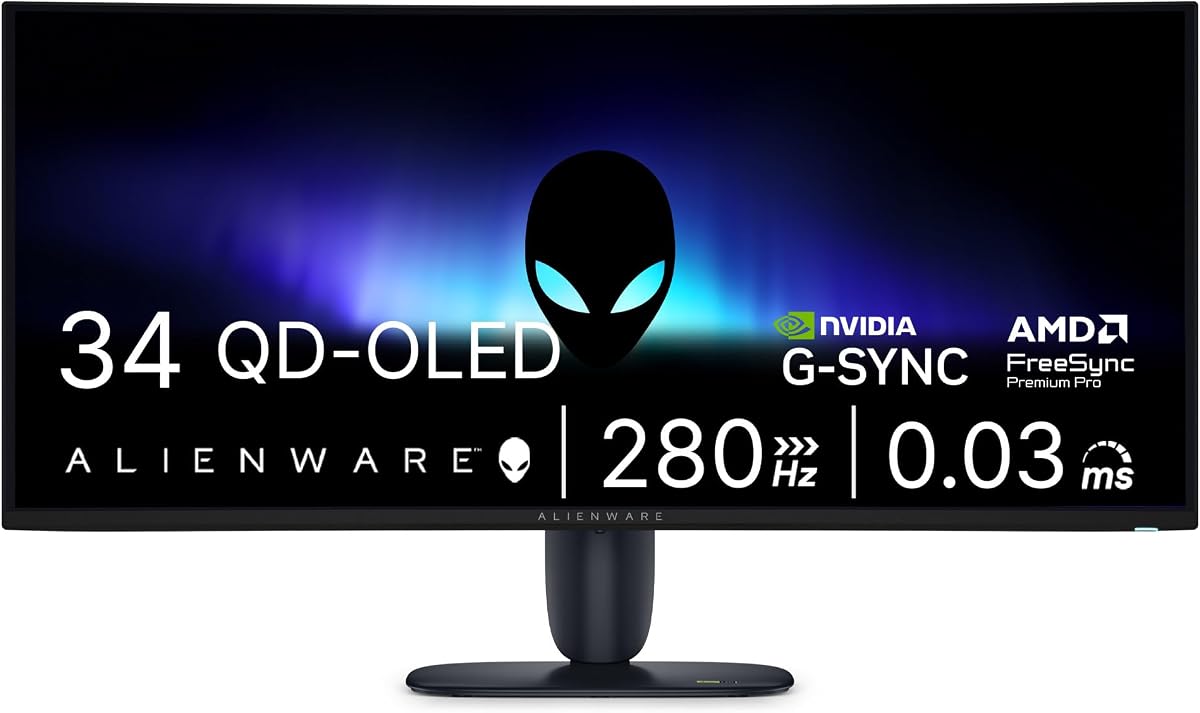
The Alienware AW3426DW targets gamers who want premium QD-OLED visual quality in a comparatively manageable 34-inch format. Its 4.2 rating accompanies an ultrawide specification of 280Hz, 0.03ms response time, and NVIDIA G-SYNC support.
We may earn a commission when you buy through this link, at no additional cost to you.
The combination of an ultrawide panel and high refresh rate suits fast competitive games, while QD-OLED technology is well suited to gaming, media, and general visual use. At 34 inches, it may be easier to position than the 45-inch, 49-inch, and 57-inch models featured in this guide.
The available product information is concise, so buyers should verify the exact resolution, port configuration, stand adjustments, and other technical details on the current listing. Its core appeal is clear from the headline specifications, but those details determine how well it fits a particular setup.
This monitor is a strong candidate for gamers prioritizing speed and OLED picture quality over maximum pixel density. It is especially appealing when a 34-inch ultrawide is preferred to a larger model but the target games and graphics hardware can support its refresh rate.
A 280Hz refresh rate and 0.03ms response time make the AW3426DW highly responsive, while QD-OLED adds rich color and deep contrast. This pairing is especially compelling for competitive shooters and fast-paced racing games.
A 34-inch screen provides many advantages of an ultrawide without requiring the wall of space demanded by a 49-inch or 57-inch panel. It can therefore serve as a more practical premium gaming display in a compact room.
We may earn a commission when you buy through this link, at no additional cost to you.
The Acer SB240Y G0bi is a compact, affordable route into edge-to-edge design. It holds the highest rating in the group at 4.6 while offering a 23.8-inch IPS panel, Full HD resolution, and a refresh rate of up to 120Hz.
We may earn a commission when you buy through this link, at no additional cost to you.
Its zero-frame layout keeps the visual borders narrow, giving the display a clean appearance despite its smaller size. The 16:9 format is familiar, but the high refresh rate and FreeSync-compatible adaptive synchronization make it more suitable for gaming than a typical office monitor.
A 1ms VRB response rating supports fast-moving content, and IPS technology provides consistent colors and viewing angles. The main limitations are obvious: Full HD provides less multitasking room than an ultrawide, and the port selection is limited to HDMI and VGA with no USB-C docking or built-in speakers listed.
The Acer is ideal for a student, office worker, or casual gamer who wants a slim-bezel display, smooth everyday motion, and a modest desk footprint. It is the sensible budget recommendation, while users needing multiple windows or a true panoramic workspace should consider a larger ultrawide.
The zero-frame construction provides a modern edge-to-edge appearance in a familiar 16:9 format. It is a practical option for users who value clean styling and more than the standard 60Hz refresh rate without needing a large display.
Adaptive sync can match the display to a compatible graphics card, while 120Hz and 1ms VRB improve the feel of scrolling, menus, and fast action. IPS viewing angles also make the screen convenient for shared office spaces.
We may earn a commission when you buy through this link, at no additional cost to you.
The Samsung Odyssey Neo G9 is the most expansive option in the guide, combining a 57-inch 1000R curved display with dual 4K UHD resolution. Its 4.3 rating reflects a monitor capable of functioning as a spectacular gaming screen, entertainment display, or multitasking command center.
We may earn a commission when you buy through this link, at no additional cost to you.
The 7680 x 2160 canvas offers the horizontal room of two UHD monitors with a wide field of view. Quantum Matrix technology, 2,392 local-dimming zones, up to 1,000-nit peak brightness, and a stated 1,000,000:1 contrast ratio provide precise control over bright highlights and dark areas.
Gaming performance is also exceptional, with up to 240Hz refresh, 1ms GTG response, DisplayPort 2.1, and AMD FreeSync Premium Pro. CoreSync and Core Lighting can project compatible on-screen colors into the room, adding a strong sense of atmosphere to supported games and media.
Its 1000R curve and 57-inch width create an unusually enveloping effect, but they also demand considerable space and careful eye movement. A powerful graphics system is advisable to make full use of the resolution and refresh rate. It is best for enthusiasts who prioritize immersion above all else.
The dual-UHD width can accommodate multiple detailed applications, large timelines, and expansive game views. Picture-by-Picture and Picture-in-Picture modes allow content from separate sources to remain visible at the same time.
The extreme 1000R curve wraps the display around the viewer, while thousands of local-dimming zones improve the handling of highlights and shadows. Together with peak brightness and high contrast, this creates a compelling HDR presentation.
We may earn a commission when you buy through this link, at no additional cost to you.
Choosing an edge to edge monitor requires balancing immersion with resolution, motion performance, color quality, desk space, and connectivity. The most important starting point is how the display will be used and which compromises are acceptable for that particular setup.
Screen size changes more than the appearance of a monitor. A 23.8-inch screen can improve aesthetics and remain compact, but it does not provide the panoramic benefit associated with a true ultrawide. A 34-inch model offers a familiar diagonal size with added width, while 40-, 45-, 49-, and 57-inch options progressively demand more desk space and a wider field of view. Curved panels can make a large display feel more manageable by bringing the edges closer to the viewer, but they do not eliminate the footprint requirement. Measure the available desk depth and consider the distance between the display and your eyes before deciding.
Resolution determines how much text and interface detail fit on screen. A 1920 x 1080 display is familiar and inexpensive, but 2560 x 1440 provides a clearer canvas and more comfortable desktop space. For ultrawide models, 3440 x 1440 is a common productivity resolution, while 5120 x 1440 offers the equivalent of two QHD areas. The 5120 x 2160 and 7680 x 2160 models deliver even more detail, although they require more capable graphics hardware. Consider both pixel density and screen dimensions because a higher resolution does not automatically produce more usable workspace when Windows scaling is too aggressive.
Refresh rate determines how many frames the display can present each second. A 120Hz screen feels noticeably smoother than a 60Hz display for scrolling, animation, and everyday gaming, while options from 144Hz to 240Hz offer progressively greater headroom for fast motion. Response-time ratings are useful for comparing clarity, but they should be considered alongside panel technology and variable-refresh support. OLED panels can offer extremely fast stated response times, while high-refresh LCD models may use blur reduction to improve perceived motion. The best match depends on the games played and the capabilities of the graphics card.
IPS panels are known for consistent colors and wide viewing angles, making them suitable for office work and shared screens. VA panels generally provide deeper blacks and higher native contrast, which can produce a more immersive image. QD-OLED and OLED models go further with very high contrast, fast response, vivid HDR highlights, and near-instantaneous pixel transitions, but they require more care with static content. For color-sensitive creative work, examine gamut coverage, calibration options, and uniformity rather than relying on brightness alone. For mixed entertainment and gaming, HDR capability and contrast can matter more than a specific sRGB figure.
Picture-in-Picture and Picture-by-Picture modes allow a second source to appear within or beside the main desktop. These features can support calls, media monitoring, system alerts, or multiple computers without requiring a second physical display. KVM switching is especially useful when two systems are used regularly, allowing one keyboard and mouse to move between them. On large screens, these functions work best when the operating system is configured to preserve useful application sizes. Verify exactly how inputs are selected and whether audio follows the active source, particularly if the monitor includes built-in speakers.
DisplayPort and HDMI are the most important connections for most desktop users, but their supported resolutions and refresh rates vary by model and cable. USB-C is increasingly valuable for laptops because a single cable may carry video, data, and power. A monitor with 65W or 90W delivery can charge many portable systems while reducing cable clutter, although the amount required varies. Check the USB hub, audio output, and supported input switching if peripherals or multiple computers are part of the setup. For maximum bandwidth at high refresh rates, confirm that the included or recommended cables meet the required DisplayPort or HDMI specification.
Curvature is expressed through a radius such as 1000R, 1500R, 800R, or 1500R, with a lower number indicating a more pronounced curve. A subtle curve can reduce glare and maintain a natural viewing experience during long work sessions. A deeper curve surrounds the viewer with content and can make games and films feel more enveloping, but it also changes how the user turns their head or shifts attention across the panel. Larger ultrawide screens are commonly curved because the geometry helps keep edge-to-edge content at a more consistent distance.
A monitor that looks good in a photograph may still be uncomfortable after several hours. Height adjustment, tilt, swivel, and pivot help position the screen at a natural viewing height and reduce the need to lean. Brightness, blue-light controls, flicker reduction, and low-blue-light certification can improve comfort, although they should complement rather than replace sensible viewing habits. Built-in speakers can be convenient for system audio and communication, but they rarely match dedicated speakers for music or film. Users should also consider glare, room lighting, and whether a deeper curve works well in their seating position.
Begin by positioning the display directly in front of the chair, with the center of the screen close to eye level. For a curved ultrawide, sit at a distance that allows the entire panel to remain comfortably visible without excessive head movement. Connect the computer using the port and cable combination that supports the intended resolution and refresh rate, then use the on-screen menu to set the preferred refresh mode and adjust brightness for the room.
For productivity, use operating-system scaling to keep text readable on high-resolution displays. Arrange applications with the system's snapping or virtual-desktop tools rather than forcing too many narrow windows into the visible area. PIP and PBP modes are best reserved for secondary content such as chat, video, system monitoring, or a second computer, while the KVM function can simplify control of two systems when supported.
Care for the panel by using a soft microfiber cloth and avoiding liquid cleaners directly on the screen. Before moving a large model, check the stand, arm, and desk stability, and unplug cables carefully. OLED users should avoid leaving static interfaces or paused content on screen for long periods, while LCD users can reduce burn-in risk by using screen savers, lowering brightness, and activating power-saving features.
No, although the terms often overlap. Edge to edge primarily describes a display with very narrow visible bezels, while ultrawide describes an aspect ratio wider than 16:9. A 34-inch 21:9 monitor is both, while the Acer SB240Y G0bi has narrow edges but retains a standard 16:9 format.
A 34-inch ultrawide provides more horizontal room for windows, timelines, and game views. It is especially useful for multitasking, while 27-inch displays may still be preferable for smaller desks, intensive text editing, or setups where the user prefers a conventional aspect ratio.
For the best experience, yes. A 5120 x 1440 or 5120 x 2160 display can generate substantially more pixels than a standard QHD or 4K screen, and high refresh rates add further demands. A capable graphics card helps maintain smooth frame rates in demanding games and responsive applications.
Picture-by-Picture divides the screen so that content from two sources can be viewed simultaneously. It is useful for keeping a console, camera feed, spreadsheet, or second computer visible alongside a primary application. PIP offers a smaller secondary window for alerts, chat, or media monitoring.
Curvature can make a large display feel more immersive by wrapping its edges around the user's field of view. It may also reduce edge distortion, but personal comfort matters more than any specific radius. Buyers should consider the screen size, desk depth, room lighting, and their usual viewing distance.
IPS is often the more practical general-purpose choice because of consistent colors, wide viewing angles, and no special concern about static content. OLED offers deeper blacks, exceptional response times, and outstanding HDR performance, making it ideal for gaming and media when its care requirements and graphic demands are acceptable.
A suitable USB-C cable can carry display input, data, and power delivery on compatible laptops, often through a docking hub built into the monitor. Peripherals still require USB connections, and the graphics card may need DisplayPort or HDMI for maximum gaming performance, so complete cable planning remains important.
The ideal distance depends on screen size, curvature, resolution, and personal preference. A 34-inch model can be viewed from a normal desk position, while 49-inch and 57-inch displays generally benefit from more distance so the entire panel remains comfortable to see. Text scaling and Windows display settings should be adjusted for comfortable reading.
The Dell S3425DW is the strongest all-around recommendation because it combines a 34-inch curved WQHD panel, 120Hz motion, strong color coverage, eye-comfort features, and convenient 65W USB-C connectivity. The Acer SB240Y G0bi is the practical budget choice, while the LG 45GX950A-B represents the premium end with 5K2K OLED imagery and exceptional dual-mode speed.
Prioritize resolution and size according to your desk, then choose a refresh rate that your computer and applications can use well. IPS is a versatile productivity panel, VA emphasizes contrast, and OLED delivers premium speed and HDR. PIP, PBP, KVM, USB-C power delivery, and an adjustable stand can make a large monitor considerably more practical.
Before buying, confirm the current specifications, port requirements, supported resolution and refresh combinations, and room for the display. Product details, stock, and promotions can change, so checking the latest listing and manufacturer guidance will help ensure that the final choice fits both the intended workspace and the user's hardware.