
C4 Plus Dual LAN Mini PC
4.5Editor score
Ryzen 5 3501U processor
8GB expandable DDR4 memory
Dual Gigabit Ethernet ports
HDMI and DisplayPort outputs
Explore the best mini PC for teaching options, comparing processors, memory, displays, connectivity, expandability, and classroom reliability.
A mini PC for teaching can provide a compact, dependable workstation for lesson planning, presentations, video calls, student demonstrations, and shared classroom activities. The right model balances processing power, memory, display support, network connectivity, and easy installation while fitting neatly beside a monitor or beneath a desk.
This guide compares ten mini PCs using their published specifications, including processor capabilities, installed memory and storage, multi-monitor support, wired and wireless networking, port selection, expansion options, physical dimensions, and intended operating scenarios. It covers compact models for basic classroom tasks through more powerful systems for demanding instructional workloads.
The selections show that the most suitable choice depends on what happens in the classroom: a budget system may be enough for browsing and document work, while dual-network or multi-screen models can support specialized teaching and production setups. Product configurations and pricing can change, so confirm current details before purchasing.
4.5Editor score

4.4Editor score

4.6Editor score
The comparison highlights the processors, memory, storage, display capabilities, and networking options that matter most when selecting a compact teaching computer.



The KAMRUI AK1PLUS combines an Intel Celeron N5095 processor, 16GB of LPDDR4X memory, and a 256GB M.2 SSD in a compact computer aimed at home offices, online learning, and everyday productivity. Its 4.4 rating reflects a practical balance of memory, connectivity, and flexibility, although the processor is intended for routine tasks rather than intensive computational work.
We may earn a commission when you buy through this link, at no additional cost to you.
Its most useful teaching strength is the combination of 16GB memory and dual 4K HDMI support. A teacher can keep a lesson dashboard, browser tabs, presentation software, and a video call open with less risk of memory pressure. Four USB 3.2 ports, Gigabit Ethernet, Wi-Fi, Bluetooth, and a 3.5mm audio connection cover most classroom peripherals and network arrangements.
Storage is another strength. The included M.2 drive can be expanded with an M.2 SATA or NVMe SSD, while a separate 2.5-inch SATA SSD or HDD bay allows the system to retain its original drive and gain additional capacity. That makes it easier to keep lesson media, student files, software installers, and backups on local storage instead of relying entirely on cloud services.
The trade-off is the Celeron N5095, which is best suited to web browsing, office applications, conferencing, media playback, and light creative work. Heavy video editing, large software builds, and advanced simulations could benefit from a more powerful Ryzen-based system. Even so, the AK1PLUS is a strong choice for teachers who want expandable storage, plentiful memory, two displays, and remote-management functions in a small footprint.
Sixteen gigabytes of LPDDR4X gives the AK1PLUS more breathing room than many compact teaching PCs. It is well suited to running a browser with numerous educational tabs alongside a presentation, conferencing application, and document editor without making memory capacity the first constraint.
Two simultaneous 4K displays make it practical to keep notes or student questions on one screen while presenting on another. The M.2 and 2.5-inch drive options also allow instructors to build a storage arrangement matched to their course materials and backup needs.
We may earn a commission when you buy through this link, at no additional cost to you.
The Bmax B1 Plus is built around an Intel Celeron J3355 processor, 6GB of LPDDR3 memory, and 128GB of onboard storage. It comes with Windows 11 Home and supports Linux and Ubuntu, giving teachers a ready-made platform for browsing, document editing, email, and other essential classroom computing tasks. Its 4.2 rating indicates a capable entry-level machine for appropriately scaled workloads.
We may earn a commission when you buy through this link, at no additional cost to you.
The standout feature is its physical footprint. At 4.2 by 4.1 by 1.4 inches and weighing 0.49 pounds, it can sit beside a display, fit into a compact teaching station, or mount behind a compatible monitor using the included VESA bracket. A silent fan and heat-sink system support quiet operation for study areas and online lessons.
Display and expansion capabilities are more useful than the basic specifications initially suggest. Intel HD Graphics 500 drives two HDMI outputs at up to 4K and 60Hz, allowing a teacher to use a shared presentation screen while keeping lesson controls on a second display. The dual M.2 arrangement includes SATA and NVMe positions, allowing the original storage to remain while an additional SSD is installed for course files.
The limitations are equally clear. Six gigabytes of memory is modest for numerous open applications or heavy multitasking, and 128GB of initial storage is small for extensive video libraries. This is therefore most appropriate for basic teaching duties, shared stations, and users willing to add storage and keep the installed memory within its comfortable range. Its quiet size and recovery feature make it especially useful as a dedicated classroom computer.
The palm-sized enclosure and included mounting hardware make the B1 Plus easy to integrate into a neat workstation. It is particularly attractive for teachers who want an unobtrusive computer beside a large display rather than a full-sized tower.
The F9 one-click restore function can help return a shared teaching station to a usable state after a student encounters a problematic setting. It adds a useful administrative layer to a compact general-purpose classroom computer.
We may earn a commission when you buy through this link, at no additional cost to you.
The Origimagic C4 Plus combines a Ryzen 5 3501U processor with 8GB of DDR4 memory and a 256GB M.2 2280 SSD. Its four cores, eight threads, and maximum clock speed of 3.7GHz provide a useful level of multitasking capability for office work, lesson preparation, presentations, media playback, and light creative tasks. The 4.5 rating is among the strongest in this group.
We may earn a commission when you buy through this link, at no additional cost to you.
Dual 1000Mbps RJ45 ports distinguish this model from ordinary compact teaching computers. Instructors can use one connection for a school network and another for a separate network, virtual teaching environment, camera system, or lab segment. The stated bandwidth aggregation and load-balancing functions may also be useful in advanced network arrangements where the operating system and switch support them.
Its display connections are versatile for instructional setups. HDMI 2.0, DisplayPort, and a USB-C port with 1080p video output provide several ways to connect a presentation display, interactive panel, or student monitor. Wi-Fi 5 and Bluetooth 5.0 add wireless peripheral support, while three USB 3.2 Gen2 ports, a USB 2.0 port, and an audio jack cover common accessories.
The 8GB starting memory is the principal limitation, but it can be expanded to 32GB, and storage can grow to 4TB through an M.2 NVMe PCIe 3.0 x4 drive. For teachers seeking a compact, connected system without the computational demands of a premium workstation, the C4 Plus offers an especially attractive combination of processor capability and dual-network flexibility.
The dual LAN arrangement can isolate instructional traffic, connect to separate school and lab networks, or support a more elaborate network configuration. That separation is helpful when a teacher needs reliable access to classroom resources without routing every device through one connection.
Although the installed 8GB memory and 256GB drive are modest for a demanding workflow, both can be expanded. Upgrading the system at installation or when classroom software becomes more demanding can extend its usefulness without changing the compact form factor.
We may earn a commission when you buy through this link, at no additional cost to you.
This Bmax B1 Plus configuration uses the same Intel Celeron J3355 platform and 6GB of LPDDR3 memory as the related B1 Plus listing. It is intended for web browsing, document editing, email, and routine office work rather than demanding multimedia production. The included 4.2 rating and preinstalled Windows 11 Home make it a straightforward option for a dedicated instructional station.
We may earn a commission when you buy through this link, at no additional cost to you.
Its most relevant teaching advantage is flexibility in a small enclosure. The dual HDMI outputs can drive two 4K screens at 60Hz, letting an instructor separate presentation content from notes, student submissions, or a webcam preview. The compact body and included VESA bracket also help keep the desk clear when the computer is dedicated to a monitor.
Storage is the easiest limitation to address. The system provides 128GB of onboard storage and two M.2 positions, including SATA and NVMe support, with expansion stated up to 2TB. Teachers can add an SSD for applications, recordings, lesson media, or student files while keeping the original drive available.
What remains less convincing is the amount of memory. Six gigabytes can become restrictive when many browser tabs, conferencing windows, and educational applications are open simultaneously. For light duties, a single-screen classroom terminal, or a machine used for one defined program at a time, the compact design and display support compensate well. Teachers with heavier multitasking needs should consider a model that arrives with more memory or supports a straightforward upgrade.
Windows 11 Home is preinstalled, and the system supports Linux or Ubuntu for schools with a preferred operating environment. This makes it suitable as a straightforward station for browsing, forms, documents, and remote instruction.
The smart fan and heat-sink design are intended to keep noise low during extended operation. Combined with the tiny enclosure and VESA mounting, it works well in offices, study rooms, and shared teaching spaces where desk space and distraction matter.
We may earn a commission when you buy through this link, at no additional cost to you.
The ACEMAGICIAN S3A is the most performance-oriented option in this guide, using an AMD Ryzen 7 H 255 processor with eight cores, 16 threads, and speeds up to 4.9GHz. Its Radeon 780M graphics and 16GB of LPDDR5 memory make it suitable for demanding lesson preparation, programming, photo or video work, streaming, and content creation. The 4.6 rating is the highest listed here.
We may earn a commission when you buy through this link, at no additional cost to you.
Its teaching value becomes clearest in a multi-screen creative environment. HDMI 2.0, DisplayPort 2.0, and full-function USB4 Type-C allow as many as three 4K displays to be connected. A teacher producing demonstrations, editing media, monitoring student work, and presenting lessons can retain several workflows without constantly resizing windows.
The three operating modes also make it adaptable to different classroom conditions. Silent mode runs within a 20–35W range for focused work and streaming, auto mode balances 30–45W performance, and performance mode uses 40–54W for more demanding applications. The dual-fan cooling system is designed to maintain stable performance, while the 512GB PCIe 4.0 SSD provides fast application and file access.
This capability is unnecessary for basic browsing or document preparation, and the higher power draw is less attractive for large fleets of low-intensity classroom stations. Its value is strongest for instructors who create original educational media, teach programming, run complex simulations, or require multiple high-resolution displays. For those users, the S3A supplies more headroom than the other systems considered.
Triple-display support is particularly useful when teaching software development, media editing, data analysis, or live demonstrations. The teacher can retain source material, student interaction, and presentation output on separate screens without reducing every window to a small panel.
Silent mode is useful during lectures and online calls, while performance mode can be enabled for rendering, compilation, or a demanding demonstration. This flexibility allows one system to handle both quiet instruction and compute-intensive classroom activities.
We may earn a commission when you buy through this link, at no additional cost to you.
The Getorli system pairs an AMD Ryzen 5 3501U processor with 16GB of DDR4 memory and a 512GB NVMe SSD. That is a notably balanced teaching configuration: 16GB supports meaningful multitasking, NVMe storage accelerates boot and file operations, and the four-core, eight-thread Ryzen processor is suitable for office applications, browsing, streaming, and everyday home-office work.
We may earn a commission when you buy through this link, at no additional cost to you.
Connectivity is one of its most appealing features for a modern teaching space. Wi-Fi 6 provides a newer wireless standard, while Bluetooth 5.3 can serve wireless keyboards, mice, headsets, and other peripherals. Two HDMI outputs support two 4K displays, giving instructors more room for a presentation, notes, or a student-call interface.
The port list is also varied. Two USB 2.0 and two USB 3.0 ports support legacy and faster accessories, while two USB-C ports provide additional device options; one is identified as a full-featured USB-C 3.2 connection. A printer, webcam, storage drive, or interactive display can therefore be connected without relying on a single type of port.
No customer rating is supplied for this listing, so its evaluation rests on the stated hardware rather than the same visible feedback available for the other products. The older processor architecture and lack of multi-screen capacity beyond two displays make it less compelling for intensive creative work, but the 16GB memory and 512GB fast drive make it a practical balanced option for ordinary teaching duties.
The included 16GB of DDR4 is the key advantage for daily instruction. It gives the teacher room to retain multiple browser tabs, a conferencing tool, presentation software, and common productivity applications without starting with the limited memory found in several budget alternatives.
Wi-Fi 6 and Bluetooth 5.3 make the Getorli attractive for schools adding newer wireless peripherals. These standards are particularly useful when a teacher connects a headset, keyboard, or mouse without occupying a wired USB port.
We may earn a commission when you buy through this link, at no additional cost to you.
The C3 Mini PC uses an Intel Core i3-5005U processor with 8GB of DDR memory and a 512GB M.2 2280 SSD. It emphasizes stable, low-power operation for digital signage, thin-client roles, media servers, and other long-running systems. For teaching, that reliability focus makes it a plausible option for a dedicated station, a display controller, or a computer that remains powered throughout the school day.
We may earn a commission when you buy through this link, at no additional cost to you.
Its 15-watt processor architecture and optimized cooling fan are designed to minimize noise and support 24-hour operation. The computer weighs under one kilogram and takes up little desk space. Although its everyday performance is centered on browsing, office applications, and light multitasking, those tasks align well with a standard teacher workstation.
Storage and memory expansion are generous. The 8GB installed memory can be increased to 32GB, and the system supports an additional M.2 SATA or NVMe drive up to 2TB as well as a 2.5-inch SATA SSD or hard drive. With a total potential capacity stated at 4TB, the C3 can hold course materials, recordings, software, and local backups without requiring a larger desktop.
The processor is the primary compromise. Its 2560 by 1600 maximum dual-display resolution is adequate for instruction but lower than the 4K output offered by several alternatives, and older integrated graphics are not intended for demanding 3D or professional video work. Nevertheless, for routine office-based teaching and continuous operation, the C3 offers useful specifications and a strong support package.
The low-power design and optimized cooling system make the C3 suitable for a machine expected to remain active for long periods. Teachers running a fixed station for video calls, signage, or a shared browser can benefit from that operational focus.
A 512GB SSD provides a more useful starting point than the small eMMC configurations in some compact competitors. The additional M.2 and 2.5-inch drive options make it possible to separate course files, media, or backups as the teaching library grows.
We may earn a commission when you buy through this link, at no additional cost to you.
The GMKtec M6 Ultra is a high-end mini PC built around the AMD Ryzen 5 7640HS, a six-core, 12-thread Zen 4 processor with a 4.3GHz base speed and boost capability up to 5.0GHz. With 32GB of dual-channel DDR5 memory, a 1TB PCIe SSD, and Radeon 760M integrated graphics, it brings substantial capability to demanding teaching and production tasks.
We may earn a commission when you buy through this link, at no additional cost to you.
Its 32GB memory and 1TB drive are especially valuable for instructors who work with large media collections, development environments, or many applications simultaneously. The system can also accommodate a 2.5G RJ45 connection for fast wired networking, while Wi-Fi 6 and Bluetooth 5.2 cover wireless needs. That networking mix is useful for advanced classroom labs and demanding shared workflows.
Display capability is another major strength. The system supports three simultaneous displays through HDMI 2.0, DisplayPort, and USB4, including 8K at 60Hz via USB4 and 4K at 60Hz through the other outputs. Teachers can use one panel for presentation content, one for student interaction, and one for calls or production tools.
This is far more computer than a standard lesson station requires, and its 45–60-watt boost range means it is less attractive for energy-conscious deployments. The gaming designation also does not change the fundamental teaching analysis: the M6 Ultra makes sense for advanced instruction, specialized software, media production, or a single high-performance workstation, while simpler models may serve routine teaching more economically.
The Zen 4 processor and 32GB of DDR5 memory provide ample capacity for complex multitasking, programming, and specialized classroom applications. This makes the M6 Ultra more appropriate for instructors who use demanding software rather than for simple browser-based lessons.
Three-display capability, including 8K output over USB4, supports advanced monitoring and presentation layouts. It is particularly attractive for technical instructors, studio-style demonstrations, and workspaces where separate panels have distinct functions.
We may earn a commission when you buy through this link, at no additional cost to you.
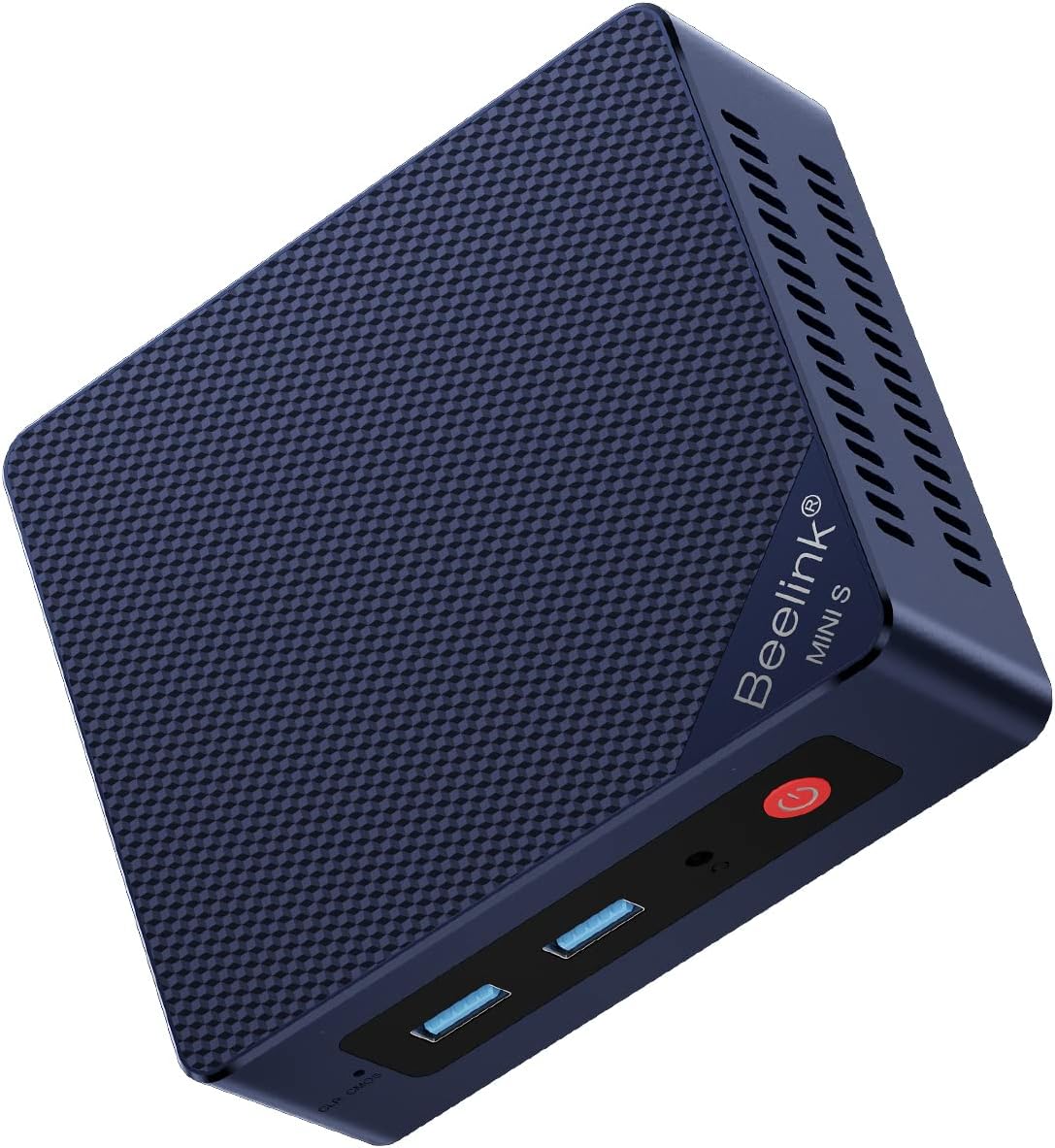
The Beelink MINI S13 is centered on the Intel Twin Lake N150, a four-core, four-thread processor reaching up to 3.4GHz. It is designed for web browsing, office applications, streaming, and online education. Its 4.4 rating and compact enclosure make it a recognizable option for teachers who need a small, straightforward computer beside a display.
We may earn a commission when you buy through this link, at no additional cost to you.
Networking is better than the processor tier might initially suggest. Two 2.5G RJ45 ports provide fast wired options, while dual-band Wi-Fi 6 and Bluetooth 5.2 cover wireless access and peripherals. Wake-on-LAN, PXE boot, RTC wake, and auto power on also make the system useful for managed or remotely operated classroom environments.
The mini PC measures 115 by 102 by 41mm, and its wall-mounting bracket can help place it behind a monitor. A cooling fan, heat sink, and hard-drive cooler support sustained operation. A 4K display at 60Hz is supported through HDMI 2.0, which is sufficient for a single instructor display but less flexible than the dual-screen options elsewhere in this guide.
The main limitation is computational headroom. Four relatively low-powered cores can handle normal teaching applications but are not ideal for advanced video production, large software builds, or simultaneous intensive workloads. Nevertheless, for conferencing, research, presentations, document preparation, and a single-screen lesson station, the MINI S13 offers a compact form and unusually strong network options.
Dual 2.5G Ethernet ports make the MINI S13 useful where low-latency connections or separate network segments matter. Wi-Fi 6 provides a convenient alternative, allowing the system to fit into classrooms without relying on a wall cable.
PXE boot, wake-on-LAN, RTC wake, and auto power on allow administrators to deploy and operate the computer more efficiently. These features are valuable in schools with shared stations or remotely managed equipment.
We may earn a commission when you buy through this link, at no additional cost to you.
The BOSGAME E5 uses an AMD Ryzen 5 5300U processor with four cores and eight threads, reaching up to 3.8GHz. It arrives with 16GB of DDR4 memory, a 512GB PCIe 3.0 NVMe SSD, and a preinstalled Windows 11 system. These specifications make it well suited to office work, video conferences, design tasks, and general multitasking.
We may earn a commission when you buy through this link, at no additional cost to you.
Its strongest teaching feature is three-monitor support. HDMI, DisplayPort, and a USB-C port capable of 4K at 60Hz allow a teacher to separate presentation slides, student communication, and lesson notes. That makes the E5 particularly suitable for detailed demonstrations or a busy online teaching interface where a single screen would become crowded.
Networking and storage are also flexible. Two 2.5G Ethernet ports support fast wired connections and advanced home or laboratory arrangements. The included 512GB NVMe drive provides quick access, while a second internal M.2 position can accept another SSD up to 2TB. Memory can be expanded to 64GB, giving the system a useful upgrade path if applications become more demanding.
Integrated Radeon graphics and the older 5300U platform make it less suitable than the newest Ryzen systems for advanced 3D or demanding media work. Even so, the balance of 16GB memory, fast storage, and triple displays is attractive for teaching. It is a particularly good fit for instructors who want a multi-screen workstation without moving to a full-size desktop.
Three outputs let teachers separate the lesson audience view from notes, chat, or student submissions. This reduces window switching and can make complex online lessons easier to manage.
The included 512GB NVMe drive provides a useful balance of capacity and speed. A second M.2 slot allows teachers to add storage for recordings, shared files, or software without abandoning the compact enclosure.
We may earn a commission when you buy through this link, at no additional cost to you.
The right teaching computer depends on software demands, display layout, class size, network infrastructure, and the number of stations being deployed. Consider performance, memory, storage, connectivity, recoverability, and physical setup before choosing a model.
A processor determines how comfortably the computer handles browser workloads, presentations, video calls, educational software, and simultaneous applications. The Celeron J3355 and N150 options are best for basic office tasks, while the Ryzen 5 3501U, 5300U, and 7640HS provide more processing headroom. The Ryzen 7 H 255 in the ACEMAGICIAN S3A is the strongest choice in this group for demanding software and multi-screen production.
Memory influences how many browser tabs, applications, and collaboration tools can remain responsive at once. Six gigabytes is workable for light tasks, 8GB provides a modest baseline, and 16GB is preferable for a full teaching day. Several systems allow memory expansion, so instructors should check both installed capacity and the supported upgrade ceiling.
A solid-state drive provides faster boot times, application launches, and file access than a conventional hard drive. Capacity also matters when storing recordings, lesson media, student work, and software installers. Look for an M.2 slot for a straightforward modern upgrade, a second drive position when available, and a 2.5-inch bay if a larger archive drive is anticipated.
Display support affects how a teacher organizes a lesson. One 4K screen is sufficient for straightforward presentations, while dual displays can separate notes, chat, and student questions from the shared lesson view. Triple-screen systems are valuable for technical demonstrations, monitoring, and advanced workflows. Resolution, refresh rate, and the number of simultaneous outputs should all be checked.
Reliable connectivity is essential for live lessons, shared documents, video calls, and online learning platforms. Wi-Fi 6 is a useful modern standard, while dual Gigabit or 2.5G Ethernet ports can provide more dependable performance in fixed installations. Some dual-LAN models also support separate networks or advanced traffic management when properly configured.
A teaching computer should accommodate the display, keyboard, mouse, webcam, microphone, printer, interactive panel, and any recording equipment used in the room. USB 3.x and USB-C improve peripheral speed and device compatibility, while HDMI and DisplayPort handle visual output. A 3.5mm audio jack or combo connection can also simplify headset and speaker setups.
A compact computer saves valuable classroom and office space, but placement also affects noise, ventilation, and service access. VESA mounting can place the system behind a compatible display, while cooling systems help maintain stable operation during long sessions. Teachers should leave enough clearance around vents and consider audible fan levels in quiet rooms.
Shared classroom machines need an easy way to recover from student changes and a support path when setup questions arise. One-click restore, remote power controls, PXE boot, BIOS power-on settings, and technical support can reduce administrative friction. Warranty length and included accessories are also useful indicators of the buyer's overall support arrangement.
Start by identifying the teaching workflow and connecting the mini PC to its display, keyboard, mouse, network, and required audio equipment. Install the latest operating-system updates, sign in with the appropriate school account, and configure display resolution, scaling, sound, microphone permissions, and camera settings before students arrive. Test the exact applications and online platform used for lessons rather than relying only on a general startup check.
For a shared station, create separate local accounts when permitted, set clear browser and application preferences, and configure the system's restore or recovery function. Test it before class so the recovery path is understood. Keep lesson materials and student work in organized folders or approved cloud services, maintain current backups, and avoid storing sensitive records on a shared machine without following institutional security policies.
Place the computer where airflow is not blocked, particularly if it is mounted behind a monitor or placed in a closed cabinet. Clean the exterior vents regularly with a dry cloth and disconnect the power before removing any peripheral equipment. Keep storage capacity from becoming completely full, install updates during noninstructional periods, and periodically confirm that displays, network links, speakers, and recovery functions still work as expected.
Yes, for typical lessons that involve a browser, presentation software, email, documents, and a video-conferencing platform. A system with 8GB or 16GB of memory will generally provide a more comfortable experience than one with 6GB. Teachers using complex creative software should favor a more powerful processor and additional memory.
It depends on the presentation style. A single display is usually adequate for a straightforward lecture, while two monitors make it easier to keep student questions, notes, and lesson content visible separately. Check the output formats and maximum resolution of both the mini PC and the intended displays before installing multiple screens.
Sixteen gigabytes is the most comfortable starting point for a teacher running several applications and many browser tabs. Eight gigabytes can be sufficient for basic work, particularly if it can be upgraded. Instructors should consider both present usage and the software they expect students to open over the life of the computer.
Wi-Fi 6 is beneficial in schools with compatible routers and access points because it supports newer wireless standards and can improve performance in busy environments. It does not automatically guarantee a faster connection, and a fixed workstation may benefit more from a stable wired Ethernet link. The best choice depends on the network infrastructure.
Many models in this guide include a VESA bracket or wall-mounting hardware. Compatibility depends on the monitor and mounting pattern, so the included hardware should be checked before purchase. Leave appropriate ventilation clearance and ensure that cables can still be connected when the computer is mounted.
The Bmax B1 Plus models are compact, preinstalled with Windows 11, and support two displays, making them suitable for basic instructional work. A teacher who expects heavier multitasking may prefer the KAMRUI AK1PLUS or Getorli system because both include 16GB of memory. Selection should follow the actual software and number of simultaneous displays.
Not for normal browser-based instruction, document work, presentations, and conferencing. Integrated graphics are generally sufficient, though the Radeon 780M and Radeon 760M options provide more capability for media or light creative work. Dedicated graphics would be necessary only for specialized 3D, rendering, or advanced visual applications beyond the scope of these models.
Keep ventilation openings clear, clean dust from exterior vents, maintain free storage space, and install updates outside instructional periods. Shared systems should use appropriate accounts, recovery tools, and security policies. Periodic checks of displays, microphones, speakers, network connectivity, and backups can prevent avoidable classroom disruptions.
The KAMRUI AK1PLUS offers the most balanced general-purpose configuration for teaching, with 16GB of memory, two 4K displays, broad port support, and extensive storage expansion. The Origimagic C4 Plus stands out for its Ryzen 5 processor and dual Gigabit Ethernet, while the Bmax B1 Plus is a compact, accessible option for essential classroom duties.
For advanced instruction, the ACEMAGICIAN S3A provides the strongest balance of processor, graphics, memory, and three-screen capability. The GMKtec M6 Ultra goes further with 32GB of DDR5 memory and high-resolution multi-display support, while the BOSGAME E5 delivers a more accessible three-screen Ryzen configuration. The remaining systems can suit dedicated stations, online instruction, and lighter workloads.
Before purchasing, confirm the current processor, memory, storage, operating-system, port, and display configuration, and compare those details with the specific software and equipment used in the classroom. Product specifications and pricing can change over time, so checking the current listing helps ensure the selected mini PC remains a practical fit.