
Razer Core X V2
4.0Editor score
Thunderbolt 5 connectivity
Four-slot graphics support
Active cooling fan
Explore the 10 best Egpu Docks for 2026, comparing bandwidth, GPU support, power options, connectivity, cooling, portability, and device compatibility.
An eGPU dock connects a desktop graphics card to a compatible laptop, mini PC, or handheld, turning a portable system into a more capable gaming or creative workstation. The strongest choices balance fast host links, flexible power, practical cooling, and compatibility with the desktop hardware you already own.
We compared the 10 docks in this guide by examining their uplink standards, advertised bandwidth, graphics-card support, power-input options, storage and networking features, physical design, and stated host-device compatibility. The list covers OCuLink, USB4, Thunderbolt 3, Thunderbolt 4, and Thunderbolt 5 designs at different levels of portability.
Each review identifies the most useful feature, the compromises to consider, and the type of user most likely to benefit. Ratings reflect the supplied marketplace feedback, while technical claims come from the listed product information. Product availability and prices can change, so confirm specifications and accessories before ordering.
4.0Editor score
4.8Editor score

4.5Editor score
The table below compares every listed eGPU dock by its host connection, advertised link speed, power support, and major practical feature, making it easier to identify the right enclosure for a particular system.




The MINISFORUM DEG2 USB4 V2 combines a desktop-class external graphics enclosure with two high-speed host interfaces, giving it more flexibility than a dock limited to a single protocol. It carries a 4.4 rating in the supplied data, and its standout feature is the ability to move between USB4 V2 and OCuLink without rearranging cables. That makes it especially interesting for owners who move between different computers or want a fallback connection when one protocol is unavailable.
We may earn a commission when you buy through this link, at no additional cost to you.
The USB4 V2 path is listed at up to 80Gbps, while the OCuLink path reaches up to 64Gbps. A dedicated hardware switch changes between the two modes, and a re-drive signal booster is intended to stabilize PCIe transfers. The enclosure also includes an M.2 2280 slot for NVMe storage, potentially keeping models, project files, and assets close to the graphics card. A single Thunderbolt-compatible cable can handle data, display output, and host charging, with automatic power synchronization adding to the desktop-style convenience.
Power compatibility is another strength. The dock accepts standard ATX and SFX power supplies, giving users flexibility over capacity, form factor, and the power requirements of a particular graphics card. The principal compromises are practical rather than fundamental: the graphics card and power supply are not included, and host performance depends on having a compatible USB4 V2 or OCuLink interface with appropriate drivers and settings.
This DEG2 is a strong choice for a creator or developer who wants one enclosure to handle both very fast USB4 connections and dedicated OCuLink bandwidth. It also makes sense for someone who values local storage and one-cable docking enough to accept a more involved initial assembly. Among the listed docks, it offers one of the broadest combinations of speed, storage, and connection options.
The physical switch between USB4 V2 and OCuLink lets the enclosure adapt to more than one workstation. USB4 V2 provides the higher advertised bandwidth, while OCuLink remains a useful dedicated path for systems and setups built around PCIe expansion.
The M.2 2280 slot can hold NVMe storage for active project files, AI models, or other assets. Keeping frequently used data in the enclosure may reduce repeated transfers between the host and external graphics card.
We may earn a commission when you buy through this link, at no additional cost to you.
The MINISFORUM DEG2 Docking Station is the most fully equipped traditional dock in this roundup, combining external graphics expansion with a 2.5G LAN port, multiple USB ports, NVMe storage, and both OCuLink and USB4 V2. Its supplied rating is 5.0, the highest among the listed products. The result feels designed not merely as a graphics-card box but as a compact bridge between a portable computer and a full desktop workspace.
We may earn a commission when you buy through this link, at no additional cost to you.
The 80Gbps USB4 V2 connection can serve data, displays, and host charging, while OCuLink supplies a separate 64Gbps route. A physical toggle changes modes without software adjustments or cable swapping. The enclosure's 2.5G LAN port is a particularly useful addition for transfers involving large files, and the internal M.2 2280 bay gives active workloads a place to keep models or project assets. Standard ATX and SFX power supplies are supported.
There are clear limitations. The desktop GPU and power supply are not included, and the listing says the dock does not work with the MINISFORUM MS-02 workstation. Users should also ensure that their host supports the selected protocol and that the graphics card, PSU, and enclosure fit together without conflicting dimensions. The numerous features also make the design less minimalist than a compact OCuLink-only enclosure.
Buy this DEG2 if you want a laptop or mini PC to connect to a desktop GPU, wired networking, USB accessories, local storage, and power through a streamlined setup. It is especially attractive for users who change hosts and do not want to maintain separate docks for USB4 and OCuLink systems. The high rating and unusually complete port list make it a particularly compelling all-round recommendation.
The 2.5G LAN port and USB 3.2 connections give the dock more everyday utility than a basic graphics enclosure. Fast wired networking is particularly valuable when moving large media, datasets, or rendering assets between a portable host and the external GPU.
Automatic power synchronization and reverse power delivery help create a more seamless connection experience. A compatible host can treat the enclosure as an expanded desktop setup rather than requiring repeated manual startup procedures.
We may earn a commission when you buy through this link, at no additional cost to you.
The Razer Core X V2 is a spacious, performance-oriented external graphics enclosure aimed at users who want to install a substantial desktop card in a laptop or compact computer. It supports Thunderbolt 5 at up to 80Gbps and works with Thunderbolt 4, Thunderbolt 5, and USB4 devices. Its 4.0 rating reflects positive supplied feedback, while the physical design and 140W charging provision give it a clear premium orientation.
We may earn a commission when you buy through this link, at no additional cost to you.
Unlike a small OCuLink-only box, the Core X V2 accepts desktop graphics cards up to four slots wide. Its vented steel chassis and automatically controlled 120mm fan are designed to sustain performance during demanding games, rendering, or compute workloads. Graphics cards and ATX power supplies are sold separately, but tool-free thumbscrews simplify installation and make component changes more approachable.
The trade-off is host compatibility. Thunderbolt 5 offers the highest advertised bandwidth in this group, but older Thunderbolt 4 and USB4 systems will connect at their own supported limits. Mac devices with M1 or later chipsets do not support eGPUs according to the product information, and the enclosure is larger than compact docks. Buyers must also account for the power, physical size, and heat requirements of a wide graphics card.
This is a compelling choice for a Windows 11 gaming laptop, a creative workstation, or another compatible system that benefits from a large GPU and a simpler single-cable workflow. It is less suitable for frequent travel, Mac users, or anyone who already owns a compact computer with no room for a four-slot card.
Four-slot clearance makes the Core X V2 more accommodating than most portable enclosures. Users can consider larger desktop cards without selecting a model limited to slim, single-fan designs.
A built-in 120mm fan automatically increases activity during heavy workloads and can be adjusted with a custom fan curve. Active cooling is especially relevant when dense graphics cards push warm air into a confined enclosure.
We may earn a commission when you buy through this link, at no additional cost to you.
The MINISFORUM DEG1 is built around the idea that a useful eGPU dock should be easy to carry. At approximately 14 centimeters long, 6.5 centimeters wide, and 2 centimeters high, it is considerably more compact than a full desktop chassis. Its 4.5 rating is among the stronger results in the supplied data, and the OCuLink 4i interface makes it a focused option for users who already have suitable host hardware.
We may earn a commission when you buy through this link, at no additional cost to you.
The dock provides an OCuLink 4i uplink and PCIe x16 downlink, both described as PCIe 4.0 x4 links with transfer rates up to 64Gbps. Signal amplifier chips are included to improve transmission stability, and the connector has a locking mechanism to reduce accidental unplugging. It supports standard ATX and SFX power supplies, while the product information says graphics cards of various sizes can be used without a stated length restriction.
Force Power On with an LED offers control between forced startup and startup tracking. The tracking function is limited to compatible MINISFORUM mini PCs and requires original cables. A major operational caveat is that OCuLink does not support hot plugging: the host must be turned off before the cable is removed. The enclosure is also much less connected than a full docking station.
Choose the DEG1 for a portable workstation that uses OCuLink and needs a compact graphics expansion box. It is particularly useful for owners of compatible MINISFORUM mini PCs who value the startup behavior and locking connector. If you need USB ports, Ethernet, display integration, or frequent cable swapping, one of the larger USB4 docks is a better fit.
The DEG1's shallow, compact form can fit in a backpack or handbag more easily than a conventional desktop enclosure. That portability makes it useful for users who occasionally connect a desktop GPU at a fixed workstation.
The locking interface helps guard the host port from accidental disconnection. Signal amplification also supports more stable PCIe communication, although users must still follow the requirement to power down before unplugging.
We may earn a commission when you buy through this link, at no additional cost to you.
This PCIe 4.0 x4 eGPU dock offers a straightforward OCuLink route to a full-size desktop graphics card. It has a 4.4 rating, matching several more elaborate products, and its principal appeal lies in broad card compatibility and a detachable cable design. The package includes an OCuLink SFF-8612 female-to-PCIe x16 enclosure dock and a 50-centimeter SFF-8611 male-to-male cable.
We may earn a commission when you buy through this link, at no additional cost to you.
The PCB uses 10-microinch gold-plated contacts intended to maintain conductivity and resist oxidation-related resistance. A flat, fully shielded OCuLink cable is only 0.5 millimeters thick, making it easier to route than a bulky conventional cable. Multi-status LEDs provide visual feedback, and the enclosure supports graphics cards of various sizes, including examples such as the RTX 4090 and AMD RX 7900 XTX.
The main limitation is power flexibility. This dock accepts standard ATX power supplies only, rather than also supporting SFX or SFX-L units. Dual screw mounting helps stabilize the PSU, but users must source a suitable unit. Like the other OCuLink products in this guide, it does not support hot plugging, so the computer should be shut down before the uplink is disconnected.
This is a practical choice for a builder who has a standard ATX power supply and wants a large desktop GPU connected through OCuLink. The detachable ends and slim cable improve handling and storage. Users who expect SFX support, integrated networking, or a simpler one-cable host workflow should consider a more specialized dock.
Separating the enclosure and host cable makes the system easier to pack than a permanently wired chassis. The thin shielded lead also reduces strain and offers more routing flexibility around a desk or workstation.
The gold-plated PCB contacts are designed to limit corrosion and maintain dependable signal quality. This is a subtle specification, but it matters in a high-bandwidth connection that may be assembled and moved repeatedly.
We may earn a commission when you buy through this link, at no additional cost to you.
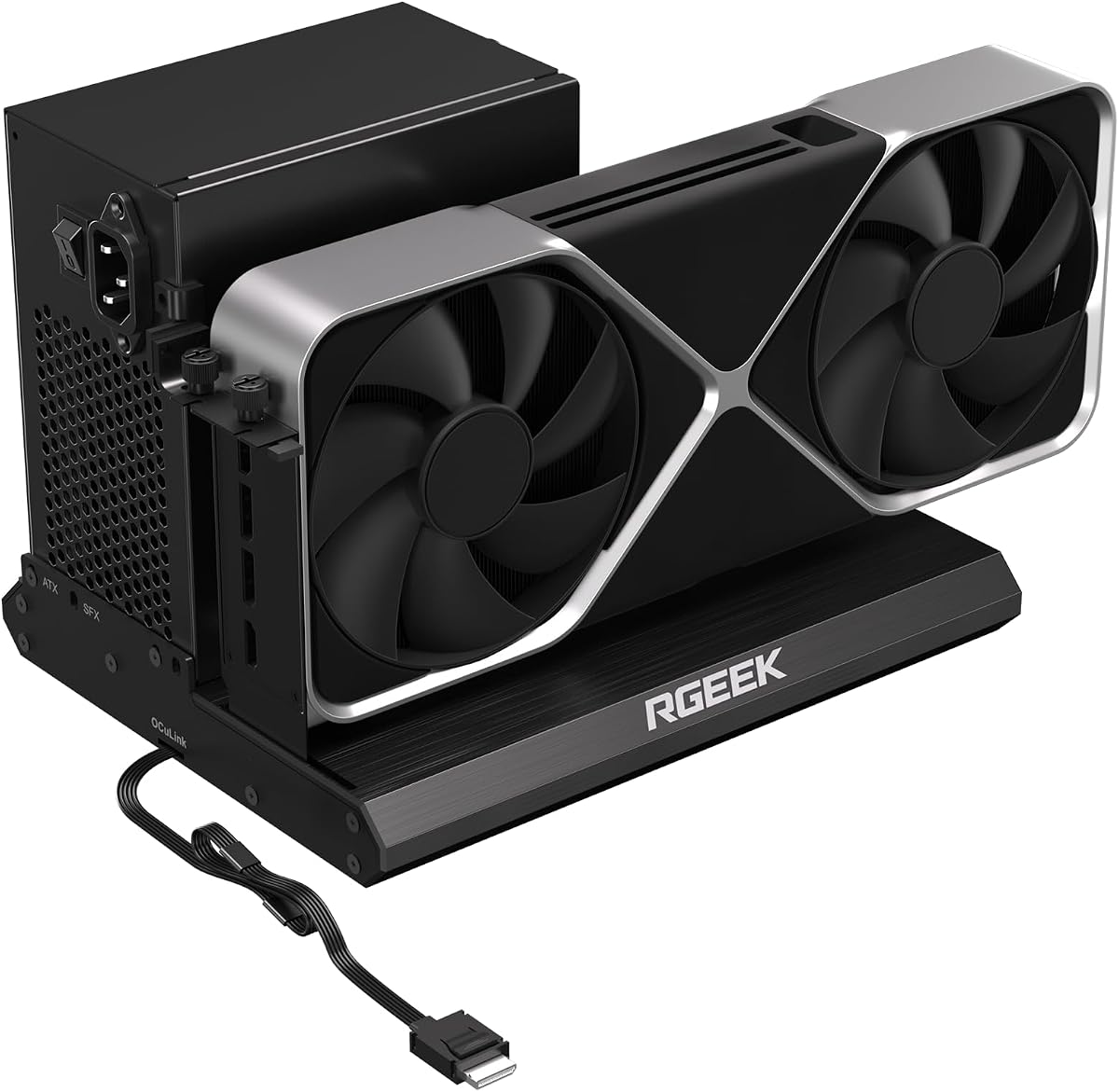
The RGEEK OCuLink eGPU Dock targets users who want more than the usual PCIe 4.0 x4 connection. It advertises PCIe 5.0 x4 performance at up to 128Gbps and is backward compatible with PCIe 4.0 and 3.0. The supplied rating is 4.0, while the major selling point is the potential bandwidth of a modern PCIe 5.0 host path.
We may earn a commission when you buy through this link, at no additional cost to you.
Reaching the full advertised rate requires an appropriate host interface, such as a suitable M.2 slot or PCIe 5.0-to-OCuLink adapter. The required adapter is not included, and the listing notes that most existing OCuLink ports support PCIe 4.0. The enclosure itself uses an aluminum body for heat dissipation and durability, and its factory-soldered cable is designed to minimize signal loss and avoid an additional adapter.
Power support is broad, covering ATX, SFX, and SFX-L power supplies. The product information states that there is no graphics-card size restriction and names mainstream NVIDIA and AMD cards as compatible examples. The fixed cable simplifies the host-side assembly, but it can make packing and cable management less convenient than a fully detachable design. Hot plugging is also not supported.
Buy the RGEEK when you have—or intend to build—a genuine PCIe 5.0 host path and need the enclosure to prepare for future bandwidth demands. It is also attractive to creators who want an aluminum enclosure with broad PSU support. For an ordinary PCIe 4.0 laptop, paying attention to a specification that the host cannot use would add little practical value.
The 128Gbps specification gives the dock headroom for PCIe 5.0 host systems and makes it relevant to workstation builders planning future upgrades. Backward compatibility helps preserve usefulness on older equipment, even at reduced link capability.
A full aluminum chassis helps dissipate heat and withstand repeated handling. It is a sensible option for a fixed workstation that must accommodate a large graphics card and a conventional desktop power supply.
We may earn a commission when you buy through this link, at no additional cost to you.
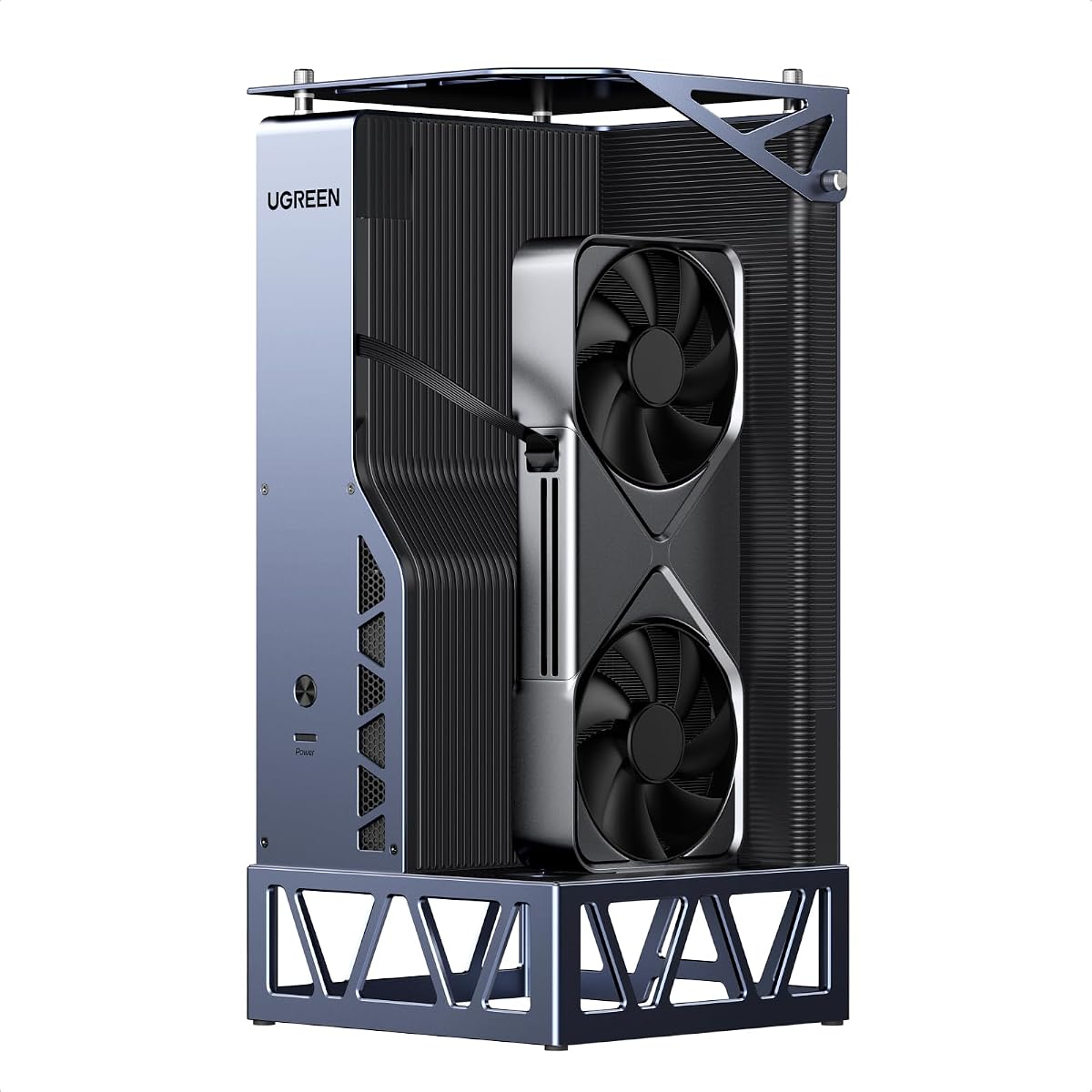
The UGREEN LinkStation eGPU Dock is a broad, enthusiast-oriented enclosure that accommodates both OCuLink and USB4. Its 4.8 rating is the second-highest supplied result, and its feature set goes well beyond a basic graphics adapter. The dock is designed to transform compatible laptops, handhelds, and mini PCs with a full-size desktop GPU while supplying up to 100W of host charging over one cable.
We may earn a commission when you buy through this link, at no additional cost to you.
OCuLink provides PCIe 4.0 x4 bandwidth at up to 64Gbps for low-latency expansion, while USB4 or Thunderbolt 4 operates at up to 40Gbps and offers wider host compatibility and hot-swap convenience. A built-in signal booster supports stable transmission. The enclosure works with NVIDIA, AMD, and Intel graphics cards and supports Windows, Linux, and Intel-based macOS, including several explicitly listed tested card models.
The semi-open aluminum chassis accommodates cards up to 370 millimeters long and as many as four slots thick, although the PCIe bracket opening supports only dual-slot brackets rather than triple-slot versions. A low-RPM ATX 3.1 PSU fan is intended to provide quiet cooling, and an integrated cable compartment keeps the installation tidy. Support for current high-end power connectors is also listed.
This is a strong all-round recommendation for a creator, gamer, or developer who wants flexibility between dedicated PCIe and universal USB4 connections. It works especially well when the host changes but the external GPU remains constant. Buyers should verify the card's bracket and heatsink dimensions, and users on Apple silicon should not assume Intel-based macOS support extends to their machine.
OCuLink serves performance-focused systems with a direct PCIe path, while USB4 broadens compatibility and simplifies hot-swapping. Having both means the same enclosure can support several classes of portable computer.
The removable top cover and 370-millimeter clearance support substantial desktop graphics cards. The four-slot height allowance is useful for robust coolers, but the enclosure cannot accept triple-slot rear brackets.
We may earn a commission when you buy through this link, at no additional cost to you.
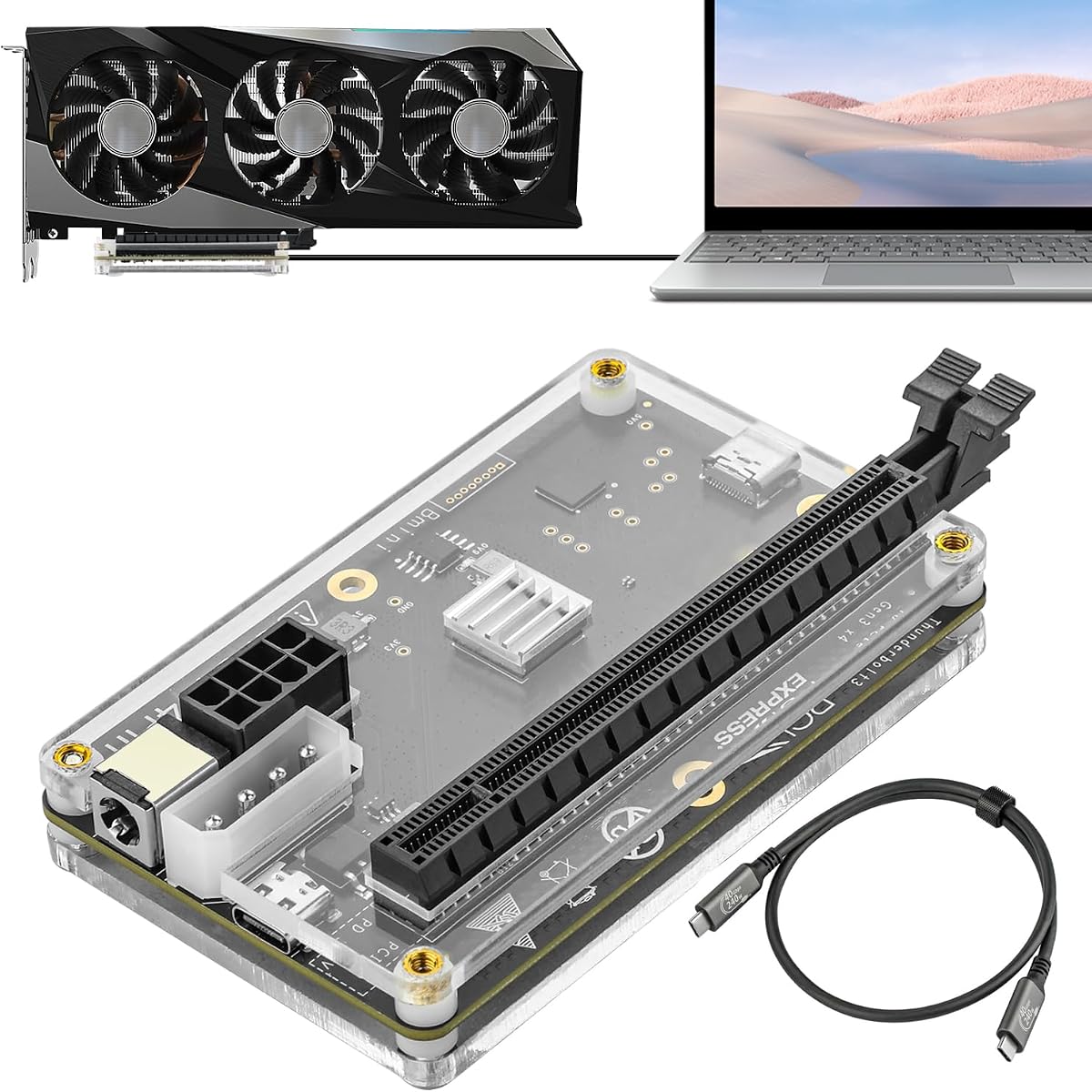
The PCIe 3.0 x16 Thunderbolt Dock offers a broadly accessible way to add a desktop graphics card to a compatible computer. Its 3.8 rating is the lowest among the listed docks, but the enclosure includes useful features that can compensate for its more modest advertised transfer speed. It uses a JHL6340 controller and supports Thunderbolt 3, Thunderbolt 4, and USB4 connections.
We may earn a commission when you buy through this link, at no additional cost to you.
The listed transfer speed is around 22Gbps, well below the OCuLink, USB4 V2, and Thunderbolt 5 alternatives in this guide. It is still intended for graphics work, video editing, AI art, and AAA gaming. Compatibility covers most Windows 10 or 11 and Linux systems with a Thunderbolt port and an Intel or AMD processor, including devices such as the Lenovo Legion Go. Some consoles may require a BIOS update to activate USB4.
Its standout practical feature is the choice of four power inputs: CPU 4+4-pin, Molex, PD 3.0 up to 60 watts, or DC5521 up to 120 watts. This makes it easier to match an enclosure to available desktop hardware. NVIDIA and AMD graphics cards are supported, although Intel graphics are not recommended. The package includes a Thunderbolt 4 cable and a 24-pin power jumper cable.
Choose this dock if your computer has Thunderbolt or USB4 but you need more flexible power arrangements than a standard ATX-only design. It is a practical choice for experimenting with external graphics, especially in a stationary setup. Users seeking maximum bandwidth for demanding workloads should look toward a dedicated PCIe 4.0 x4 OCuLink dock or a newer Thunderbolt 5 enclosure.
Four input formats make the enclosure less dependent on a particular power supply ecosystem. This flexibility is useful when reusing desktop components or building a compact workstation around portable power.
Thunderbolt 3, Thunderbolt 4, and USB4 support gives the dock access to many modern laptops and handhelds. A host with USB4 may need a BIOS update or correct controller configuration before the connection is available.
We may earn a commission when you buy through this link, at no additional cost to you.
The MINISFORUM DEG2 External Dock combines an 80Gbps USB4 V2 connection, 64Gbps OCuLink, M.2 storage, 2.5G Ethernet, and USB 3.2 ports in a traditional external graphics enclosure. It has a 3.2 rating, the lowest of the ten products, but its specification list is among the strongest. Buyers should therefore weigh the dock's design and connectivity carefully rather than relying on feedback volume alone.
We may earn a commission when you buy through this link, at no additional cost to you.
A physical toggle changes between USB4 V2 and OCuLink, allowing one enclosure to work with different host systems. The M.2 2280 slot can hold project assets or AI models near the graphics card, while 2.5G LAN provides a high-speed wired route for large transfers. The dock also supports USB4 V2 reverse power, automatic host synchronization, ATX and SFX power supplies, and full-size GPUs.
As with the other DEG2 listings, the graphics card and power supply are not included. The enclosure is also explicitly incompatible with the MINISFORUM MS-02 workstation. The 3.2 rating may reflect early customer experience, a fit-and-finish concern, or another issue not addressed in the supplied facts. Its design still provides two high-bandwidth paths and several useful peripheral connections.
This DEG2 is best for a user who values a complete set of desk functions—graphics, storage, fast Ethernet, and USB—in one enclosure. It may be especially useful for AI, editing, or development workflows that benefit from keeping active data near the external GPU. Buyers should review recent customer feedback and confirm host compatibility before making a final decision.
The combined M.2 slot and 2.5G LAN port differentiates this dock from simple graphics boxes. Together, they support local storage and efficient movement of large project files around the workstation.
USB4 V2 reverse power and automatic power synchronization can simplify startup. The single connection can carry the expanded display setup and host charging while reducing the number of cables attached to a portable computer.
We may earn a commission when you buy through this link, at no additional cost to you.
The JHL7440 Thunderbolt Dock is a straightforward enclosure for users with a Thunderbolt 3, Thunderbolt 4, or USB4 host. It has a 3.9 rating and uses an officially certified JHL7440 controller with a 40Gbps Thunderbolt 4 connection. The design is aimed at gaming, AI inference, 3D modeling, rendering, and other tasks that benefit from a full-size graphics card.
We may earn a commission when you buy through this link, at no additional cost to you.
The host port also provides 85W Power Delivery, allowing the dock to charge a compatible laptop while handling the graphics connection. A USB-A port and daisy-chain connection turn the enclosure into a modest hub as well as a graphics adapter. The product information lists support for NUCs, laptops, and gaming systems, including current NVIDIA RTX 50-series and AMD RX 7000-series graphics cards.
The dock does not include an ATX power supply or graphics card, and a host must have the correct Thunderbolt or USB4 port. A prominent warning explains that the CPU power cable must not be inserted into the PCIe 8-pin port because the enclosure's protection system may shut down. This makes careful cable identification especially important during setup.
Choose this dock if you want a familiar Thunderbolt ecosystem, want host charging, and do not need OCuLink's dedicated PCIe path or the very high bandwidth of USB4 V2 and Thunderbolt 5. It is a sensible option for a compatible compact computer used at a stationary desk, provided you verify power requirements and follow the manufacturer's connection guidance carefully.
The JHL7440 controller provides a standardized Thunderbolt path for compatible laptops and small computers. Its 40Gbps link is well suited to many creative and gaming tasks, even though it is not the fastest connection featured in this guide.
Delivering up to 85W of host charging while operating as an eGPU can reduce desk clutter. USB-A and daisy-chain ports also allow selected peripherals to connect through the dock.
We may earn a commission when you buy through this link, at no additional cost to you.
The right eGPU dock depends on your host interface, graphics card, power supply, and tolerance for a large enclosure. Prioritize the connection and physical fit first, then consider cooling, storage, networking, and convenience features.
Start with the port your computer actually has. OCuLink provides a dedicated PCIe path and is attractive for compatible mini PCs and laptops that value predictable graphics performance. USB4 and Thunderbolt are more universal among modern portable devices, with Thunderbolt 5 and USB4 V2 offering the highest advertised bandwidth in this group. Older Thunderbolt 3 and 4 systems can use many USB4 docks, but the connection will operate within the limits of the host and controller.
A dock cannot overcome a missing or unsupported host interface. Check the computer's specifications, confirm the appropriate driver support, and avoid assuming that a USB-C-shaped port supports the required protocol. Match the physical connector and ensure that the host is configured to use the full advertised link.
Advertised bandwidth ranges from around 22Gbps in the Thunderbolt-based PCIe 3.0 model to 128Gbps for the PCIe 5.0 OCuLink dock. The DEG2 models advertise up to 80Gbps over USB4 V2, while the UGREEN and Razer options offer USB4 at 40Gbps or Thunderbolt 5 at up to 80Gbps. OCuLink PCIe 4.0 x4 docks are listed at 64Gbps and often serve as a practical high-performance path.
Prioritize bandwidth when moving data continuously, running demanding simulations, or working with high-resolution content. For many games and general desktop tasks, a stable lower-bandwidth connection can be sufficient, but the host protocol will determine the real result. Do not treat a maximum dock specification as a guaranteed workload speed.
An external graphics enclosure must accommodate the length, height, slot width, power connectors, and cooler of the chosen card. The UGREEN LinkStation supports cards up to 370 millimeters long and four slots tall but requires a dual-slot rear bracket. The Razer Core X V2 accommodates cards up to four slots wide. The compact DEG1 and RGEEK products advertise broad card-size support, but their chassis and mounting arrangements still need to be compared with the exact GPU.
Measure before buying. Include clearance for the card's power plugs, cable bends, fans, and the space required to remove the card. Do not assume that support for a particular GPU model guarantees that every similarly named card will physically fit.
Desktop graphics cards require more power than many laptops and handhelds can provide. Some docks accept standard ATX power supplies, while others support SFX or SFX-L units. The Razer Core X V2 is described as using ATX power supplies, and the DEG2 models accept both ATX and SFX. The generic PCIe 4.0 x4 dock supports ATX only, while the RGEEK enclosure accepts all three common desktop formats.
Choose a power supply with adequate wattage and the required connectors, but avoid adding unnecessary capacity that does not fit the chassis. Confirm the input-voltage requirements of both the graphics card and power supply, route cables without blocking airflow, and verify that the dock's power-switching behavior matches the host.
External GPUs generate substantial heat, and a compact shell can trap it around the card. The Razer Core X V2 includes a 120mm fan that ramps up under load. The UGREEN LinkStation uses a semi-open aluminum chassis and a low-RPM ATX 3.1 power-supply fan for quieter operation. Other models emphasize removable covers, aluminum construction, or ventilation rather than a dedicated high-speed fan.
Prioritize open airflow, adequate internal clearance, and a power supply that does not obstruct the graphics card. Fan noise matters in a bedroom or recording environment, while sustained thermal headroom matters more for long rendering or AI sessions. Confirm that a custom fan curve or software controls are available if you want fine-grained acoustic control.
A basic eGPU enclosure may offer nothing beyond the graphics-card slot and host uplink. The MINISFORUM DEG2 variants add M.2 2280 storage, 2.5G Ethernet, and USB 3.2 ports, while the JHL7440 dock includes USB-A and daisy-chain functionality. These extras can reduce desk clutter and make the enclosure more useful for file transfer, peripherals, and display workflows.
Prioritize features you will use daily. An integrated fast network port is valuable for large media files, while local NVMe storage can be useful for active models. A simple dedicated GPU enclosure may be better if your priority is low cost, portability, or a clean installation with few external devices.
The supported devices range from Windows laptops and mini PCs to Linux systems, gaming handhelds, and some Intel-based macOS configurations. Apple silicon machines are not supported by the Razer Core X V2, and the listing says M1-or-later Macs do not support eGPUs. Some USB4-compatible consoles may require a BIOS update. MINISFORUM also states that its DEG2 dock does not work with the MS-02 workstation.
Check both the operating system and the specific host model. Driver support, firmware, BIOS settings, and port capabilities can all determine whether an eGPU is detected reliably. Even when the connection is recognized, an application may need to be directed to the external graphics adapter through its own graphics settings.
Before assembly, confirm that the host supports the dock's chosen protocol, install the operating-system and graphics-card drivers, and verify that the graphics card and power supply fit inside the enclosure. Connect the correct host cable, attach the selected power supply, and secure every card bracket and PSU screw. Follow the dock's port labels rather than relying on connector shape alone, particularly when several power leads look similar.
Start with the host shut down for an OCuLink connection because the listed OCuLink docks do not support hot plugging. USB4 models may offer more flexible reconnection behavior, but it is still best to follow the manufacturer's instructions. Once the system is powered on, confirm that the external GPU appears in the operating system's graphics controls and that applications are using the intended adapter.
Keep the enclosure ventilated and leave adequate space around its panels and cables. Clean dust from vents and fans periodically, monitor temperatures during long workloads, and avoid leaving the setup in a closed cabinet without airflow. Do not unplug an OCuLink uplink while the computer is running, and do not connect power cables to the wrong port. For storage or dock accessories, back up important data and avoid interrupting firmware or driver updates.
OCuLink is a dedicated PCIe connection intended to provide high graphics-expansion bandwidth with low latency. Thunderbolt and USB4 are more widely available on modern laptops and can also carry display and charging functions. The best choice depends on the ports already present on the host and the bandwidth required by the workload.
No. The host must have the required OCuLink, Thunderbolt, or USB4 interface, compatible drivers, and suitable operating-system support. Some devices also need a BIOS update, while certain Mac and MINISFORUM combinations are explicitly excluded by the manufacturers.
Most of the listed docks are sold as enclosures and do not include a desktop graphics card or power supply. The UGREEN listing notes that compatible cards and power supplies are separate, while the other models similarly describe them as user-supplied components. Check the package contents before building a complete system.
The OCuLink products in this guide state that hot plugging is unsupported. The computer should be powered off before the OCuLink cable is disconnected, reducing the risk of connection faults or equipment damage. USB4 docks may permit more convenient reconnection, but their manuals should still be followed.
It depends on the dock and graphics card. The Razer Core X V2 and generic PCIe 4.0 x4 dock are described as using standard ATX power supplies, while the DEG2 supports ATX and SFX. The RGEEK dock supports ATX, SFX, and SFX-L, and the Thunderbolt dock accepts several alternative power inputs.
Check card length, slot width, cooler height, rear bracket style, and power-connector clearance. The UGREEN supports cards up to 370 millimeters long and four slots high but requires a dual-slot rear bracket. The Razer accepts cards up to four slots wide, and other docks may have different physical constraints.
Start by confirming that the host has the required port, the correct drivers are installed, and the power supply is connected correctly. Also check that the operating system recognizes the enclosure and that the application is configured to use the external adapter. Cable seating, host firmware, and insufficient PSU capacity can also affect detection.
No. The host operating system and individual game must support or allow use of the external graphics adapter. Even with detection, some titles or applications remain tied to integrated graphics, so selecting the external GPU in the system's graphics settings is often necessary.
The UGREEN LinkStation stands out for its combination of OCuLink, USB4, broad operating-system support, generous card clearance, quiet cooling, and useful host charging. The Razer Core X V2 is the premium choice for users who want a spacious, actively cooled enclosure with Thunderbolt 5, while the compact MINISFORUM DEG1 offers a focused and portable OCuLink solution.
The most important decision is compatibility. Check the host port first, then confirm card dimensions, PSU format, operating-system support, and cooling. OCuLink users should prioritize bandwidth but plan to shut down before disconnecting, while USB4 buyers should compare the actual host link against the dock's maximum specification. Storage, Ethernet, and host charging are useful secondary features when they match the workflow.
Finally, review the latest ratings, package contents, and manufacturer instructions before purchasing, because product configurations and marketplace feedback can change. The best eGPU dock is not merely the one with the highest headline bandwidth; it is the enclosure that connects cleanly to your computer, accepts the graphics card and power supply you own, and supports the applications you actually run.